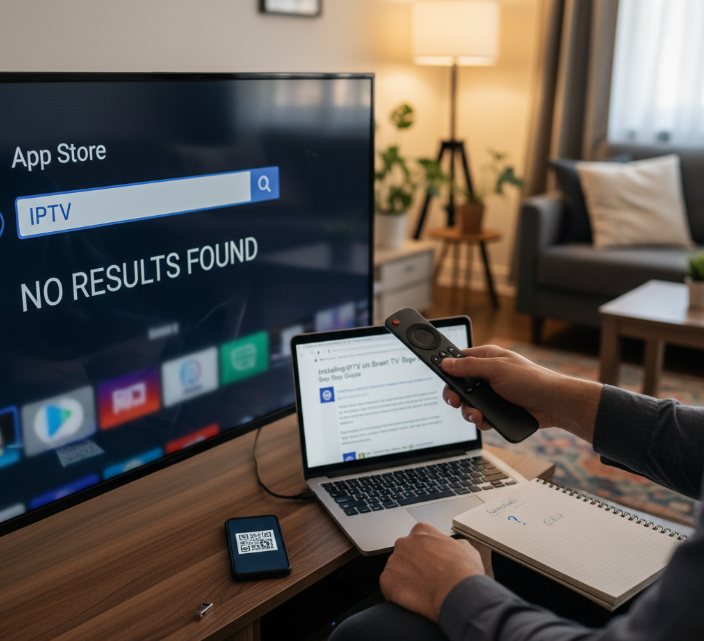
Setting up IPTV apps on your TV shouldn’t feel like fixing a leaky faucet in the middle of winter — but for a lot of folks, that’s exactly how it goes. You open the app store, type in “IPTV,” and boom — nothing shows up. Now you’re stuck wondering if your TV’s too old, too new, or just plain fussy.
We’ve heard the same story from techs and families across Canada: “The setup looks easy online, but in real life, it’s a bit of a head-scratcher.” That’s why this guide skips the fluff and gets straight to what matters — making sure your TV’s compatible, walking you through the install, and getting your playlist to actually play.
You’ll get five straight-shooting sections, from simple installs to backup plans like sideloading — all written with real-life TV models and common hiccups in mind. No guessing, no shady downloads, no stress.
“90% of IPTV install fails come down to three things: wrong method, unsupported format, or missing permissions,” says a senior engineer at StarIptv. “Tweak those, and you’re golden.”
So, if your screen’s ready and you’re tired of buffering blues, let’s get that IPTV app running smooth as a Tim Hortons drive-thru at 7 AM.
Is your TV compatible with IPTV apps?
Before diving into setup, let’s figure out if your TV can even run an IPTV app.
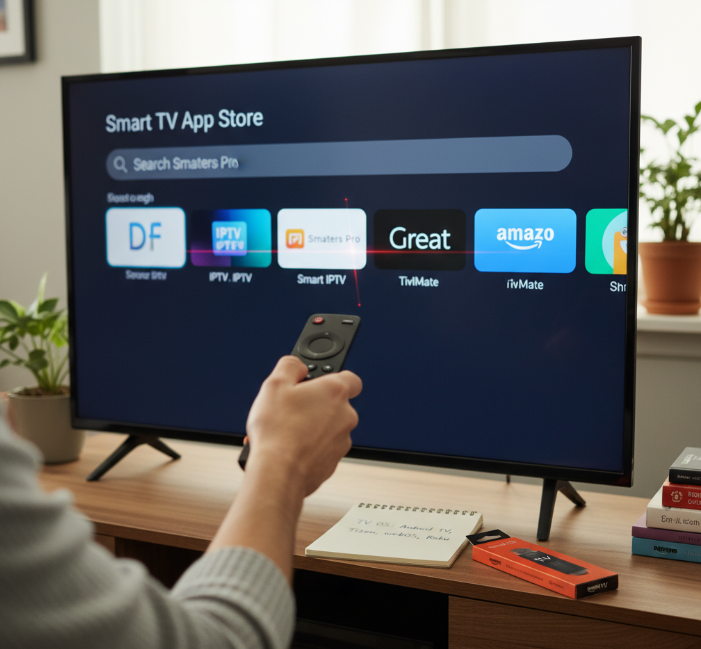
You wouldn't believe how many folks spend hours trying to install IPTV apps, only to find out their TV isn’t compatible in the first place. Don't be that person—check this list before you bother sideloading files or searching for APKs.
Here’s the scoop on how to know if your Smart TV is IPTV-friendly.
Quick Ways to Check IPTV App Compatibility
Check your TV’s operating system.
Android TV: This one's gold. Most IPTV apps are designed for Android, so if your TV runs Android TV, you're in business.
Tizen (Samsung) and webOS (LG): These operating systems have limited IPTV app support. You may be stuck with official apps from the App Store, and sideloading is rarely an option.
Roku TV: Sadly, Roku doesn’t allow sideloading IPTV apps anymore. It’s a locked-down system.
Head to your TV’s app store.
Search for popular IPTV apps like “Smart IPTV,” “IPTV Smarters Pro,” or “TiviMate.”
If nothing shows up, that’s a red flag—but don’t panic yet. You might still be able to use an external device.
Still no luck? Think about sideloading.
If your TV runs Android TV, you can sideload IPTV apps using a USB stick or apps like Downloader.
Warning: If you’re not sure what “sideloading” is, this may not be your jam. Sideloading can work well but might void warranties or create security risks.
Common TV Brands and IPTV Compatibility
| Brand | Operating System | IPTV App Support | Sideload Option |
|---|---|---|---|
| Sony | Android TV | ✅ High | ✅ Yes |
| Samsung | Tizen | ⚠️ Limited | ❌ No |
| LG | webOS | ⚠️ Limited | ❌ No |
| Hisense | Android TV | ✅ High | ✅ Yes |
| TCL (Roku) | Roku TV | ❌ None | ❌ No |
Note: If you're using a Roku or older Samsung TV, consider adding a Fire TV Stick or Android TV box to open the door to IPTV.
StarIPTV Expert Tip
“We get tons of support tickets that end with us telling the user, ‘Yeah… your TV just doesn’t support it.’ We always recommend checking compatibility before you go down the rabbit hole,”
— Dave Wong, Lead Tech at StarIPTV
Real Talk from Canadian Users
“I spent half my Sunday trying to get IPTV on my LG TV. Should’ve just bought the Fire Stick from the start. Wish I’d known it doesn’t run Android.”
— Karen D., Toronto
“Once I figured out my Hisense was running Android TV, it was a breeze. TiviMate was in the Play Store, boom, done.”
— Marco P., Vancouver
Not every Smart TV is smart enough for IPTV apps. Android TV models? You're golden. Others like Roku or webOS? Might be time to bring in the Fire TV Stick or a cheap set-top box. Compatibility is step zero—skip it, and you’re in for a world of frustration.
3 simple steps to install IPTV apps on any TV
A fast, clear breakdown of how to get IPTV apps up and running smoothly on your screen.
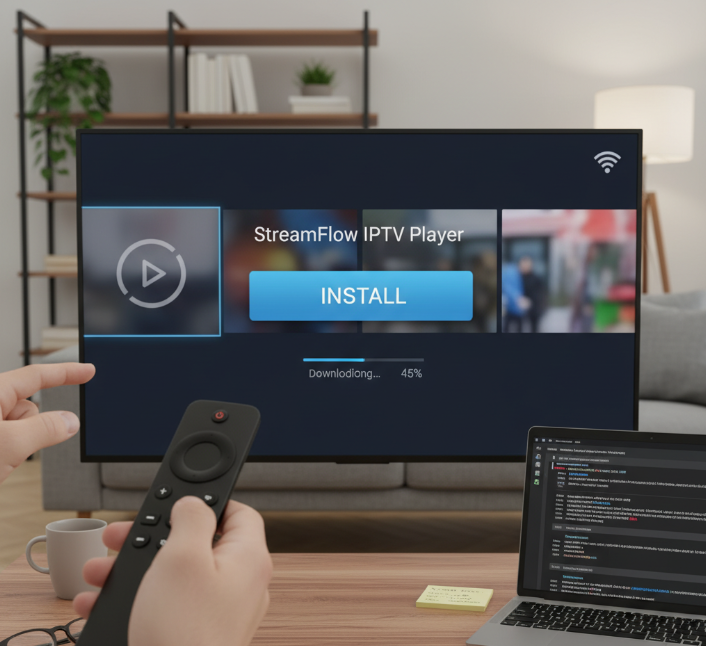
Preparing your smart television or set-top box for IPTV apps
Check your Smart TV or set-top box meets these must-haves:
Stable internet connection (Wi-Fi or LAN)
Enough storage space (at least 200MB free)
Updated operating system (e.g., Android TV 11+)
Latest firmware (check under system settings)
Access to app store or sideloading options
Functional remote control with navigation keys
If your device doesn’t tick all these, you might hit speed bumps. Keeping firmware updated not only fixes bugs but often improves app performance, too.
Installing IPTV apps with user login and authentication process
Open the app store on your device and search for a trusted IPTV app.
Tap “Install” and wait for the download to complete.
Launch the app and create or log in to your user account.
Enter your login details and complete the authentication (might be a code or link).
If prompted, choose your subscription plan (some offer free trials).
💬 “Our users install apps in under 3 minutes when using password managers to auto-fill logins,” says Marco from StarIPTV’s UX team.
Initial setup: M3U playlist or Xtream Codes API configuration
Some IPTV apps feel complicated, but once you know where to punch in your info, it’s a breeze.
Open the IPTV app’s configuration section.
For M3U playlist:
Paste your M3U URL (from your provider).
Save and refresh.
For Xtream Codes API:
Input server address, username, and password.
Hit “Connect” or “Login”.
Activate EPG if offered—this enables the channel guide.
If nothing loads, double-check the server details—they’re case-sensitive!
Verifying live TV, video on demand, and EPG display playback
Your IPTV’s working... or is it? Here’s how to make sure your stream isn’t lying.
Playback Quality Checklist
| Feature | What to Check | Good Sign | Fix If Needed |
|---|---|---|---|
| Live TV | Channel loads in under 3 seconds | Smooth start, no lag | Check network speed |
| VOD | Movies/TV series start clean | High resolution, no delays | Reboot app or clear cache |
| EPG | Channel guide displays full schedule | Accurate times, no gaps | Refresh source or reimport |
Always test 3–4 channels and a VOD title. If buffering keeps popping up, try lowering resolution in the settings or switch to a wired connection.
5 ways to install IPTV apps on smart TVs
Don’t panic if your TV doesn’t have the app preloaded — here are five easy ways to get IPTV streaming in no time.
App store installation on Android TV and Apple TV box
Head to the Google Play Store on Android TV OS or the Apple App Store on tvOS.
Search for official apps like “IPTV Smarters Pro” or “TiviMate.”
Tap Download and let it install.
Log in with your IPTV service credentials.
Launch and enjoy Smart TV apps like live TV, VOD, and catch-up TV.
> 💬 "We always recommend going the official route first — it's safer and smoother," says Liam Xu, Product Manager at StarIPTV.
Sideload installation on Fire TV Stick and Android box
Go to Developer Options and enable Unknown Sources.
Install the Downloader app from Amazon’s store.
Enter the APK file URL of your IPTV player.
Download and install using a file manager.
Plug in a USB drive if sideloading on an Android box.
Optional: Use adbLink for remote installs.
Sideloading works great, but just don’t grab random files — malware’s no joke.
Casting IPTV apps via Chromecast device from mobile
You’ve got a mobile phone, a Wi-Fi network, and a Google Chromecast? Sweet.
Open your IPTV player app.
Tap the Cast icon.
Choose your Chromecast device.
Stream away: live games, 4K content, or your favorite docuseries.
You can also use Google Home app for full screen mirroring — just make sure everything’s on the same Wi-Fi.
Browser-based IPTV access on desktop computer and tablet device
Many IPTV providers have their own IPTV portal. All you need is:
A web browser like Chrome or Firefox
The portal’s URL
Your login credentials
Hop on your desktop PC or tablet device, paste the URL, and boom — stream from a streaming website. Just make sure your internet connection isn’t from the stone age.
Set-top box and Roku player installation limitations
Some boxes like Roku players use Roku OS, which doesn’t play nice with third-party IPTV.
The channel store blocks third-party apps
You’re stuck with official channels only
No APK sideloading
No custom firmware (unless you’re into warranty-voiding wizardry)
| Device Type | OS Type | Third-Party IPTV Allowed | Notes |
|---|---|---|---|
| Roku Player | Roku OS | ❌ No | No sideloading allowed |
| Set-top Box | Proprietary | ⛔ Limited | Depends on manufacturer |
| Fire TV Stick | Android TV | ✅ Yes | Sideload via APK |
Bottom line? Stick to open systems like Fire TV Stick or Android boxes for full IPTV freedom.
No app found? Sideload IPTV apps safely and legally
Official sources and encryption security
Getting your hands on IPTV apps? Don't just grab the first APK you see—security comes first.
Only download IPTV apps from a trusted source like the official app store or developer website
Avoid shady sites to protect against malware or sketchy APK files
Check for encryption in the app’s data handling (yep, it matters)
Look for privacy policies that actually make sense—not 50 pages of nonsense
“If you wouldn’t trust it with your grandma’s Netflix password, don’t install it.” — Lina, StarIPTV Security Analyst
Free trial access and premium subscription checks
Not sure if it’s worth paying? That’s what free iptv trial are for—use ‘em.
Start with the free trial to test out premium features like HD or 4K content
Check how the subscription plan handles things like account activation and billing cycles
Look at available payment methods—do they offer flexibility (card, PayPal, crypto)?
Compare renewal options: auto or manual?
Price isn’t everything—does the plan include a full VOD library or just a few news channels?
VPN compatibility and regional restrictions
Sometimes apps vanish or don’t show content—and it’s not your TV’s fault. It’s geo-blocking.
Here’s how to fight back (legally, of course):
Use a VPN service with a reliable server location near your IPTV provider
Change your IP address to bypass annoying regional restrictions
Make sure your VPN doesn’t slow things down—bandwidth is key
Some IPTV apps even suggest using a VPN to unblock content
Bonus: You also dodge internet censorship in some countries
Buffering optimization and streaming stability
Tired of that loading spinner of doom? Let’s fix your stream for good.
| Internet Speed (Mbps) | Recommended Resolution | Connection Type | Buffering Risk |
|---|---|---|---|
| 5–10 | 720p | Wi-Fi (2.4GHz) | Medium |
| 15–25 | 1080p | Wi-Fi (5GHz) | Low |
| 30+ | 4K | Ethernet cable | Very Low |
If you’re on Wi-Fi, switch to an Ethernet cable—you’ll notice the boost instantly
Close background apps hogging bandwidth
Choose servers with lower server load during peak hours
Lower your stream’s resolution if you’re stuck on slower internet speed
What playlist formats do IPTV apps support (M3U, Xtream)?
IPTV apps aren’t plug-and-play—you’ve gotta get your playlists and formats right to unlock smooth streaming. Here's how to make that happen.
M3U playlist structure for movies, TV series, and live TV
M3U is basically the backbone of IPTV playlists—it’s a text file that organizes all your channel URLs and VOD links.
Most playlists also link to an EPG (Electronic Program Guide) so you can see what's airing.
The format supports movies, live TV, full series, and categorized channel lists by genre or language.
Want smoother access? Look for playlists with updated tags and grouped folders—it’ll save you from endless scrolling.
Xtream Codes API for account management and multi-device access
Grab your username, password, and portal URL from your provider—those are your API keys.
Plug 'em into the IPTV app via Xtream Codes login mode.
Access your subscription, track usage, and manage your multi-device streaming all from a single panel.
"Xtream Codes makes scaling across households or businesses a breeze—no more device-by-device setup headaches."
— Rico Zhang, Senior Engineer at StarIPTV
Supported streaming protocols: HLS streaming and DASH protocol
When it comes to streaming, two big dogs run the show: HLS and DASH.
HLS (HTTP Live Streaming): Apple’s go-to protocol. Breaks content into tiny segments, adapts to your bandwidth, and works great across devices.
DASH (Dynamic Adaptive Streaming over HTTP): Similar to HLS but open-source and highly customizable.
Both use adaptive bitrate and need a manifest file to load content right.
Your IPTV app must support at least one of these for smooth streaming.
Video codecs, audio codecs, and subtitles support
Quick hits on what keeps your picture and sound clean:
Video codecs: Most IPTV apps roll with H.264 and HEVC—they balance quality and bandwidth.
Audio codecs: Expect support for AAC and AC3, covering everything from news to blockbuster-level sound.
Subtitles: Look for SRT support for flexible text overlays—great for international or series binging.
Pro tip: mismatch in codec support = black screen or no sound.
Performance metrics: video resolution, frame rate, and low latency
Your stream shouldn’t lag like it’s 2003. These numbers matter:
| Quality Type | Resolution | Frame Rate (FPS) | Latency (ms) |
|---|---|---|---|
| Standard IPTV | 720p | 30 | 200–300 |
| HD Content | 1080p | 60 | 100–150 |
| 4K Sports Stream | 2160p | 60+ | <80 |
Want buttery-smooth playback? Keep latency under 150ms and buffering to a bare minimum.
Match bitrate with your internet speed—don’t expect 4K if your Wi-Fi’s crawling.
User experience features: favorites list, parental control, and search function
Favorites list: Mark your go-to live TV channels or VODs for quick access—no more endless scrolling.
Parental control: Lock down mature content and manage what kids can see with PINs or time limits.
Search function: A must-have in modern UI. Let’s face it—typing full titles with a remote sucks, so good UX means smart search.
Bonus: Some apps even let you sort by EPG, user profile, or viewing history.
Conclusion
Installing IPTV apps on your TV isn’t rocket science — it’s more like hooking up a new coffee machine. At first, it might seem like too many buttons and wires, but once you’ve walked through the steps a couple of times, it just clicks. Whether you’ve got a shiny smart TV or an old set paired with a streaming stick, there’s almost always a way in. And hey, once you’re in, having live sports, movies, or kids’ cartoons at your fingertips? It’s a game-changer, especially for families juggling screen time and preferences.
Here’s a quick hit-list to keep your setup smooth and frustration-free:
Confirm your device supports installing IPTV apps
Use official app stores or trusted APK sources only
Make sure your playlist (M3U or Xtream Codes) is from a reliable provider
Try a free iptv trial before paying up
If something’s blocked, check if a VPN might help
All in all, once you’ve sorted the tech stuff, IPTV apps turn your TV into more than just a screen—it becomes your personal channel surfer. Make it yours.
If you want a quick next step, follow IPTV setup Canada and then choose a plan via IPTV subscription Canada.
References
Download apps on your Apple TV 4K and Apple TV HD - https://support.apple.com
Download or delete apps & games - Android TV Help - https://support.google.com
Get started with Chromecast - https://support.google.com
Cast Button - https://developers.google.com
HTTP Live Streaming (HLS) - https://developer.apple.com
MPEG-DASH - https://www.mpeg.org
Roku sunsetting non-certified channels - https://blog.roku.com
Non-certified channels to be sunset in two weeks - https://blog.roku.com
FAQ
What are the common devices that support IPTV apps?
Android TV and Apple TV
Fire TV Stick and Android TV boxes
Smartphones and tablets (Android & iOS)
Laptops and desktop computers
Chromecast and Roku devices
Set-top boxes and some game consoles
How do I know if my TV is compatible with IPTV apps?
If your TV has access to the Google Play Store, Apple App Store, or a built-in app marketplace, it’s usually compatible. If not, using a Fire TV Stick or Android TV box is the easiest workaround.
Why won’t my M3U playlist load in the IPTV player?
The M3U playlist URL is broken or expired
Incorrect username or password (Xtream Codes)
The IPTV app does not support the playlist format
Unstable or restricted internet connection
The IPTV app is outdated
Do IPTV apps support subtitles and parental controls?
Yes. Many IPTV apps support subtitles, multiple audio languages, and parental controls, making them suitable for families and multi-language households.
What are the best ways to reduce buffering when using IPTV?
Use a wired Ethernet connection instead of Wi-Fi
Lower the video quality or resolution
Select servers closer to your region
Close background apps and downloads
Use IPTV apps with adjustable buffer settings
Avoid peak streaming hours if possible
Can I use IPTV apps in hotels or while traveling?
Yes. Bringing a portable device like a Fire Stick, Chromecast, or Android TV box works well. Some hotel networks block IPTV traffic, so using a VPN may be necessary.
What’s the difference between M3U playlists and Xtream Codes API?
M3U playlists are simple links to channel lists. Xtream Codes API uses a username and password, offering better account management and easier setup across multiple devices.
What kind of content can you watch through IPTV apps?
Live TV channels and local news
Sports, documentaries, and entertainment
Movies and TV series
Kids’ channels and music stations
HD and 4K streaming content
Video-on-demand (VOD) libraries
Is sideloading IPTV apps safe and legal?
It can be safe if you download apps from trusted sources and use legal IPTV services. Avoid suspicious free apps, as they may pose security risks or violate local laws.
Why does IPTV work on some TVs but not others?
The TV does not support required video formats
Some platforms (like Roku) restrict third-party apps
Outdated TV firmware or operating system
Insufficient internet speed
The IPTV app is built for a different platform