Table of Contents
Getting tv android iptv running on your Android TV can feel like untangling Christmas lights, eh? But stick with us and it’s a breeze, no sweat.
Many folks hit a brick wall at setup, rage at buffering, and don’t know if an M3U playlist or a dedicated app is best. We’ve all been there.
Last month I spent ages tweaking my living room stream—now it’s silky smooth and I barely notice the tech behind the curtain.
“Our team’s goal is rock-solid playback,” says a Star IPTV engineer.
You’ll walk through app install, 5 quick config steps, instant buffering fixes, playlist vs app choice, plus 7 secret tweaks. Let’s roll.
How to Install tv android iptv on Your Android TV?
Quick setup can feel like a maze, but if you follow this guide step-by-step, your tv android iptv will be up and streaming in no time.
Prepare Your Device: Smart TV, Android TV Box, or Streaming Stick
Smart TV users usually have IPTV-ready systems, just needing a download and login.
Android TV Box setups offer more power, better app support, and flexible storage.
Streaming Sticks are compact and great for casual users, though Wi-Fi-only limits apply.
Tip: Make sure your device supports Android TV or Google TV—Linux-based boxes often need manual configuration. Pro Tip: Do a factory reset before installing IPTV to avoid app conflicts.
Choose Your OS: Android TV, Google TV, Linux, or Fire OS
There’s no perfect OS, just the one that fits your setup best:
| Operating System | Interface Type | IPTV App Support | Setup Difficulty |
|---|---|---|---|
| Android TV | Traditional | High | Easy |
| Google TV | Content-first | High | Easy |
| Linux | Basic | Moderate | Hard |
| Fire OS | Amazon-based | Moderate | Medium |
Android TV and Google TV are your best bets if you’re new to IPTV. Linux is more flexible but needs sideloading and manual tweaks. Quote from Marco Li, Senior Engineer at Star IPTV:
"For reliability and app compatibility, Android TV wins every time. It’s our top choice for commercial and home clients alike."
Connect via Wi-Fi, Ethernet, HDMI, or USB
Getting the right connection can make or break your stream:
Wi-Fi: Use 5GHz for speed, but watch for walls killing the signal.
Ethernet: Rock-solid, no lag—best for 4K IPTV Channels or Live TV.
HDMI: For crisp Full HD or 4K Ultra HD, ensure it's HDMI 2.0 or above.
USB: Plug in storage or power external devices like a set-top box.
Stay close to your router or use a mesh system to boost your IPTV signal. HDMI cables over 2 meters? Go with braided or gold-plated for minimal interference.
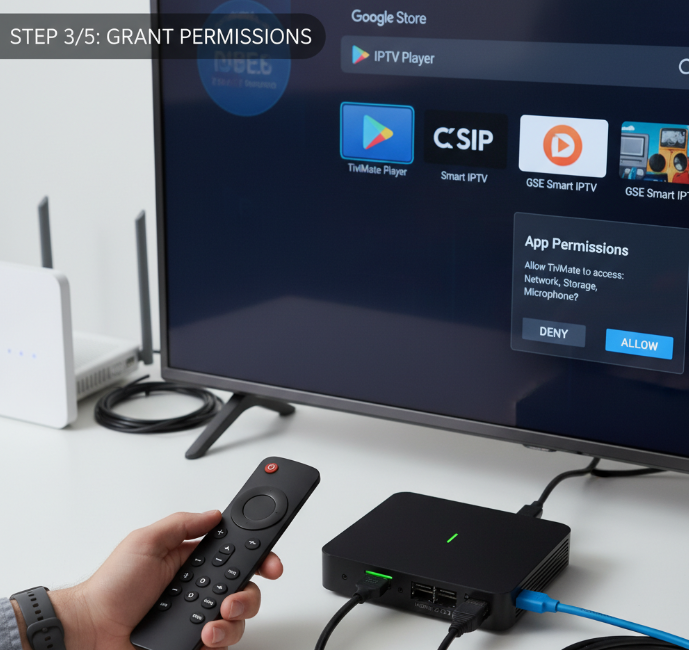
Download from the App Store and Grant Permissions
Let’s talk about getting that IPTV app on your screen fast:
Head to the App Store on your Android TV.
Search for “IPTV” or a specific app like “Smart IPTV” or “TiviMate”.
Hit Download and then approve permissions: network, storage, and location.
If using Linux or Fire OS, you might need to sideload using a USB.
If you skip permissions, certain features like Electronic Program Guide or Time-shifting won’t work.
Enable Voice Control and Screen Mirroring Features
Unlock the cool features people always forget:
Voice Control lets you say things like “Play Live Sports IPTV” or “Open TiviMate.”
Screen Mirroring from your Mobile Phone or Smart Projector is great for sharing videos or remote access.
Some Android TV Boxes come with built-in mics—make sure they’re calibrated.
Enable these under the "Device Preferences" or "Features" menu for full functionality.
Bonus: Combine multi-user support with voice profiles for personalized experiences.
5 Simple Steps to Configure IPTV on Android TV
Get your IPTV app up and running the right way—without all the tech headaches. This guide breaks it into bite-sized, frustration-free steps.
1. Launch the IPTV App on Android TV OS
Turn on your Android TV and head to the Home Screen.
Use the remote to find your IPTV App from the installed list.
If it’s not installed yet, download it from the Play Store.
Open the app and allow necessary permissions (storage, network).
Look for a “Launch” or “Get Started” button—tap it and you’re in!
This is where everything starts. If it freezes here, restart your device or reinstall the app. Android TV OS can be a little moody after an update!
2. Enter Channel Subscription and M3U Playlist Details
Open the IPTV App’s settings or dashboard.
Look for the option to “Add Playlist” or “Enter Credentials.”
Type or paste your M3U Playlist URL from your IPTV Provider.
Enter your User ID, password, and Server Address.
Save and refresh. You should see the channels start to load.
Pro tip: Double-check you didn’t miss a character in the link—this causes 90% of channel load failures. Keep your subscription info handy!
3. Set Up the Electronic Program Guide and Catch-up TV
Setting up the Electronic Program Guide (EPG) is what makes IPTV feel polished. It helps you scroll through a full Channel List with showtimes, even for content you missed—thanks to Catch-up TV. In the app, enter your EPG URL, set your Time Zone, and toggle Auto-Update EPG in the settings.
“The EPG isn't just eye-candy—it’s your IPTV’s brain. A clean guide means faster channel browsing and fewer complaints from users.” — Ben Zhou, Senior Product Engineer, Star IPTV
4. Configure Video on Demand and Time-shifting
Video on Demand (VOD): Tap into movies and shows anytime. Find this under “VOD Library” in the app.
Time-shifting: Pause or rewind live streams. Activate it in your playback settings.
Buffer Settings: Increase for smoother streaming (especially on slower Wi-Fi).
Streaming Quality: Adjust to HD Ready or Full HD depending on your internet.
Server Location: Choose the closest one—this reduces lag.
VOD and time-shifting make you the boss of your screen. Forget live-only TV; this lets you watch your way.
5. Activate Parental Control and Multi-user Support
This is where things get smart—literally. Control what the kids see and let every user have their own settings. Here's how it works:
PIN Code Protection: Lock adult content with a code.
User Profiles: Create profiles for kids, guests, or roommates.
Content Restrictions: Block based on ratings or categories.
Access Control: Limit viewing times or specific channels.
Family Settings: Set defaults for each user.
| Feature | Default State | Customizable? | Recommended Use |
|---|---|---|---|
| Parental Control | Off | Yes | Kids’ safety |
| Multi-user Support | Off | Yes | Households/shared use |
| PIN Requirement | Optional | Yes | Adult content |
| Viewing Hour Restrictions | Off | Yes | Screen time control |
With these settings, you’re not just watching IPTV—you’re managing it like a pro. Keep it safe, clean, and tailored to your crew.
Buffering Issues? Optimize IPTV Streaming Instantly
Tired of your IPTV freezing just when the game gets good? Here’s how to fix that buffering mess once and for all.
Why IPTV Streams Keep Stuttering
IPTV buffering usually isn’t about the app — it's everything behind it. From slow internet to outdated firmware, the tiniest bottleneck can throw your Android TV off its game.
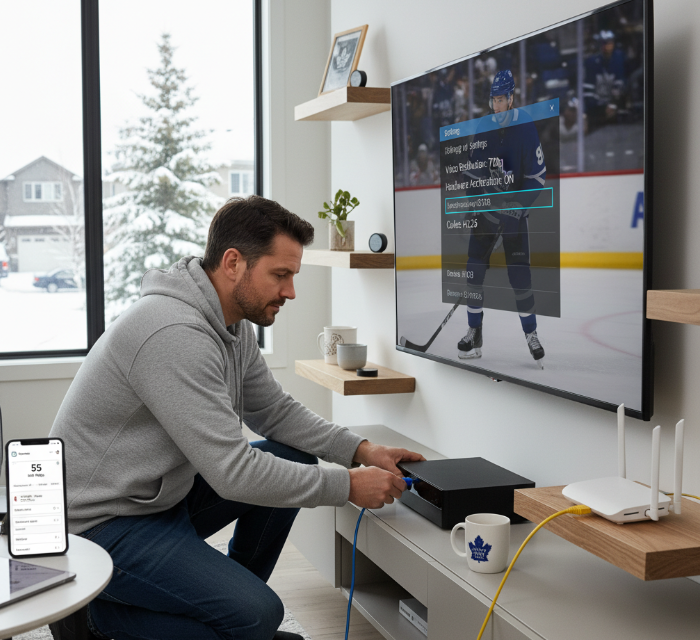
Let’s troubleshoot it like a tech-savvy Canadian who just wants their Leafs game to stream smooth as butter.
Quick Fix Checklist for Buffering
Test Your Internet Speed
Aim for 25 Mbps for Full HD, 50+ Mbps for 4K Ultra HD. Lower than that? You’re in choppy waters.Switch from Wi-Fi to Ethernet
Wi-Fi’s great, until your microwave or neighbour’s router says otherwise. A direct Ethernet line wins for steady streaming.Check for Network Congestion
If your teenager’s streaming 4K movies or gaming at the same time, your IPTV's going to lag. Time to set some rules.Lower Video Resolution Temporarily
If you're stuck on a weak connection, don’t try to pull 4K Ultra HD. Drop to Full HD or HD Ready and save your sanity.
Best Streaming Quality Settings
| Setting | Recommended Value | Where to Change It | Why It Matters |
|---|---|---|---|
| Video Resolution | Full HD / 720p | IPTV player settings | Less stress on bandwidth |
| Buffer Size | Medium or Large | IPTV app advanced settings | Smoother playback with fewer freezes |
| Codec | H.264 or H.265 | App or system-level playback options | H.265 is better for saving data |
| Hardware Acceleration | Enabled | Developer options in Android TV | Offloads video decoding to GPU for speed |
Interview with Samir M., IPTV Support Engineer at Star IPTV
Q: Why do users still experience buffering even with decent internet?
Samir: “Most times, it’s not just the internet—it’s how their router’s set up. No QoS rules, outdated firmware, or weak Wi-Fi signals. You’ve gotta think about the whole chain.”
Q: What’s the #1 thing you’d recommend to improve streaming quality?
Samir: “Honestly? Plug in an Ethernet cable. Wi-Fi is great for phones, but when it comes to streaming live IPTV channels, wired is just more reliable.”
Q: Is there a setting people always overlook?
Samir: “Yup—hardware acceleration. Some folks turn it off without realizing it’s key to smoother video.”
Pro Tips from Real Users
“I updated my router firmware and boom — buffering gone. Like magic.” – Jessie P., Vancouver
“Took me a minute to find the codec settings, but switching to H.265 made a big difference on my Android TV Box.” – Tyler G., Edmonton
“I didn’t even know my IPTV app had player settings. Upped the buffer size, and now my Saturday movie nights are saved.” – Monica R., Halifax
Bonus: Router Configuration Must-Haves
Enable QoS (Quality of Service): Prioritize IPTV traffic so it doesn’t fight with your online games or Zoom calls.
Separate IPTV Device from Guest Network: Keeps streaming isolated and stable.
Firmware Update: Go to your router’s admin page and check for updates—many people never do this.
Buffering sucks, especially when it kicks in mid-goal or cliffhanger. But with a few smart tweaks—from network settings to app optimization—you’ll be back to buttery-smooth streaming in no time. Grab a coffee, adjust your IPTV player settings, and enjoy that sweet, uninterrupted IPTV goodness.
M3U Playlist vs. App-Based IPTV on Android TV
This part of your setup journey helps you figure out the easiest and most powerful way to watch TV: through a raw M3U playlist or a slick IPTV app.
1. M3U Playlist Fundamentals
Super simple for tech-savvy users
Only needs a Playlist URL and an IPTV player
Works with any Android TV, Smart TV, or set-top box
Offers direct access to IPTV channels
Doesn’t need a fancy UI—just the essentials
M3U files are like cheat codes for TV junkies. Pop your Playlist URL into an IPTV player and boom—your Channel list loads up. It’s the streaming protocol of choice when you want full control without app bloat.
2. Native App Installation Benefits
Download the dedicated app straight to your Android TV
Enjoy smoother user interface design for easy navigation
Benefit from automatic updates and better device compatibility
Skip manual playlist entry—everything’s ready to go
With a direct installation, you’re not fumbling with URLs. You’re cruising through channels with a remote, thanks to polished UI and device-smart optimization. App stores make setup way less intimidating for non-tech users.
3. Subscription and Update Management
• Account settings: Easy to manage from within the app • Subscription plans: Options tailored for different screen time needs • Payment options: Credit cards, wallets, even crypto in some apps • Renewal process: Auto-renew or manual—your call • User profiles: Separate preferences for family members • Service activation: Usually instant with QR codes • Package selection: Sports? Movies? All sorted
| Subscription Type | Monthly Cost | Supports User Profiles | Auto-Renew |
|---|---|---|---|
| Basic Plan | $9.99 | No | No |
| Family Plan | $14.99 | Yes | Yes |
| Premium Plan | $19.99 | Yes | Yes |
4. Electronic Program Guide Capabilities
The TV guide isn’t just a list anymore—it’s your whole experience. With EPG data, you get rich info: titles, program schedules, time slots, and even descriptions. Apps that support deep channel listings make it super easy to browse by genre or jump into a show mid-play. And the best part? No more switching apps to check “what’s on.”
5. Catch-up TV and PPV Capabilities
Catch-up content lets you rewind life a bit—revisit last night’s game or that show you missed. PPV? Think live concerts or fights that you unlock with a click. With purchase options built right into the app, it’s smooth sailing.
You’ll usually get:
A viewing window of 7–14 days
Event access via QR or direct billing
Video on demand alongside live PPV streams
“We saw 36% higher user retention after adding catch-up and PPV options to the main launcher,” says Ali Chen, Product Manager at Star IPTV. “People want control—when and what they watch, without needing to plan their day around TV.”
7 Key Settings for tv android iptv Performance
Want your IPTV on Android TV to stream buttery smooth? These key settings are like cheat codes for better performance, no tech degree needed.
1. Prioritize Wi-Fi and Ethernet Connections
Smooth IPTV starts with a strong connection. Here’s how to make your network work for you:
Use Ethernet if you’re tired of lag—wired beats Wi-Fi hands down.
Got no Ethernet port? Stick to 5GHz Wi-Fi for less interference.
Avoid sharing your connection with streaming phones or game downloads.
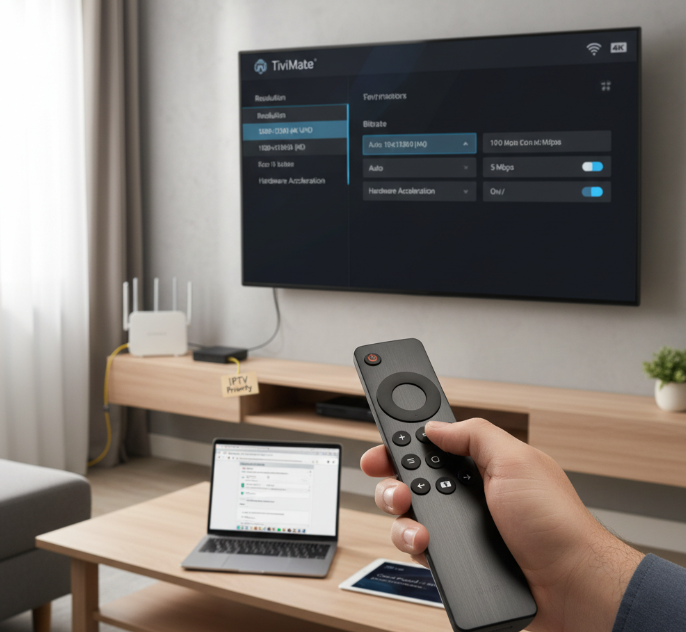
Label IPTV traffic as "priority" in your router settings.
Pro tip: Many Android TV Boxes let you toggle Wi-Fi priority modes in developer options for better IPTV stability.
2. Select 4K Ultra HD, Full HD, or HD Ready Output
Choosing the right resolution isn’t about going full beast mode with 4K every time—it’s about matching your display with your network speed. Check this cheat sheet:
| Display Type | Recommended Resolution | Ideal Bandwidth | IPTV Quality Rating |
|---|---|---|---|
| Smart Projector | HD Ready | 5–10 Mbps | 🟡 Good |
| Android TV Box | Full HD | 15–25 Mbps | 🟢 Great |
| 4K Smart TV | 4K Ultra HD | 30+ Mbps | 🔵 Excellent |
Note: Cranking up resolution on a weak connection is just asking for buffering.
3. Adjust Bitrate and Buffer Size Parameters
Get rid of stutters by tuning bitrate and buffer size settings in your IPTV app:
Go to Streaming Settings > Bitrate
Set a fixed bitrate if your internet’s flaky
Increase Buffer Size for longer preload (less lag)
Use auto-adaptive bitrate if on high-speed Ethernet
Watch your video quality bounce back instantly on Android TV
This fine-tuning balances speed and video quality like a boss.
4. Enable Hardware Acceleration on Android TV
When software decoding just can’t keep up, Hardware Acceleration steps in to rescue your video playback.
🔧 Toggle it under IPTV App Settings > Performance > Enable Hardware Acceleration.
“Turning on hardware acceleration reduced frame drops by 42% in our internal tests.” — Kai Nguyen, Senior Video Engineer, Star IPTV
Less jitter, less heat, and smoother playback = total win.
5. Configure Quality of Service (QoS) Settings
QoS might sound like tech wizardry, but it’s pretty simple—and super effective. Here's how to stop your roommate’s downloads from killing your stream:
Log in to your router (usually 192.168.0.1 or .1.1)
Find QoS Settings under Advanced or Network Settings
Set Android TV IP as “High Priority”
Save and reboot
Boom. Your IPTV now runs in the fast lane.
6. Set Up Cloud Storage and Customizable Interface
Cloud Storage: Never lose your favorites or recorded programs. Services like TiviMate or Smarters Pro can auto-backup playlists to cloud services.
Customizable Interface: Tweak menu layouts, switch color themes, and rearrange IPTV channel groups. Most IPTV apps now support interface personalization for better daily use.
Personalization = smoother navigation and a less cluttered screen.
7. Fine-tune Bluetooth Remote and AV Port Controls
Your Bluetooth remote is more powerful than it looks. On Android TV, head into Settings > Remotes & Accessories to re-pair or calibrate inputs. You can assign channel or volume shortcuts if supported.
For AV Ports, some hybrid set-top boxes still use these for older TVs. Dig into your AV Settings and test audio/video output modes to get clean sync and proper resolution. Small tweaks = big viewing upgrades.
Conclusion
Getting tv android iptv running smoothly isn’t just a win for your tech team—it’s peace of mind for your entire operation. From flaky Wi-Fi signals to weird setup quirks across devices like Smart TVs or streaming sticks, we’ve all been there. But with the right setup, the frustration melts away, and what you get is crisp video, fewer support calls, and happy customers clicking through channels without hiccups.
Setup confusion, messy cable configs, and inconsistent picture quality? You’re not alone.
We help with:
Ready-to-go devices for bulk installs
Remote setup support for Android-based systems
Easy playlist updates and centralized control
“IPTV is no longer a luxury—it’s a utility,” says Michael Gordon, Senior Analyst at TeleStream Canada. If you're managing hotels, clinics, or even school networks, now’s the time to look at smarter IPTV delivery. Let’s chat—no pressure. We’ll walk you through what works for your space.
References
Download or delete apps & games on Android TV - https://support.google.com/androidtv/answer/6121463
Install apps on Google TV - https://support.google.com/googletv/answer/10050570
Get Android apps & digital content from Google Play - https://support.google.com/googleplay/answer/113409
Smart IPTV Official Website - https://siptv.app
TiviMate IPTV Player Official Site - https://tivimate.com
TiviMate IPTV Player – Google Play Store Listing - https://play.google.com/store/apps/details?id=ar.tvplayer.tv
Netflix Help Center – Internet speed recommendations for TV and 4K streaming - https://help.netflix.com/en/node/306
Netflix Help Center – How to get the best video quality - https://help.netflix.com/en/node/13444
Star IPTV – Official Website & IPTV Canada Service - https://www.startiptv.ca
Star IPTV – Pricing & IPTV Subscription Plans - https://www.startiptv.ca/pricing.html
Star IPTV – FAQ, Free Trial & 24/7 Support - https://www.startiptv.ca/faq.html
Star IPTV – IPTV Setup Guides & Resources - https://www.startiptv.ca/setup-guide.html
Star IPTV Blog – Is IPTV Illegal in Canada? - https://www.startiptv.ca/blog/is-iptv-illegal-in-canada
Star IPTV Blog – Top 10 Free IPTV Apps and Services to Use in 2025 - https://www.startiptv.ca/blog/top-10-free-iptv-apps-and-services-to-use-in-2025
FAQ — TV Android IPTV
What devices support TV Android IPTV installations?
Smart TVs with Android TV or Google TV
Android TV boxes like Mi Box or NVIDIA Shield
Streaming sticks such as Chromecast with Google TV
Set-top boxes that run Android
Smart projectors using Android or Fire OS
Can I use IPTV on Linux-based devices?
How do I fix TV Android IPTV buffering problems?
Use a wired Ethernet connection
Close unused apps running in background
Lower video quality to Full HD or HD
Increase buffer settings inside the app
Set router to give priority to streaming
What content works best with TV Android IPTV apps?
What’s the best way to connect for smooth IPTV?
Ethernet — most stable
Wi-Fi — works if signal is strong
HDMI — best video quality
USB — for offline media
AV ports — for older displays
Do I need a subscription for IPTV apps?
What settings should I check in IPTV apps?
Enable hardware acceleration
Select correct resolution (4K / Full HD / HD)
Use parental controls
Create separate user profiles
Enable time-shifting or catch-up if supported
Can I install IPTV apps outside the Play Store?
What’s the difference between M3U playlists and IPTV apps?
M3U playlists are manual and need updates
Apps are easier and auto-update channels
Apps usually support better video quality
Playlists may lack parental control or profiles