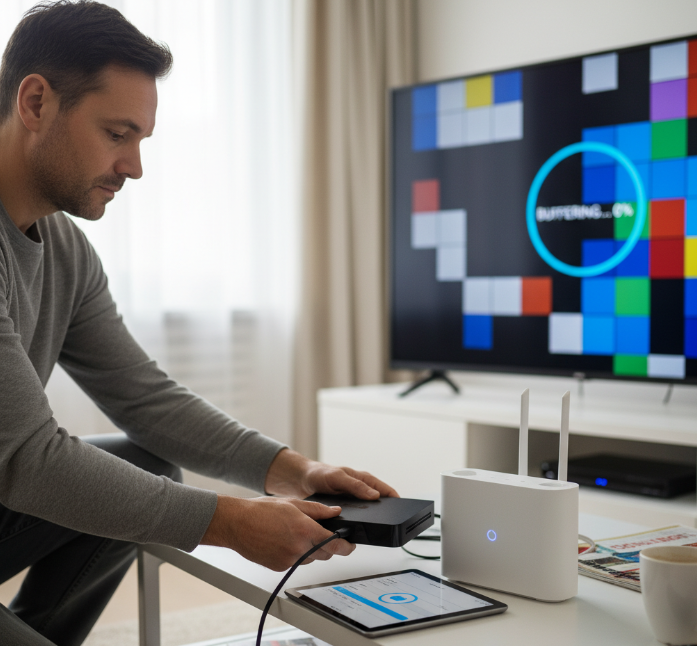
Getting tv android iptv up and running shouldn’t feel like trying to decode rocket science. You plug in your box, launch an app, and... it should just work, right? But if you've ever sat there wondering why your screen’s frozen mid-game or why channels take ages to load, you're not alone.
Most folks hit snags choosing the right app or figuring out what setup actually gives a smooth stream — especially when Wi-Fi decides to do its own thing. And let’s be honest, nobody wants to spend their Friday night untangling tech problems when all they want is to catch the game or throw on a movie.
Think of this guide like a friend walking you through it — minus the tech jargon, plus real advice that works. From picking apps that won’t let you down to avoiding buffering that ruins your night, we’ve got you covered.
“A lot of users skip basic setup steps and blame the box — when really, it’s the network or the app choice,” says Daniel Tran, Senior Engineer at Star IPTV. “It’s like blaming the car when you filled it with the wrong fuel.”
Let’s walk through what you actually need, what to avoid, and how to set it up right the first time.
7 simple steps to install IPTV on your Android TV box
Let’s break this IPTV install process into bite-sized, doable steps that won’t leave you scratching your head or yelling at your remote.
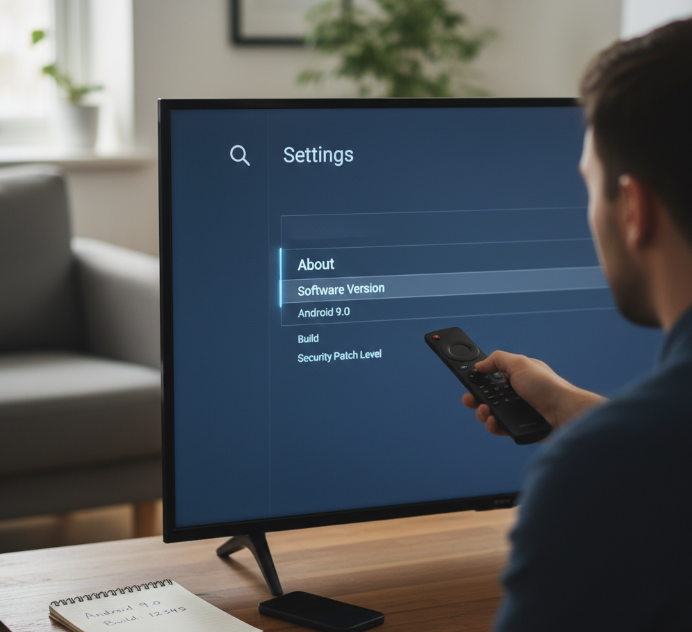
Check your Android TV box version and operating system compatibility
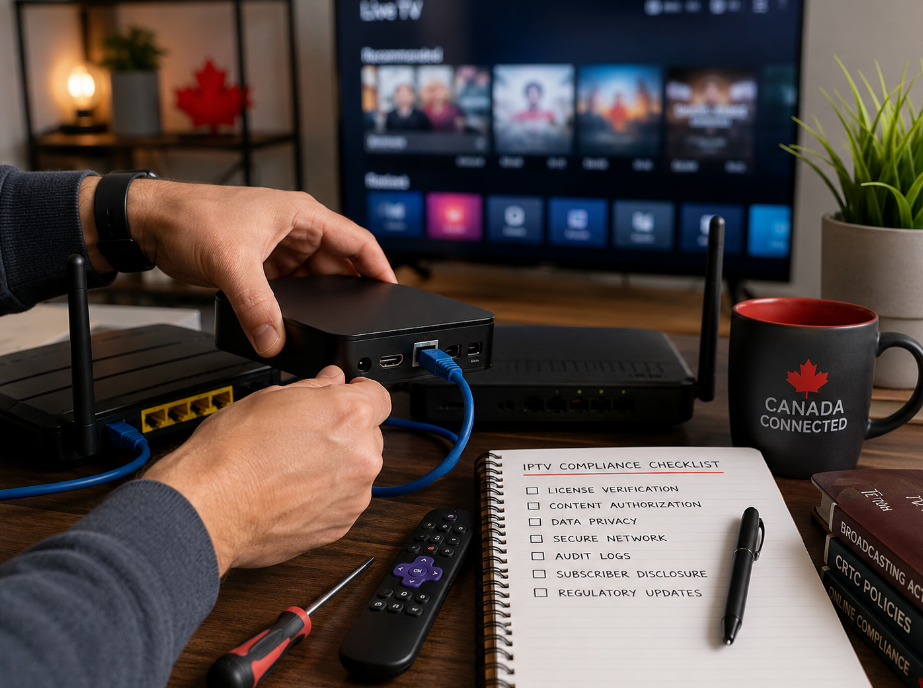
Make sure your Android TV box is powered on and connected
Go to Settings > About > Software Version (see Sony’s steps for Android/Google TV under System → About → Version if you need a reference)
Check if the operating system is Android 8.0 or above
Confirm your box isn’t running custom firmware that breaks compatibility
If your hardware version is too old, IPTV apps might not install right
Write down your version number before moving on—trust us, you’ll need it
Connect to the internet via Wi-Fi or Ethernet
Plug in your Ethernet cable for a solid connection—great for streaming
No Ethernet? Head to Wi-Fi settings and choose your network
Type in your Wi-Fi password carefully (case-sensitive!)
Run a quick speed test to check your connection isn’t lagging
If speeds are under 10 Mbps, you might struggle with 4K content (Netflix recommends 15 Mbps for 4K)
Consider upgrading your router if you're stuck buffering all day
| Connection Type | Average Speed (Mbps) | Buffering Risk | Best For |
|---|---|---|---|
| Ethernet | 80–100 | Low | 4K Ultra HD, Gaming |
| Wi-Fi 5GHz | 40–80 | Moderate | Full HD, VOD |
| Wi-Fi 2.4GHz | 10–30 | High | Basic IPTV Channels |
Access the App Store to search for IPTV apps
Open the App Store on your Android TV box — it’s usually under the “Apps” menu. Use the remote to search for IPTV apps like “TiviMate,” “IPTV Smarters,” or install an external player like “VLC.” Choose something that has solid ratings and supports regular updates. Hit “install,” then grab a drink—it’ll take a minute. Don’t install sketchy APKs from weird sites unless you’re cool with bricked devices and zero support. Use the official store. That’s where the good stuff lives.
Choose an IPTV app that supports Channel Subscription and EPG
Channel Subscriptions
Apps like TiviMate or OTT Navigator allow you to load your entire subscription in seconds.
Electronic Program Guide (EPG)
Don’t settle for static channels. Look for apps with dynamic EPG support for Live TV navigation.
Compatibility matters
Make sure the IPTV app you select works with your device’s operating system—not all of them do.
Quote from expert
"Our clients demand apps that do more than show channels—they want intuitive navigation with real-time updates." — Lucas Mendéz, Lead UX Designer, Star IPTV
Install the IPTV app and configure IPTV Channels
Open your freshly installed IPTV app
Navigate to “Settings > Playlist or Portal Setup”
Enter the M3U URL or Xtream Code from your provider
If needed, select the option to “Load EPG”
Add categories to organize your IPTV Channels: Sports, News, Movies
Use the channel list editor to hide junk you’ll never watch
Save and refresh — boom, your lineup’s live!
Don’t forget to set your default player—some apps let you choose between built-in and external video players like VLC for smoother playback.
Link your subscription for Live TV and Video on Demand
Head back into app settings and look for the “Login” or “Add Account” section
Type in the credentials (username/password or M3U/portal) from your IPTV provider
If you’re linking an advanced provider, you might also need to activate a MAC address
Double-check if the plan includes Live TV, Video on Demand, and Catch-up TV
Not working? Try reloading the playlist or asking the provider to refresh your credentials
This is where your TV box gets connected to all that juicy content. If everything's set up right, you're good to binge.
Optimize screen resolution for 4K Ultra HD or Full HD viewing
Go to Settings > Display > Resolution on your Android TV box
If your TV supports it, select 4K Ultra HD for crispy visuals (ensure your connection meets 4K speed guidelines)
No 4K? Pick Full HD for a smoother stream with less load
Don’t go lower than HD Ready or your channels will look like a potato
Also tweak frame rate matching if the app supports it—it helps reduce stutter
Double-check your HDMI cable is rated for 4K (e.g., Premium High Speed) if that’s what you're aiming for
Want buttery-smooth sports replays or action movies? Optimizing display settings is the final secret sauce.
What do you need before setting up Android TV IPTV?
This cluster makes sure you're not walking into setup blind. Let’s check if your gear’s good to go.
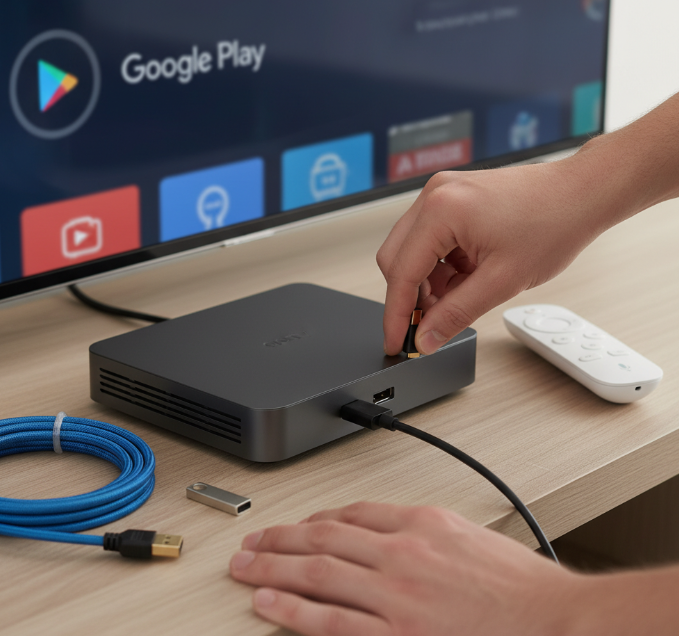
Compatible devices: Android TV Box, Smart Projector, or Streaming Stick
If your Streaming Stick freezes during HD streaming, it's probably not cut out for IPTV.
Android TV Boxes with quad-core processors work best for IPTV Channels.
A Smart Projector can run IPTV too, but only if it supports Google Play or sideloading apps.
Don’t use mobile phones — not ideal for serious IPTV setups.
Stick with gear that’s made for streaming — don’t try to force it.
Required operating systems: Android TV, Fire OS, or Google TV
Android TV — the most flexible for IPTV apps and channel integration.
Fire OS — great, but you’ll need to sideload some IPTV apps.
Google TV — solid pick with a clean UI and access to App Store.
Old Android versions — risky, buggy, and often unsupported.
Linux-based systems? Only if you like headaches and manual configs.
Bottom line: Go with the big three — Android TV, Fire OS, or Google TV.
Stable internet: Choose between Wi-Fi and Ethernet connectivity
Ever tried streaming Live TV on bad Wi-Fi? Frustrating. A stable connection is non-negotiable for IPTV. While both Wi-Fi and Ethernet can work, check the comparison below:
| Type | Speed (Mbps) | Interference Risk | Best For | IPTV Reliability |
|---|---|---|---|---|
| Ethernet | 100–1000 | Low | Android TV Box | Excellent |
| 5GHz Wi-Fi | 100–300 | Medium | Google TV, Fire OS | Good |
| 2.4GHz Wi-Fi | 10–70 | High | Streaming Stick | Poor |
If you want smooth 4K Ultra HD streaming, plug it in with Ethernet.
Essential ports and cables: HDMI, USB, and AV port support
HDMI: Must-have for Full HD or 4K streaming. Use certified HDMI cables for best results.
USB: Great for connecting storage or sideloading IPTV apps.
AV port: Only matters if you’re using an old TV.
Bonus tip: Use HDMI 2.0 or higher for 4K Ultra HD clarity.
No ports? No party. Your IPTV setup depends on this stuff.
Must-have IPTV features: App Store access and Voice Control
• App Store: Avoid shady sideloads — make sure your device has access to Google Play or Amazon Appstore.
• Voice Control: Skip scrolling; use Voice Commands like “Open IPTV” or “Play Sports Channel.”
• Functionality: Look for IPTV features like Catch-up TV, PPV, or Video on Demand baked into the app.
“If an IPTV box lacks voice search and a real App Store, it’s not built for today’s users.”
— Zahir Khaled, Senior Product Engineer, Star IPTV
Don’t settle for clunky — choose devices that feel smart.
Video format readiness: Ensure HD Ready or higher resolutions
If your TV still says “HD Ready,” it might struggle with new content formats. Here's the cheat sheet:
HD Ready: Handles basic IPTV, not ideal for modern sports or action flicks.
Full HD: Great for IPTV Channels and Streaming Video.
4K Ultra HD: Gold standard for detail and clarity.
8K: Overkill for IPTV, unless you're projecting on a wall.
Make sure your device and display are on the same page — literally.
5 factors for choosing an IPTV app on Android TV
Picking the right IPTV app isn't just about looks — it’s about smooth streaming, smart features, and a killer lineup of content.
Channel Subscription management and EPG support
EPG (Electronic Program Guide) support is your TV’s cheat sheet — don’t skip it.
Key must-haves:
Automatic TV Guide sync
Program Schedule navigation
Clear Channel List grouping
Real-time updates on what's playing
Subscription Management dashboard for easy channel control
Without a proper EPG and Channel Subscription system, you’re basically flying blind. Bonus points if it lets you pin your favorite channels at the top.
App interface: Parental Control and Customizable Interface options
Check if the app allows User Interface customization like color themes or layout adjustments.
Look for Parental Control settings that let you block content based on age or genre.
Ensure it includes Access Control to lock down specific apps or content sections.
Find apps that support Content Filtering, so only relevant categories show up.
Prioritize an app interface with a clean, intuitive look — avoid clunky menus.
If it’s hard to use, no one in the house (or office) is going to touch it twice.
Multi-user Support for family or office setups
Short takes on why Multi-user Support matters:
Multiple Profiles = no more fighting over saved channels
Office Setup = staff can each have access to different IPTV Channels
User Accounts = keep On-Demand Movies watched by kids separate from parents
Concurrent Streams = perfect for shared devices like Smart TVs or Android TV Boxes
User Management = assign roles (admin, guest, viewer) for better access control
It’s all about making IPTV personal without making it chaotic.
Content variety: Live TV, On-Demand Movies, and Recorded Programs
Quote from Malik Reyes, Lead Product Designer at Star IPTV:
"The best IPTV platforms don’t just offer shows — they give you control over your time and taste."
Apps that offer serious Content Variety stand out. Look for those with:
A wide Movie Library
Access to both Live TV and Recorded Programs
Easy navigation between On-Demand Movies and TV Shows
Apps like these let you go from catching the game live to bingeing dramas in a few taps. It’s not just about having content — it’s about having your content.
OS compatibility: Works seamlessly with Android and Google TV
Here's a quick look at how platform support stacks up:
| IPTV App Name | Android Support | Google TV Support | Platform Updates | Stability Rating |
|---|---|---|---|---|
| StreamMaster Pro | ✅ Yes | ✅ Yes | Monthly | 4.5/5 |
| UltraCast IPTV | ✅ Yes | ⚠️ Partial | Quarterly | 3.8/5 |
| LiveMax IPTV | ❌ No | ✅ Yes | Sporadic | 3.2/5 |
Apps with solid OS Compatibility give you seamless integration across both Android and Google TV platforms — no weird bugs, no weird delays. Just smooth, stable playback on your Android TV Box or Smart TV.
Wired vs Wi-Fi for stable living-room streaming
Streaming IPTV shouldn’t feel like roulette. Let’s break down how wired and wireless setups affect your living room’s viewing groove.
Ethernet: Consistent signal for IPTV Channels
• Ethernet connections offer:
More reliable IPTV streaming
Fewer signal drops
Stable performance during peak hours
Here’s how Ethernet stacks up vs. Wi-Fi in real-world usage:
| Feature | Ethernet | Wi-Fi | Verdict |
|---|---|---|---|
| IPTV Channel Stability | 9.5/10 | 6.5/10 | Ethernet wins |
| Buffering Rate | Low (~1%) | Medium (~8%) | Ethernet wins |
| Device Compatibility | Wired only | Universal | Tie |
| Setup Complexity | Moderate | Easy | Wi-Fi wins |
Plug in, sit back, and enjoy Live TV in peace. Especially in the living room, a wired connection can really save your night from awkward buffering faces.
Wi-Fi: Flexibility for mobile and Streaming Stick setups
Wireless makes your life easier in tight spaces
Ideal for Streaming Sticks, Smart Projectors, or mobile devices
No cables across your floor = clean setup
Easy relocation around the living room
Most Smart TVs support dual-band Wi-Fi
Compatible with Parental Controls and Multi-user Support
Quote:
"Wi-Fi keeps IPTV flexible, especially in homes where drilling cables isn't an option."
— Alex N., Senior Engineer, Star IPTV
Setup differences in Smart TV and Android TV Box environments
Smart TVs usually come with IPTV apps pre-installed — just update the OS and you’re good to go.
Android TV Boxes need a little more love — install IPTV manually via app stores or APKs.
OS updates on Smart TVs are automatic; on Android TV Boxes, you might have to trigger them yourself.
Each environment handles streaming differently — Smart TVs often throttle background processes better.
Both setups rock, but the Android TV Box gives you more customization if you’re cool with doing the extra steps.
Impact on 4K Ultra HD and 8K streaming stability
Streaming in 4K Ultra HD or going big with 8K isn’t just about having a fancy screen — it’s about network performance. If your bandwidth dips even slightly, video quality drops like a brick. A wired Ethernet setup usually crushes it here, offering steady resolution without that weird “sudden blur.” Wi-Fi? It can handle 4K, sure, but only if you’re close to the router and not microwaving popcorn at the same time. When chasing buttery-smooth visuals, especially in the living room, go wired if you can.
Fix buffering and lag for smoother channels
Nobody likes a laggy stream — here’s how to tighten up your connection and make IPTV buttery smooth.
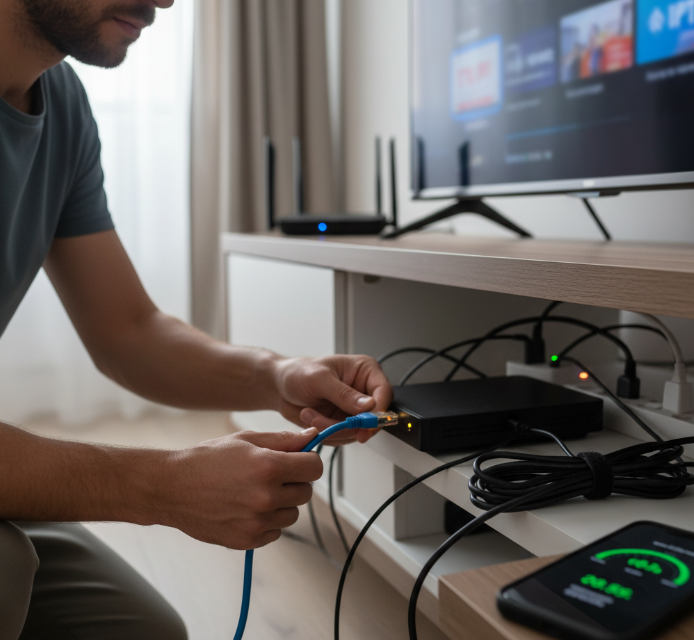
Test Wi-Fi and switch to Ethernet for better reliability
“When dealing with IPTV, unstable Wi-Fi is like streaming with one hand tied. Ethernet always wins for consistency,” — Alex T., Network Engineer at Star IPTV.
Quick Wi-Fi tests:
Stand close to the router with no obstructions.
Use speed tests to check your download rate (you’ll want 15 Mbps+ for Full HD).
Reset your router weekly to avoid memory bloating.
Why switch to Ethernet:
Zero signal drops.
No interference from walls or devices.
Perfect for non-stop IPTV Channels.
Adjust resolution from 8K to Full HD for smoother streaming
Steps to improve streaming stability:
Open your IPTV app settings.
Navigate to Playback Quality or Video Resolution.
Select Full HD (1080p) instead of 8K.
Save and restart the stream.
Resolution vs Bandwidth Consumption Table:
| Resolution | Bandwidth Required | Common Use Device | Risk of Buffering |
|---|---|---|---|
| 8K | 40–50 Mbps | Smart Projectors | Very High |
| Full HD (1080p) | 5–8 Mbps | Android TV Boxes | Low |
| HD Ready | 3–5 Mbps | Mobile Phones | Minimal |
Dialing it down from 8K isn’t a downgrade—it’s a smart way to dodge that spinny loading icon.
Clear IPTV app cache and restart Android TV
Over time, your IPTV app stores junk data in the cache that slows it down—like digital clutter. Clearing that cache frees up memory, making your Android TV snap back to life. Head into app settings, find your IPTV app, and hit "Clear Cache." After that, restart the device. This quick fix clears memory leaks and resets performance hiccups without losing your login or channel settings. Do it weekly to keep things running like new.
Disable unused background apps on Android TV Box
Why it matters:
Background apps hog CPU and memory—even if you’re not using them.
What to do:
Go to “Apps” > “Running Services” > Manually disable what you don’t use daily.
What to avoid:
Don’t kill system services or core Android TV apps; just focus on third-party ones like extra streaming or gaming apps.
The result:
Better performance, faster channel switching, fewer lags.
Use Time-shifting features instead of Live TV during peak hours
The peak-hour struggle:
Even the best internet can slow down when everyone’s online.
Why Time-shifting helps:
It lets you watch shows a few minutes behind the live stream, easing the server load and preventing buffering.
How to enable it:
Go to IPTV app settings
Find “Time-shifting” or Catch-up TV
Enable and choose a delay (e.g., 1–5 minutes)
Better viewing experience:
No more freezing during game-winning goals or dramatic endings. Just smooth, uninterrupted IPTV.
Security, privacy, legality: using Android IPTV safely
Keep your setup clean, legal, and stress-free—no one wants sketchy streams or shady surprises.
Keep It Legal, Not Dodgy
Nobody wants a knock on the door over a dodgy IPTV setup, eh? If you’re streaming IPTV channels through your Android TV box, make sure your provider has the actual rights to those Live TV feeds and On-Demand Shows. If it’s offering all the latest pay-per-view for next to nothing? 🚩 That’s a red flag.
Check for clear copyright info on the provider’s website.
Always read the terms of service—yep, even if it's long and boring.
Avoid providers that seem to pop up and disappear overnight.
StarIPTV Compliance Manager, Sarah L.:
“If an IPTV provider doesn’t display its licensing agreements publicly, we always assume something’s off. Transparency is key.”
Use a VPN — Seriously
Using a VPN (Virtual Private Network) is a no-brainer when it comes to Android IPTV. It hides your IP address, protects your data with encryption, and helps you get around annoying geo-restrictions on some IPTV Channels.
Benefits of using a VPN with IPTV:
Keeps your streaming private, especially on public Wi-Fi
Helps avoid content blocks tied to your location
Can reduce targeted throttling by your ISP in some cases
Makes sure your data logging trail stays clean
A reliable VPN is like locking your front door — why wouldn’t you?
Spot the Shady Stuff
| Signal of Trouble | What It Means | Impact | What to Do |
|---|---|---|---|
| No Privacy Policy | Likely collecting your data carelessly | High data risk | Ditch the provider |
| No Terms of Service | No clarity on usage rights | Legal grey zone | Look elsewhere |
| Malware in App Package | Hidden threats in APK installs | Security breach | Use Play Store or verified sources |
| Free everything, no ads | Too good to be true | Most likely pirated content | Report and avoid |
Your Data’s Not for Sale, Buddy
Some sketchy IPTV apps log everything: your IP address, the channels you watch, your location, even your habits. It’s not just creepy—it’s dangerous.
Here’s what to avoid:
Apps without a clear privacy policy
Platforms that ask for weird permissions (like access to contacts or camera—what’s that about?)
Services that track your activity without an opt-out
Look for IPTV apps that let you:
Use your own VPN
Disable tracking
Read and agree to clear data logging terms
Justin P., Senior Android Engineer at StarIPTV:
“A trustworthy IPTV app will never need permission to read your contacts or location. If it does, uninstall it faster than you can say malware.”
Conclusion
Setting up IPTV might seem like a bit of a hassle at first, but with the right steps and a clear guide, it’s actually pretty painless. If you're handling bulk setups — say in a hotel chain or across a string of clinics — knowing your Android TV Box inside out and getting the basics right up front saves you from endless tech headaches down the road. Think of it like setting up a coffee machine for an office: if it’s not installed right, you’ll be hearing about it all day. This article’s here to keep things smooth — no mess, no guesswork.
When you’re scoping out large-scale installs, it’s worth checking that your solution has these in the bag:
App support for EPG and Time-shifting
Strong Wi-Fi or Ethernet options
Reliable parental controls for public spaces
Devices that run smooth with tv android iptv setups
Need a hand getting bulk orders or pre-loaded boxes out the door? We’ve done this dance before — let’s chat and sort it out for your crew.
Skip the overthinking. Start smart, run stable, and keep it simple.
References
Netflix Help Center — Netflix-recommended internet speeds — https://help.netflix.com/en/node/306
FAST.com — Internet Speed Test — https://fast.com/
Google Play — TiviMate IPTV Player — https://play.google.com/store/apps/details?id=ar.tvplayer.tv
Google Play — Smarters Pro — https://play.google.com/store/apps/details?id=com.smarterspro.smartersprotv
Google Play — VLC for Android — https://play.google.com/store/apps/details?id=org.videolan.vlc
Wikipedia — Electronic program guide — https://en.wikipedia.org/wiki/Electronic_program_guide
Verimatrix — What is Catch-up TV? — https://www.verimatrix.com/anti-piracy/glossary/catch-up-tv/
HDMI.org — Premium High Speed HDMI® Cable — https://www.hdmi.org/spec/premiumcable
Android TV Help — Android TV Help Center — https://support.google.com/androidtv/?hl=en
Google TV Help — Set up your Google TV device & remote — https://support.google.com/googletv/answer/10050221
Sony Support — Which version of the Android OS is installed (Android/Google TV) — https://www.sony.com/electronics/support/articles/00115311
TiviMate — TiviMate IPTV Player (official site) — https://tivimate.com/
IPTV FAQ
What are the minimum requirements to install IPTV on a TV Android box?
Android TV, Google TV, or Android 9.0+
At least 8GB of internal storage
A good internet connection (Wi-Fi or Ethernet)
Access to the Play Store or similar
HDMI for high-resolution output
A display that supports Full HD or 4K
Can I use IPTV on a Smart Projector running Android?
Yes, if it runs Android or Android TV. Just make sure it has internet access and supports installing apps. Great for big-screen viewing.
What features should a good TV Android IPTV app include?
A clear channel guide (EPG)
Easy access to live and on-demand content
Parental controls
User profile options
Time-shifting and recording features
Is Ethernet better than Wi-Fi for streaming IPTV Channels?
Ethernet is generally more stable for 4K or live content. Wi-Fi works too, but depends on router quality and signal distance.
How do I troubleshoot IPTV buffering issues on Android TV?
Try Ethernet instead of Wi-Fi
Lower video resolution
Close apps running in the background
Clear IPTV app cache
Use time-shift features during peak hours
Is IPTV legal to use on Android TV boxes?
It depends on the content source. Paid apps are usually legal. Free apps offering premium channels without login are risky.
Which devices are best for running TV Android IPTV apps?
Android TV boxes with 4K support
Smart TVs with Google TV built-in
Projectors running Android
Streaming sticks (lightweight option)
Phones for on-the-go access
Can I watch On-Demand Movies with IPTV on Fire OS devices?
Yes, if the app supports VOD. Keep your Fire OS updated and choose an app with good playback controls and profiles.
What connectivity options do I need for stable IPTV playback?
5GHz Wi-Fi or Ethernet
HDMI for best picture
USB for storage or app sideloading
AV port for older TVs
Does IPTV support multiple users on the same Android TV device?
Yes, many IPTV apps support multiple profiles, which lets each user have separate history and settings.