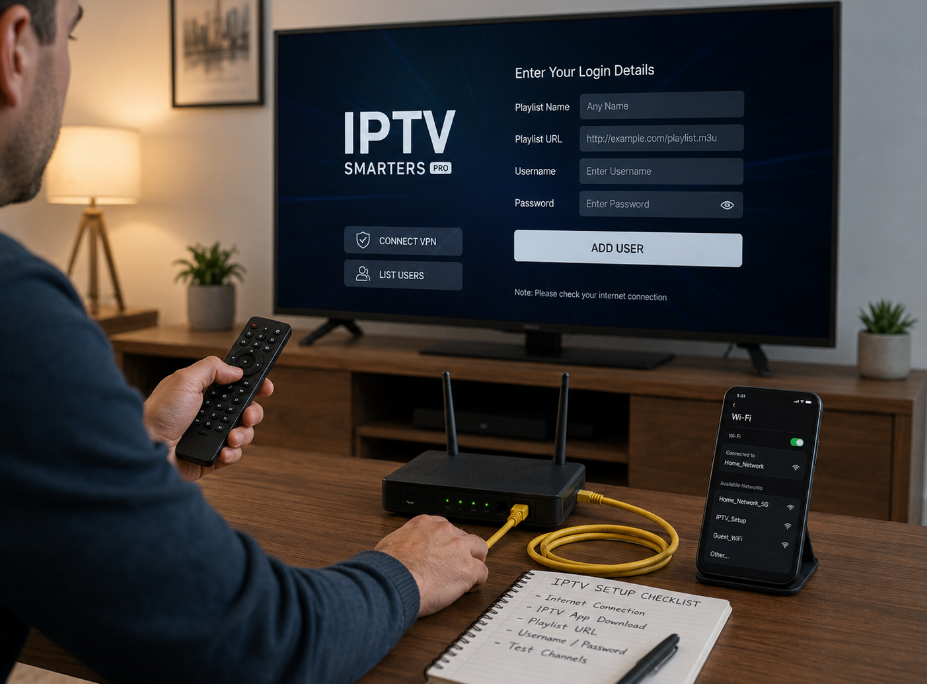
IPTV on Smart TV sounds simple, yet the moment you try to roll it out, things get messy fast—apps missing, installs blocked, remotes feeling like puzzles.
For anyone setting up more than one screen, that friction costs time and money. The real play is knowing a few dependable install paths that work across different systems, so you can get streams running clean without babysitting every single TV.
Prerequisites: Ensure Android TV/Google TV firmware, 10–25 Mbps internet, and valid IPTV Smarters Pro credentials.
Sideloading: Enable Unknown Sources, download or transfer the APK, then install via your TV’s file manager.
USB Method: Format USB as FAT32/exFAT, copy the APK from PC, insert into TV, and launch the installer.
Network Tweaks: Prioritize IPTV traffic with QoS, switch to wired Ethernet, and use fast DNS (Google/Cloudflare).
Multi-Room: Sync account details across screens, host playlists on NAS, and stay within your provider’s stream limits.
3 Prerequisites Before Installing On Smart TV
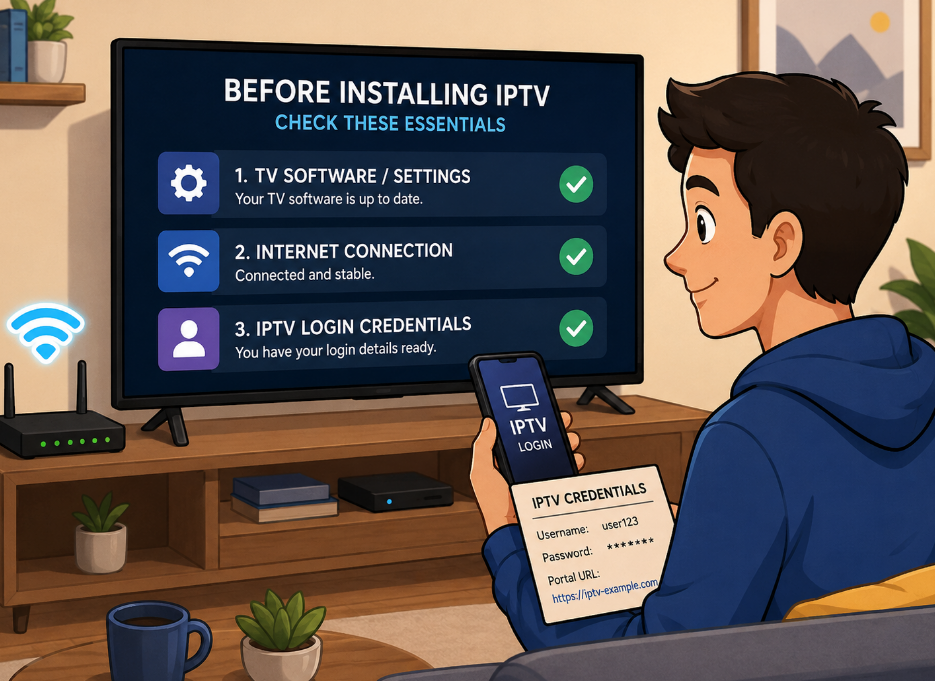
Running IPTV on Smart TV sounds simple, but skipping the basics can wreck the vibe fast. Before setting up IPTV on your television, check your operating system, your network, and your login details. A smooth Smart TV IPTV setup starts here.
A compatible Smart TV OS version
To get IPTV on Smart TV working without random crashes or install errors, your television’s operating system and software must meet platform requirements.
1.1 Open Settings → About → Software update
1.2 Confirm your platform version (Android TV or Google TV preferred)
1.3 Verify recent update installation
2.1 Ensure APK installation is allowed in security settings
2.2 Enable “Install unknown apps” if sideloading
2.3 Restart the television after changes
Outdated software often blocks IPTV apps or causes playlist loading failures. Keeping your Smart TV IPTV system updated ensures better compatibility with apps like Startiptv and smoother IPTV streaming on Smart TV overall.
Stable high-speed internet connection
No solid network, no smooth IPTV on Smart TV. It’s that simple.
For Smart TV IPTV, aim for:
Your connectivity setup matters just as much as raw speed. Wi-Fi in another room? Expect buffering. Weak service plan? Expect login timeouts.
Quick checks for IPTV streaming on Smart TV:
If multiple devices share the same broadband line—phones, consoles, laptops—your IPTV on Smart TV will compete for bandwidth. Stable connectivity keeps authentication fast and channels loading cleanly, especially when using Startiptv for live or VOD access.
IPTV Smarters Pro account and credentials
Even with perfect network and updated software, IPTV on Smart TV won’t open channels without correct login details. This part trips people up more than anything.
Follow these steps:
Small typos break access instantly. Double-check spacing, uppercase letters, and expired plans. IPTV on Smart TV depends on valid IPTV credentials to load playlists and channels correctly.
Using a trusted provider like Startiptv reduces failed authentication errors and ensures steady service access for Smart TV IPTV users who just want to switch it on and watch without hassle.
How To Sideload IPTV On Smart TV?
Running IPTV on Smart TV without the official store is pretty common now. Many users want more control over apps, especially for IPTV Smart TV setups. If your Smart TV IPTV app isn’t in the store, sideloading fills the gap. Below is a clear, practical path to get IPTV on TV working smoothly and safely.
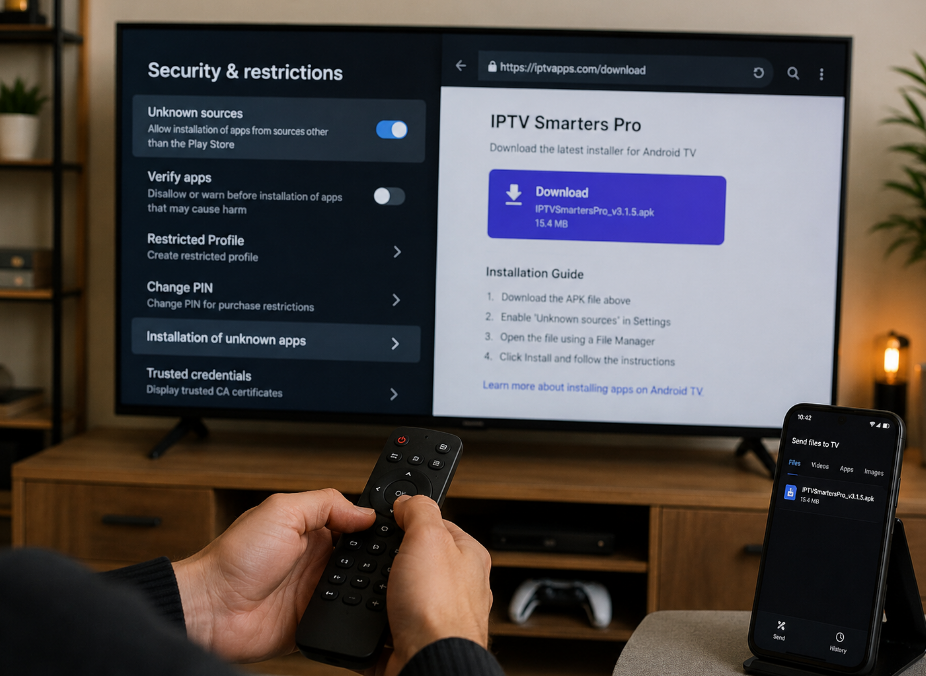
Enabling Unknown Sources in settings
To install IPTV on Smart TV manually, you must adjust settings inside the system menu.
For a stable IPTV on Smart TV experience, trusted providers like Startiptv reduce risky file hunting.
Downloading the APK via TV browser
If your IPTV on Smart TV supports browsing:
Key safety checks:
After download, open the application notification or locate the file in storage.
Transferring files with a mobile hotspot
If direct IPTV on TV download fails, try file transfer through your smartphone.
Quick tips:
This method works great for IPTV Smart TV setups with browser limits.
Installing through a file manager app
Now complete IPTV on Smart TV installation:
A clean install ensures Smart TV IPTV runs without crashes. After setup, disable unknown sources again for safety.
For reliable performance and fewer compatibility headaches, Startiptv keeps IPTV on Smart TV smooth from login to streaming.
Step-By-Step: USB Install Method
Getting IPTV on Smart TV doesn’t have to feel like tech wizardry. With a simple USB drive and the right application file, you can move IPTV Smarters Pro from your computer straight to your television. Let’s keep it practical and smooth.
Format and prepare your USB drive
To run IPTV on Smart TV smoothly, your storage device must be readable by the TV.
Within that process:
A clean USB drive helps your Smart TV IPTV setup detect files instantly, cutting down errors before you even begin installing IPTV on a Smart TV.
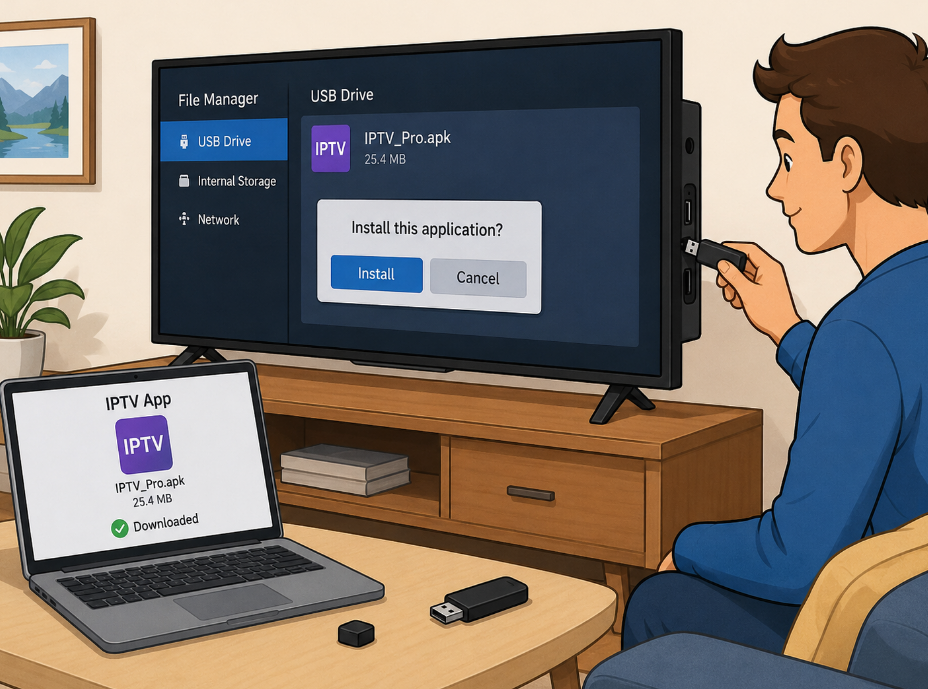
Download IPTV Smarters Pro APK on PC
On your computer, search for a trusted source and download the IPTV Smarters Pro APK.
Many users pairing IPTV on Smart TV with Startiptv services prefer this USB route because it avoids app store limits. After download, copy the APK directly onto the prepared USB drive—not inside random folders.
Plug USB into your Smart TV’s port
Insert the USB into your Smart TV port.
Wait for the television to confirm the connection.
Open the storage notification.
If nothing pops up, check another port or reinsert.
When setting up IPTV Smart TV systems, proper insert timing matters. Give the TV a few seconds to read the device before navigating away.
Launch installer from built-in file manager
Open the TV’s file manager and locate the USB directory.
If prompted, enable “Install from unknown sources” inside settings. After installation, open the app and log in with your Startiptv credentials to activate IPTV on Smart TV.
That’s it. Clean transfer, quick install, and your Smart TV IPTV setup is ready for streaming.
Avoid Buffering—Network Tweaks Explained
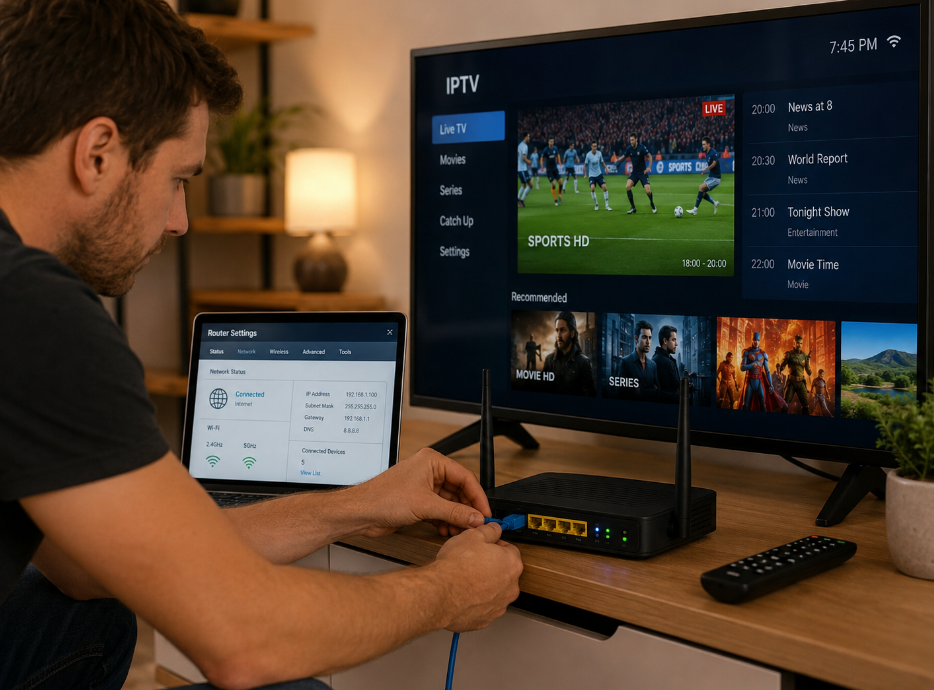
Running IPTV on Smart TV should feel smooth, not like a constant loading screen. When your Smart TV IPTV setup lags, the issue often sits inside your network, not the app. Fixing streaming traffic, Ethernet connection, and DNS settings can seriously upgrade IPTV streaming on Smart TV, especially with services like Startiptv.
Prioritizing streaming traffic with QoS
When multiple devices fight for bandwidth, your streaming loses. That’s where QoS (Quality of Service) steps in.
1.1 Log into your router dashboard (usually 192.168.1.1).
1.2 Navigate to QoS or traffic prioritization settings.
2.1 Add your Smart TV’s IP address.
2.2 Assign high priority to streaming traffic.
3.1 Set minimum guaranteed speed for IPTV on Smart TV.
3.2 Limit low-priority devices during peak hours.
Below is a performance comparison observed in typical home network setups:
Fine-tuning traffic prioritization keeps IPTV on Smart TV stable, especially if you stream via Startiptv while others scroll, game, or download.
Switching to a wired Ethernet connection
Wi-Fi is convenient. Wired Ethernet is dependable.
For IPTV on Smart TV, a direct Ethernet connection improves:
Quick comparison:
If your Smart TV IPTV setup supports Gigabit ports, use at least Cat5e cable. Plug it in, disable Wi-Fi on the TV, restart router and device. Done. You’ll likely notice fewer buffering circles and sharper 4K playback.
For heavy IPTV streaming on Smart TV households, wired links reduce shared-air congestion. That’s a simple but powerful upgrade.
Adjusting DNS settings for faster lookup
Slow DNS resolution delays channel loading on IPTV on Smart TV. The stream exists—but your network lookup drags.
Improve it with structured tuning:
1.1 Google DNS – 8.8.8.8 / 8.8.4.4
1.2 Cloudflare DNS – 1.1.1.1 / 1.0.0.1
2.1 Open WAN or Internet settings.
2.2 Replace default ISP DNS.
2.3 Save and reboot router.
3.1 Restart Smart TV.
3.2 Relaunch IPTV on Smart TV app.
3.3 Test channel lookup speed.
Faster DNS settings reduce startup delay and speed up channel switching. For Smart TV IPTV users streaming through Startiptv, this tweak often trims seconds off every load. Small tweak, big payoff.
Scenario: Multi-Room IPTV On Smart TV
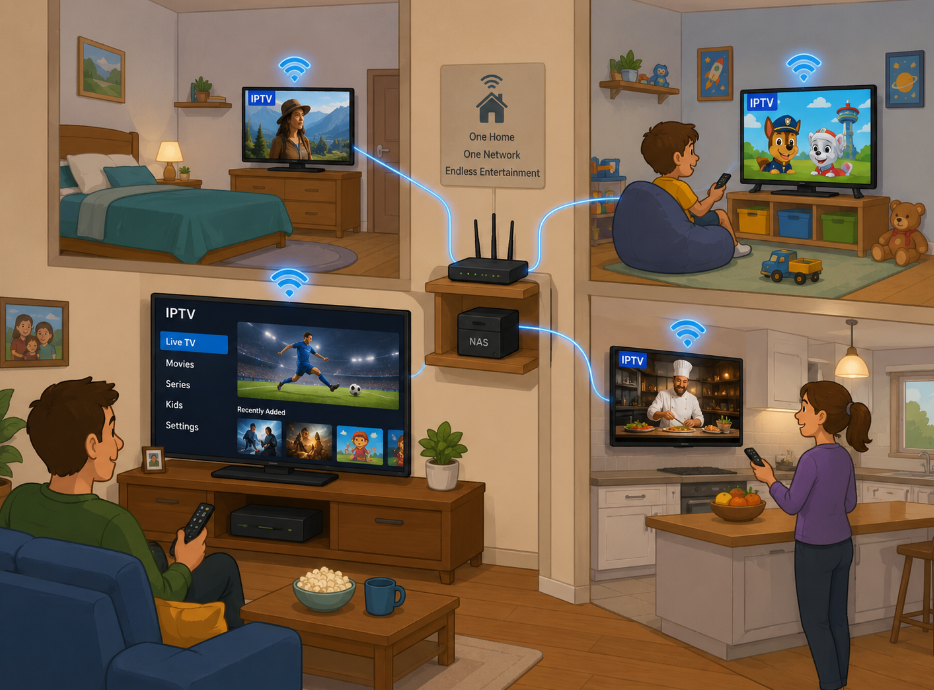
Running IPTV on Smart TV in more than one room feels pretty slick when it’s set up right. You want smooth streaming, stable network performance, and zero login drama. Here’s how to keep your IPTV setup tight across every television at home.
Syncing app credentials across TVs
Using the same application and login across several devices sounds simple, yet proper synchronization and authentication make all the difference.
1.1 Confirm multi-device access
1.2 Secure your authentication
2.1 Download the IPTV application on each television.
2.2 Enter identical login credentials carefully.
2.3 Wait for account synchronization to complete before launching playback.
3.1 With services like Startiptv, one dashboard can manage linked devices, making IPTV on Smart TV setups across bedrooms and living rooms feel seamless.
If IPTV on a Smart TV logs out randomly, recheck authentication limits or expired sessions.
Using a network-attached storage source
A NAS centralizes media, content, and playlist data for IPTV on Smart TV across rooms.
1.1 Connect the NAS to your router via wired Ethernet.
1.2 Assign a static IP to stabilize streaming paths.
2.1 Create folders:
2.2 Enable DLNA or SMB sharing for Smart TV IPTV apps.
A solid storage and server combo keeps IPTV on Smart TV consistent in every room.
Managing simultaneous streams effectively
Running multiple stream sessions at once? That’s where management and optimization matter.
Keep things balanced and IPTV on Smart TV will run smoothly across every television, no buffering tantrums, just clean playback.
FAQ
What do I need before setting up IPTV on Smart TV?
Before setting up IPTV on Smart TV, check three basics: a compatible Smart TV operating system, stable internet, and valid IPTV login credentials. These steps help prevent install errors, playlist failures, and buffering during live or VOD playback.
Which Smart TV operating system works best for IPTV?
Android TV 9.0+ is generally stable, while Google TV 10.0+ is more optimal for IPTV apps. Older Android versions may still work, but they can have limited compatibility, more crashes, or blocked APK installation.
How much internet speed is recommended for IPTV on Smart TV?
For Smart TV IPTV, the article recommends at least 10 Mbps for HD and around 25 Mbps for 4K. A stable connection matters as much as speed, so Ethernet or strong 5GHz Wi-Fi is better than weak Wi-Fi in another room.
Why do IPTV Smarters Pro credentials matter?
IPTV on Smart TV cannot load channels without correct login details. Users need the right username, password, server URL, and active subscription status. Small typos, expired plans, or incorrect server details can break access instantly.
How do I sideload IPTV on Smart TV?
To sideload IPTV on Smart TV, enable unknown sources in the security settings, download or transfer a trusted APK file, open it with a file manager, grant permissions, and complete installation. After setup, disabling unknown sources again improves safety.
Can I install IPTV on Smart TV with a USB drive?
Yes. Format the USB drive as FAT32 or exFAT, copy the IPTV Smarters Pro APK from your computer, plug the USB into the Smart TV, then open the installer from the built-in file manager. This method is useful when the TV browser or app store is limited.
How can I reduce buffering on IPTV on Smart TV?
Buffering can often be reduced by enabling QoS on the router, giving IPTV traffic higher priority, switching from Wi-Fi to wired Ethernet, and using faster DNS settings such as Google DNS or Cloudflare DNS. These tweaks improve stability, lookup speed, and playback consistency.
How does multi-room IPTV on Smart TV work?
Multi-room IPTV works by installing the IPTV application on each television, entering the same account details, checking the provider’s multi-device or concurrent stream limits, and keeping the home network stable. A NAS can also centralize playlists, media, and backup data across rooms.