In the wild west of streaming, iptv testing is your smoke alarm before the fire. One shaky stream, one spinning buffer wheel, and boom—your subscribers are texting “What’s going on?” faster than you can say refund. In a market projected by Fortune Business Insights to reach $109.34 billion in 2026, there’s no room for guesswork. If your links aren’t solid, your brand’s walking on thin ice.
Here’s the thing: opening a stream and hoping it plays is like kicking a car tire and calling it a full inspection. I’ve seen providers lose loyal customers over a codec hiccup. A five-minute VLC check could’ve saved months of damage control.
As Nielsen reported, streaming reached 47.5% of TV viewing in December 2025. Stability isn’t a perk—it’s the price of entry.
Why Is IPTV Testing Vital in VLC?

Running iptv testing in VLC isn’t just tech talk—it’s how you avoid dead links, frozen screens, and annoyed users. Smart IPTV test habits keep streams smooth, stable, and ready for real-world viewing.
Understanding IPTV Link Reliability
When handling IPTV links, proper iptv testing inside VLC player reveals how dependable a stream really is. This isn’t guesswork. It’s structured checking built around stream stability, connection quality, and network performance.
Link Response Validation
Run IPTV test sessions at different times of day.
Compare peak vs off-peak behavior.
Confirm the IPTV URL responds within acceptable latency.
Check DNS resolution speed.
Monitor HTTP status codes.
Server Reachability
Uptime Consistency
Format & Codec Compatibility
Confirm decoding without manual plugin tweaks.
Validate HLS or MPEG-TS support inside VLC player.
Stream Format
Audio/Video Codec Check
Performance Metrics Snapshot
| Metric | Acceptable Range | Risk Level if Exceeded |
|---|---|---|
| Initial Load Time | < 3 seconds | Medium |
| Buffer Ratio | < 2% | High |
| Bitrate Fluctuation | ±15% | Medium |
Consistent iptv testing keeps IPTV streams reliable before users ever click play. Even brands like Startiptv rely on repeated IPTV test routines to maintain solid connection quality across regions.
Avoiding Stream Drops and Stutters
Nothing kills the vibe faster than buffering circles. Solid iptv testing spots buffering issues, video lag, and messy audio sync before they go public.
A quick IPTV test inside VLC can reveal:
Sudden bitrate dips caused by unstable internet speed
Packet loss during live IPTV streaming
Delayed audio trailing behind video
Run the stream for at least 20–30 minutes. Short previews don’t show real trouble. Watch CPU usage. Monitor cache statistics. Switch networks to compare behavior.
If playback interruptions show up, tweak cache size in VLC and retest. Do another IPTV test on mobile data. Then repeat on fiber. Small checks like this improve overall IPTV testing accuracy and reduce user complaints.
Consistent iptv testing habits mean fewer late-night support messages and smoother IPTV streaming across devices.
Ensuring Quality Before Deployment
Before sharing links publicly, structured iptv testing protects user experience and confirms channel availability and content accuracy.
Channel Verification
Match channel name with actual broadcast.
Open every IPTV link in VLC.
Confirm no black screens.
Availability Scan
Content Accuracy
Visual & Audio Review
Test stereo balance and sync stability.
Confirm HD or Full HD output.
Resolution Check
Audio Clarity
Service Testing Workflow
Internal IPTV test
Controlled beta release
Final deployment after stable live streaming validation
Repeated iptv testing reduces churn and boosts confidence before rollout. Teams working with Startiptv often perform layered IPTV test cycles to guarantee smooth live streaming and consistent playback quality.
In short, steady iptv testing isn’t optional. It’s the difference between a stream that just works—and one that crashes when it matters most.
4 Steps for IPTV Testing in VLC
Getting into iptv testing with VLC is easier than most people think. You don’t need fancy tools—just the right flow. This guide breaks down practical IPTV test actions, from setup to log checks, so your IPTV streaming test feels less like guesswork and more like a controlled check.
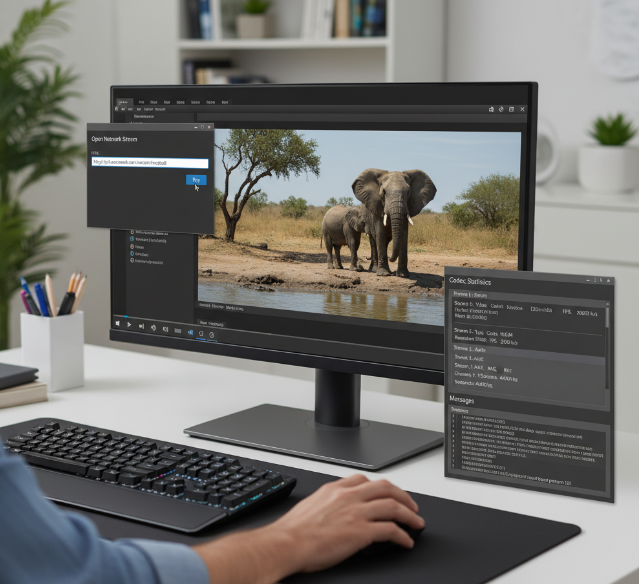
Open VLC and Navigate to “Network Stream”
To begin proper iptv testing, access the core playback path inside VLC media player:
Launch open VLC on your desktop.
From the media menu, select open network stream.
The network stream window appears, ready for your iptv link.
Inside this window, focus on:
Connection Layer
Confirm VLC version is updated.
Ensure firewall isn’t blocking the app.
Check basic internet stability before running an IPTV test.
Stream Input Area
Locate the URL field.
Verify no extra spaces are pasted.
Prepare your stream source for IPTV testing.
Playback Controls Preview
Observe buffering icon behavior.
Watch initial response delay.
Confirm VLC accepts the format without error.
This opening stage sets the tone for stable IPTV testing and avoids chasing errors later.
Paste Your IPTV URL and Start Playback
Now move deeper into your IPTV test workflow.
Paste URL carefully into the stream URL field.
Double-check the network URL format (HTTP, M3U8, RTSP).
Hit the play button to start playback.
Focus areas during playback:
Initial Response
Time from click to video start.
Buffer animation duration.
Any quick freeze within 10 seconds.
Stream Behavior
Audio-video sync.
Channel switching speed.
Stability over 60 seconds.
If you’re evaluating services like Startiptv, this stage reveals raw access speed and stream readiness. Clean startup usually means solid backend routing, which is crucial for repeatable iptv testing.
Monitor Stream Health with Statistics
Open Tools > Codec Information > Statistics to view real-time playback statistics during IPTV testing.
Under this panel, review:
Video Metrics
Bitrate consistency
Frame rate stability
Decoded blocks vs lost frames
Network Metrics
Input/Read network speed
Buffer cache level
Packet loss trends
| Metric | Ideal Range | Warning Level | Critical Level |
|---|---|---|---|
| Bitrate (Mbps) | 5–12 | 3–5 | <3 |
| Frame Rate (fps) | 24–60 | 18–23 | <18 |
| Lost Frames (%) | 0–1% | 1–3% | >3% |
| Network Speed (Mb) | 1.5× stream rate | Equal to bitrate | Below bitrate |
Consistent numbers mean strong stream quality. Sudden drops suggest unstable delivery during IPTV testing.
Evaluate Log Messages for Errors
For deeper IPTV testing, open VLC logs:
Go to Tools → Messages.
Set verbosity to level 2 or higher.
Watch real-time vlc logs during playback.
Break log review into:
Connection Errors
Timeout alerts
DNS failures
Server unreachable messages
Codec Issues
Unsupported format warnings
Decoder fallback notices
Audio conversion errors
Stream Errors
Packet discontinuity
Buffer underrun
Corrupt frame alerts
Clean log messages mean your IPTV test passed the technical layer. Repeated error messages suggest deeper troubleshooting is needed.
When reviewing services such as Startiptv, stable logs plus healthy statistics signal dependable IPTV streaming test performance. And that’s the goal of smart, repeatable iptv testing—less guessing, more clarity.
What VLC Settings Optimize IPTV Testing?
When it comes to iptv testing, VLC can be your best buddy or your biggest headache. A few smart tweaks turn messy streams into smooth playback. If you’re serious about IPTV test work, stream testing, or checking live channels, these settings matter more than you think.
Adjusting Network Caching for Smooth Playback
Fine-tuning network caching during iptv testing directly impacts playback smoothness and overall stream stability.
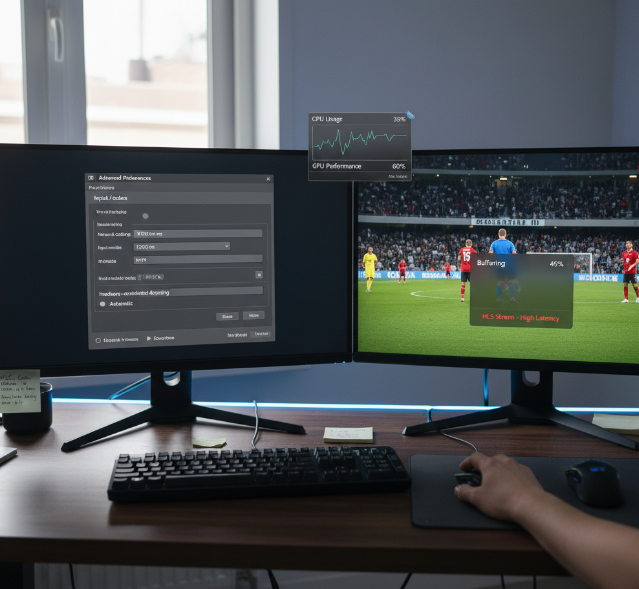
Accessing network settings
Open Preferences
Switch to “All” under advanced view
Navigate to Input / Codecs
Modifying cache duration
Locate network caching (measured in milliseconds)
Increase buffer size if facing video stuttering
Reduce values slightly if stream latency feels too high
Testing adjustments in real time
Run a live IPTV test stream
Monitor pauses or sync issues
Re-adjust based on connection speed
For unstable Wi-Fi, a higher buffer size absorbs packet loss. For fiber connections, lower cache duration keeps delays tight. During repeated iptv testing, tweak gradually—big jumps can overcorrect and distort results.
If you’re evaluating providers like Startiptv, stable network caching settings ensure your IPTV test reflects real performance, not local buffering flaws.
Selecting the Best Input Module
Not all input modules behave the same during iptv testing.
• For HLS streams, default HTTP usually works fine.
• For RTSP feeds, switching modules can improve handshake reliability.
• Some demuxers handle adaptive bitrate streams better than others.
Try this simple flow during IPTV test sessions:
Open stream URL.
If playback fails, change stream protocols handling under advanced Input settings.
Compare audio output and video output sync.
Different network streams may rely on specific file input handling. When running iptv testing across multiple formats, testing two modules back-to-back often reveals compatibility gaps fast.
Short tests show basic playback. Longer IPTV test cycles expose packet drift and audio delay. That’s why switching input modules isn’t random tinkering—it’s controlled stream testing.
Platforms like Startiptv often deliver multiple protocol options, making this flexibility valuable during iptv testing sessions.
Enabling Hardware-Accelerated Decoding
During heavy iptv testing, CPU spikes can fake stream instability. That’s where hardware acceleration steps in.
Activating GPU decoding
Preferences → Input / Codecs
Enable automatic decoding settings
Select compatible mode for your graphics card
Monitoring system impact
Check CPU usage in Task Manager
Confirm video rendering shifts load to GPU
Watch for reduced dropped frames
Validating performance optimization
Test HD and 4K channels
Compare frame stability before and after
Confirm smoother motion during fast scenes
Without hardware acceleration, high-bitrate IPTV test streams can choke older systems. Proper GPU decoding lowers CPU usage, stabilizes video rendering, and keeps long iptv testing runs consistent.
For serious IPTV test workflows, especially when reviewing services like Startiptv, enabling performance optimization ensures your results reflect stream quality—not hardware limits.
Choppy Playback? Adjust VLC Cache Size
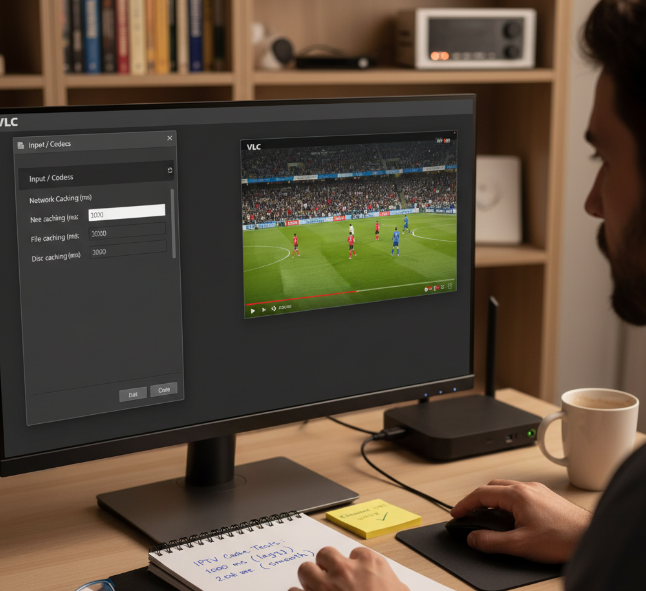
When streams freeze mid-scene, it’s usually a buffer issue, not magic. During iptv testing, smart cache tweaks inside VLC Media Player can smooth things out and keep IPTV streaming steady.
Increasing Cache Values in Input/Codecs
When running iptv testing, adjusting VLC Media Player buffer behavior inside Input/Codecs can seriously reduce those annoying hiccups.
Open Advanced Settings in VLC
Locate File Caching (ms)
Locate Network Cache (ms)
Navigate to Input/Codecs
From here, increase values gradually instead of jumping too high.
For local content
Set File Caching between 300–800 ms
For IPTV streaming over Wi-Fi
Adjust Network Cache to 1000–3000 ms
For unstable broadband
Test higher Buffer Duration levels
Below is a quick reference from practical iptv test results:
| Network Type | Network Cache (ms) | Playback Stability Score (1–10) |
|---|---|---|
| Fiber 300 Mbps | 1000 | 9 |
| Cable 100 Mbps | 2000 | 8 |
| 4G LTE | 3000 | 7 |
During serious iptv testing, many users of Startiptv notice smoother playback once Cache Settings are aligned with real network speed instead of defaults.
Testing Different Buffer Durations for Stability
Cache tuning works best when tested step by step under real IPTV Streams load.
Start with moderate Buffer Settings
Monitor freezing, audio sync, and delay
Run 10–15 minutes of live playback
Then compare:
Low buffer
Faster start
Higher risk of stutter
High buffer
Slight startup delay
Better Playback Stability
For advanced VLC Configuration during iptv testing:
Adjust cache.
Restart VLC.
Run another iptv test session.
Compare results across channels.
Users doing regular IPTV testing with Startiptv often find the sweet spot around 2000 ms for average home internet. Stable Streaming Quality depends on balancing startup time with sustained buffering.
If playback still struggles, review overall Network Performance before blaming the stream. Careful iptv testing makes troubleshooting faster and way less frustrating.
References
[IPTV Market Size, Share & Industry Trends Report, 2034 - https://www.fortunebusinessinsights.com/internet-protocol-television-iptv-market-106645]
[Streaming Shatters Multiple Records in December 2025 with 47.5% of TV Viewing - https://www.nielsen.com/news-center/2026/streaming-shatters-multiple-records-in-december-2025-with-47-5-of-tv-viewing-according-to-nielsens-the-gauge/]
[Media — VLC User Documentation - https://vlc-user-documentation.readthedocs.io/en/latest/userguide/media.html]
[VLC Media Player FAQ - https://vlc-user-documentation.readthedocs.io/en/latest/support/faq/vlcmediaplayer.html]
[FAQs about VLC on Windows - https://vlc-user-documentation.readthedocs.io/en/latest/support/faq/faqwindows.html]
[RFC 8216: HTTP Live Streaming - https://datatracker.ietf.org/doc/html/rfc8216]
[VLC Features - https://images.videolan.org/vlc/features.html]
[Streaming media layer - AWS Well-Architected - https://docs.aws.amazon.com/wellarchitected/latest/streaming-media-lens/streaming-media-layer.html]
[What is Network Latency? - https://aws.amazon.com/what-is/latency/]
[What’s the Difference Between Throughput and Latency? - https://aws.amazon.com/compare/the-difference-between-throughput-and-latency/]
[Understand Monitoring Metrics and Dimensions - https://www.mux.com/docs/guides/monitoring-metrics]
[Quality of Experience (QoE) in Video Streaming - https://www.mux.com/articles/qoe]
[Live Streaming Analytics: Key Metrics for Developers - https://www.mux.com/articles/live-streaming-analytics-the-metrics-that-actually-matter]
FAQ
Why is IPTV testing in VLC critical before launch?
IPTV testing is the last checkpoint before viewers press play—and frustration begins.
Confirms server uptime and stream response speed.
Detects packet loss, bitrate swings, and codec mismatch.
Exposes audio sync errors under live conditions.
In VLC:
Media → Open Network Stream
Paste M3U8 or RTSP link
Check Tools → Codec Information → Statistics
If frames drop here, users will notice instantly. Testing protects your reputation before subscribers ever see a glitch.
How does link stability shape viewer trust?
A fragile link breaks more than video—it breaks confidence.
Stable streams prevent freezes and black screens.
Consistent bitrate keeps motion smooth.
Reliable uptime increases watch time.
Short truth: one buffering circle can undo months of marketing. IPTV testing ensures each shared link holds steady during real traffic, not just in theory.
Which VLC settings matter most during IPTV testing?
Small settings decide big outcomes.
➤ Network Caching
Increase buffer time to smooth playback on slower connections.
➤ Input/Codecs
Match HLS or RTSP correctly to avoid decoding strain.
➤ Hardware (GPU) Decoding
Reduces CPU overload during HD or 4K streams.
Testing different configurations reveals how the stream behaves under pressure—not just on a perfect connection.
How do you read VLC statistics during IPTV testing?
Numbers tell the hidden story behind the screen.
Metric What It Reveals Warning Sign Bitrate Stream consistency Sharp, repeated drops Lost Frames Transmission stability Rising count over time Buffer Level Playback safety margin Sudden empty buffer Run multiple tests at different times of day. Patterns expose ISP instability and server stress. Strong IPTV testing turns raw data into confident delivery.