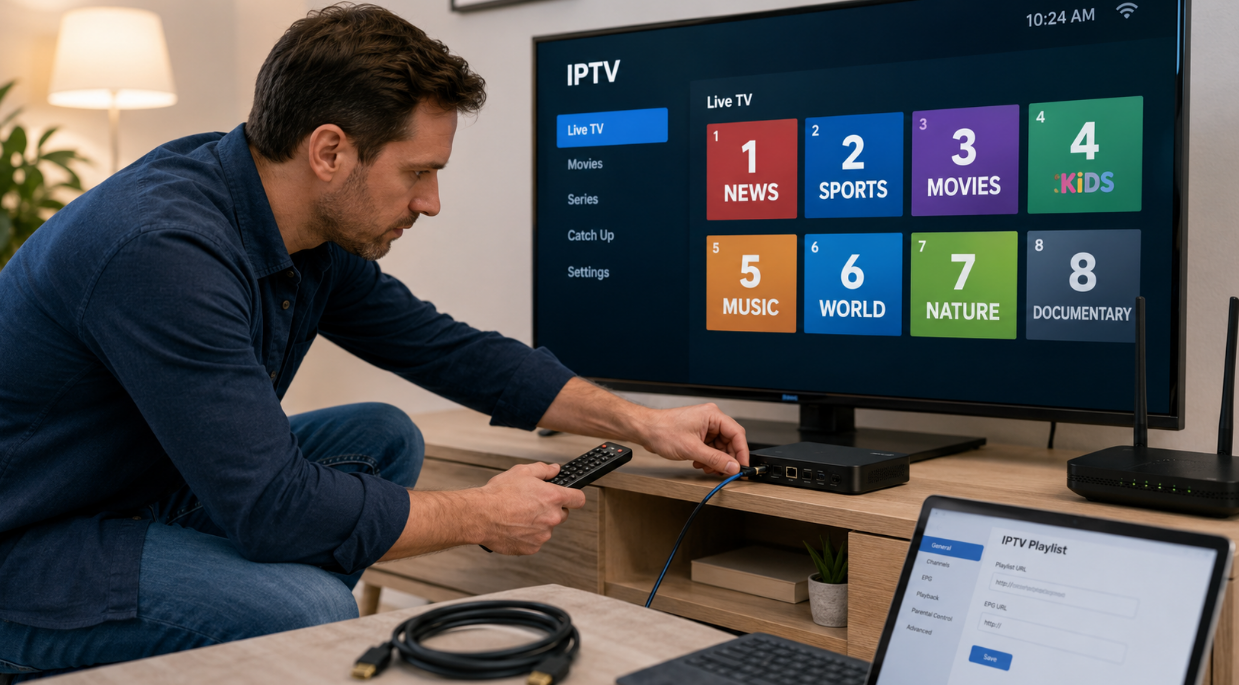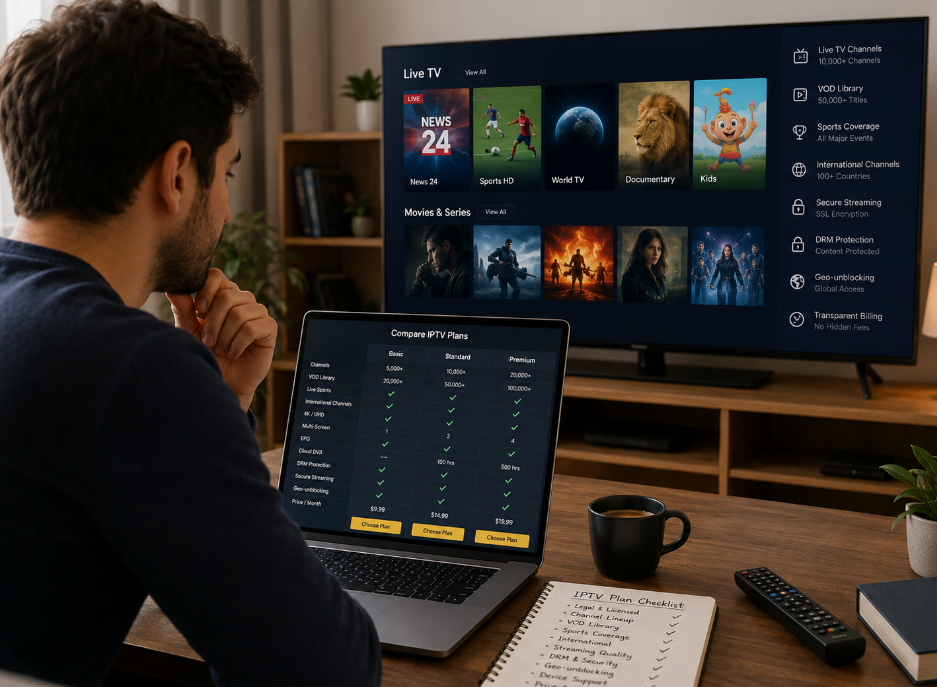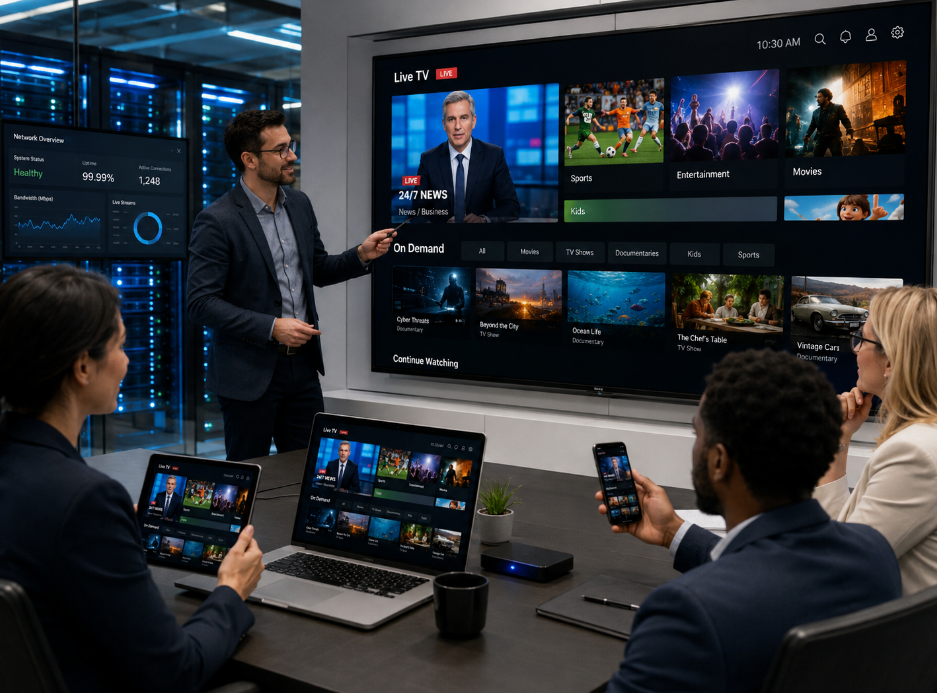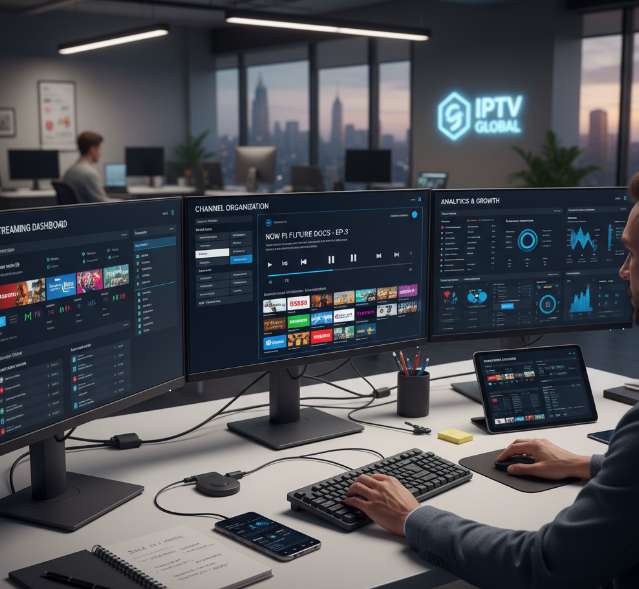
In 2026, IPTV apps are changing the game for anyone in the streaming biz. It’s like when cable TV first hit the scene—suddenly, there’s a whole new way to deliver content that’s faster, cheaper, and more flexible. IPTV Smarters Pro is one of those tools leading the charge, giving businesses an easy way to set up, stream, and scale their services.
If you’re in the wholesale IPTV space, you’re probably looking for something that’s both simple to use and powerful enough to handle a growing customer base. That’s where IPTV Smarters Pro Canada comes in. It’s designed to give you everything you need to manage content across multiple devices with minimal hassle.
But let’s be real—it’s not all smooth sailing. You might run into issues like setup problems or performance hiccups. The official Smarters Pro site is clear that the app is a standalone media player, so reliable playback still depends on valid playlists, provider credentials, and stable network conditions.
We’ll walk you through exactly how to get everything up and running, so you can avoid those headaches. Whether you're customizing for specific needs or troubleshooting a technical issue, this guide will make sure you’ve got it covered.
By the end of this article, you’ll know how to fully utilize IPTV Smarters Pro, and have the confidence to scale your business with ease. Let’s get into it!
Adaptive Streaming
How bitrate switching, HLS, DASH, and transcoding improve playback quality.
Multi-device Use
Cross-platform compatibility, multi-screen viewing, and seamless switching between devices.
Setup & Customization
Installation, playlists, EPG, parental controls, playback settings, and PiP configuration.
Security & Reliability
Encryption, DRM, provider credentials, VPN, and stability considerations for streaming.
4 Reasons Why IPTV Apps Are Revolutionizing Streaming in 2026
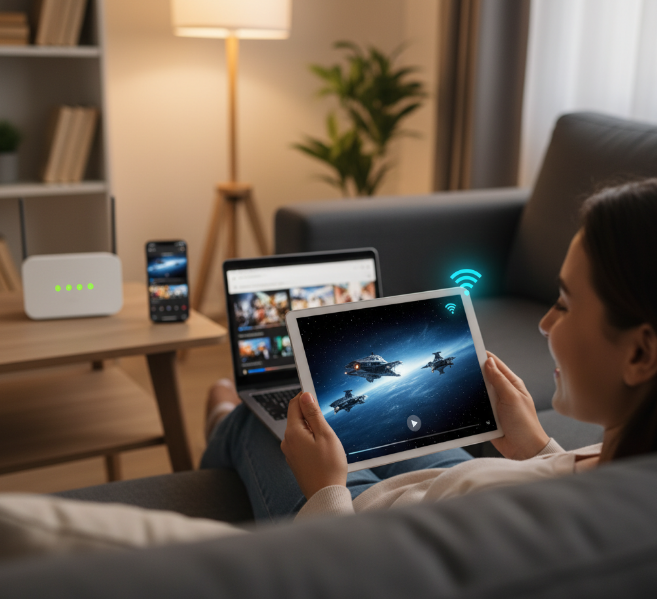
The Shift to Adaptive Bitrate Streaming
Seamless Streaming with Dynamic Quality
HLS and DASH enable video streaming at multiple bitrates, automatically adjusting based on your network speed for the best possible viewing experience.
Video codecs like H.265 offer efficient compression, ensuring smooth playback even on lower bandwidth connections.
Reduced latency ensures near-instant response times, making IPTV streaming feel more like traditional broadcast television.
How Bandwidth Affects Viewing Quality
A stable bandwidth connection ensures the app can smoothly adjust bitrate in real-time, preventing lag.
Without the need for constant buffering, users can enjoy uninterrupted content across a variety of devices.
Bitrate Switching for Consistent Viewing
The app switches the bitrate automatically depending on network conditions, so your video quality adjusts in real-time to prevent buffering or stalling.
Whether on Wi-Fi or mobile data, you’ll have a consistent, high-quality streaming experience.
Transcoding for Optimal Playback Across Devices
Transcoding ensures video content is converted to the ideal format for each device, whether it’s a smart TV, tablet, or smartphone.
The app ensures that resolution and bitrate match the capabilities of your device, providing an optimal viewing experience for every screen.
The Rise of Multi-screen Support for Better Engagement
Stream Simultaneously on Multiple Devices
With multi-screen support, you can stream on a smart TV, a tablet, and a smartphone all at the same time, creating a flexible viewing experience.
Synchronization ensures that the content plays in perfect sync across all devices, so you never miss a moment.
Casting and Split-screen Functionality
Casting allows you to send content from your mobile device to your smart TV with just a tap.
Split-screen features let you watch two streams at once, perfect for multitasking or keeping up with multiple shows or sports events.
Device Compatibility Enhances the Experience
IPTV apps are designed to work across a wide range of devices, including set-top boxes, smart TVs, and mobile phones.
The versatility of device compatibility ensures that users can access content on their preferred platform, whether at home or on the go.
Improving User Experience with Seamless Transitions
Multi-screen support ensures that if you start watching a show on your phone, you can pick up right where you left off on your tablet or smart TV, all without interruption.
This seamless transition creates a user-friendly experience for on-the-go content consumption.
How Content Delivery Networks are Changing IPTV
Reducing Latency with Edge Servers
Edge servers reduce latency by positioning content closer to the user, resulting in faster load times and smoother video playback.
Caching stores frequently accessed content locally, speeding up delivery and improving overall viewing quality.
Global Distribution for Better Access
IPTV content is delivered from a network of server nodes spread across the globe, ensuring that viewers in any location can access content without delays.
Traffic management optimizes the flow of data, preventing service slowdowns and providing a more stable connection for users worldwide.
Optimizing Bandwidth for Better Streaming
Bandwidth optimization ensures that streaming remains smooth, even during periods of high demand or traffic.
Global distribution routes content through the nearest server, minimizing congestion and ensuring high-quality streaming even in remote areas.
Managing Network Traffic Efficiently
CDNs can handle sudden spikes in demand by rerouting traffic to the nearest available server, ensuring consistent performance even during high-traffic events.
This ability to manage large-scale traffic is crucial for IPTV apps that want to provide a seamless experience during peak hours.
The Role of Encryption in Protecting IPTV Content
AES-256 Encryption for Secure Streaming
AES-256 encryption protects video streams by making it extremely difficult for unauthorized users to access or tamper with the content.
This ensures that streaming content is secure from piracy and unauthorized distribution.
 Protection.png "Digital Rights Management (DRM) Protection.png")
Digital Rights Management (DRM) Protection
DRM technologies control who can view content, preventing unauthorized access and reducing the risk of piracy.
By embedding DRM into IPTV apps, service providers can ensure only paying customers have access to premium content.
Watermarking for Piracy Prevention
Watermarking is used to embed hidden identifiers within the content, allowing providers to track and trace pirated streams back to their source.
This provides a deterrent against illegal distribution and helps protect the rights of content creators.
End-to-End Encryption for Complete Security
SSL/TLS protocols ensure that all data exchanged between users and servers is encrypted, making it nearly impossible for hackers to intercept or manipulate video streams.
End-to-end encryption ensures that IPTV service providers can offer a fully secure viewing experience, protecting both their content and users' personal information.
Best IPTV Apps for Streaming on Multiple Devices
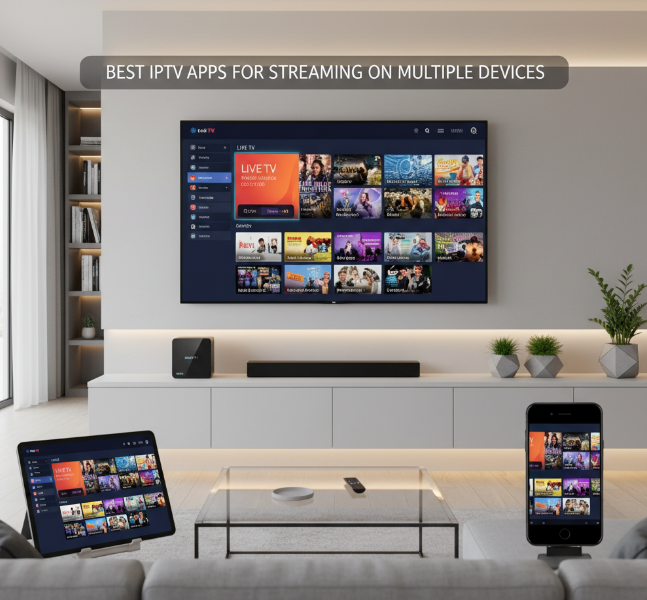
Comparing Platform Compatibility: Android, iOS, and Set-top Boxes
Platform Overview
Android & iOS: Available through current Smarters Pro download channels and the App Store, IPTV apps work seamlessly on smartphones, tablets, and Android TVs.
Set-top Boxes: Firestick, Apple TV, and Android-based boxes provide optimized IPTV apps for a reliable and better viewing experience.
Cross-Platform Experience
Seamless Switching: Whether using an Android phone or Nvidia Shield, you can switch between platforms effortlessly while keeping preferences intact.
Operating System Compatibility: Apple TV offers a polished user interface tailored for TV viewing, while Android TV is more customizable, offering a broad range of settings.
Set-top Box Specific Features
Firestick: Budget-friendly and easy to use, but lacks deep customization. Ideal for casual viewing.
Apple TV: Higher price but offers premium features like Siri voice control, 4K support, and an overall better experience for high-end streaming.
Optimizing IPTV for Different Screen Sizes
Aspect Ratio and Resolution
Smartphone & Tablet: Use UI scaling to adjust the layout on smaller screens for an easy-to-navigate interface.
Smart TV: For large screens, ensure the app supports 4K resolution to deliver crisp, high-quality visuals.
UI Scaling for Small Screens
On smartphones and tablets, the app automatically adjusts resolution to fit smaller screens. Switching between landscape and portrait modes ensures a smooth viewing experience.
Maximizing Screen Space on Smart TVs
Adjusting UI for 4K: On 4K TVs, ensure the resolution setting is optimized for the highest quality. UI scaling should adapt so the app remains easy to use without cluttering the screen.
Maximizing Streaming Quality with Bandwidth Management
Avoiding Buffering Issues
Bitrate Control: Adjust the bitrate in the settings if your internet connection is slow to avoid buffering. This ensures smooth playback even with limited bandwidth.
VPN Impact: When using a VPN, select a nearby server to minimize speed reduction, which can help maintain a stable stream.
Optimal Internet Setup
Ethernet vs Wi-Fi 6: For better streaming, use an Ethernet connection for a stable, high-speed connection. If using Wi-Fi, Wi-Fi 6 ensures faster speeds and less congestion, ideal for households with multiple devices streaming simultaneously.
ISP Throttling: If you experience buffering during peak hours, your ISP might be throttling bandwidth. A VPN or upgrading to a higher-tier internet plan can help solve this issue.
Codec Adjustments for Better Quality
Choosing the right codec can enhance stream quality. Apps that support H.265 or HEVC offer better compression and higher quality at lower bitrates, reducing buffering and improving the streaming experience.
How to Customize IPTV Smarters Pro for a Personalized Viewing Experience
Creating a Personalized Channel List
Customizing your channel list in IPTV Smarters Pro is a great way to ensure a tailored experience for every user. Organizing your channels by categories or groups can make finding content way easier. Let’s dive into the key elements:
Favorites: Add your go-to channels to the Favorites section for quick access.
EPG Sorting: Arrange channels based on your viewing schedule using the EPG.
User Interface Tweaks: Personalize the UI by adjusting how channels appear for a more organized and user-friendly layout.
Channel Management: Create groups or filter channels into custom categories to stay organized and improve your viewing experience.
By doing all this, your IPTV experience will be a lot smoother and more aligned with what you like to watch.
Using M3U and M3U8 Playlists for Custom Streaming
M3U and M3U8 playlists allow you to bring in your custom content using a simple playlist URL. Here's how you can leverage them:
Add Playlist URL: Find the URL for your M3U or M3U8 playlist, which can include VOD and live streams.
Xtream Codes Integration: Use Xtream Codes for easier access to content through IPTV providers.
Media Player Support: Ensure the app supports HLS streaming to handle the playlists correctly.
File Path Setup: Map out the file path for smoother access to your custom playlists and streams.
With this setup, you can personalize your streaming and avoid relying on generic channel lists.
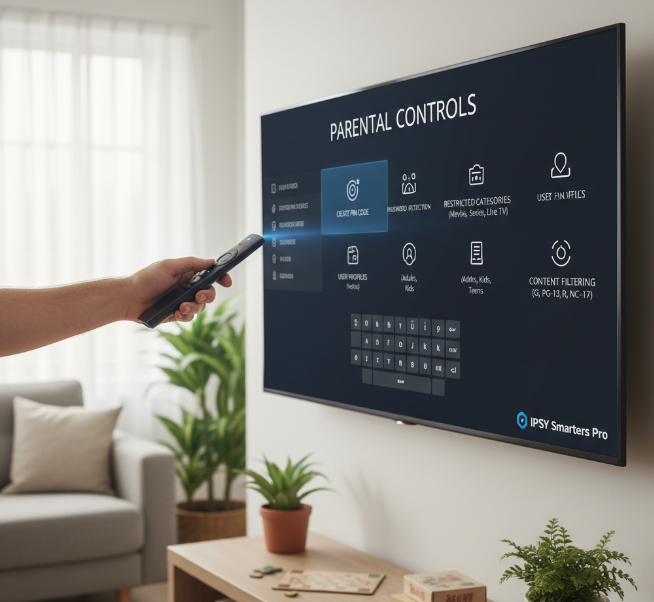
Setting Up Parental Controls for Safe Viewing
Parental controls are a must when it comes to keeping inappropriate content away from younger viewers. Here's a simple guide to setting them up:
PIN Code: Create a secure PIN code that will restrict access to adult categories or restricted content.
Password Protection: Set up password protection for sensitive channels.
User Profiles: Designate different user profiles to control what content is visible to each person, ensuring a safe experience for everyone.
Content Filtering: Filter content by age or category to make sure only suitable content is accessible.
These steps will help you manage viewing and make sure your IPTV experience is family-friendly.
Adjusting Aspect Ratio and Playback Controls
Adjusting the aspect ratio and fine-tuning your playback controls ensures a perfect viewing experience on any screen. Here’s how to adjust things:
Screen Resolution: Choose the right resolution for your device to avoid distortion during playback.
Zoom & Stretch: Use zoom or stretch features to fit the content to your screen, especially for older shows or movies.
Buffer Size: Adjust your buffer size to manage streaming smoothly without annoying pauses.
Hardware Acceleration: Enable hardware acceleration to improve streaming performance, especially for high-definition content.
Playback Speed: You can control playback speed to make it faster or slower depending on your needs.
These settings will make sure your viewing experience is seamless and optimized for your device.
Optimizing for Multi-screen Viewing with Seamless Transitions
Multi-screen viewing is a huge plus when you need to watch multiple streams at once. Here’s how to make it smooth:
Multi-screen Mode: Enable multi-screen mode to view multiple channels or streams side-by-side.
Split Screen & Simultaneous Streams: Customize the layout for split-screen or simultaneous streaming on different devices.
Device Sync: Ensure device sync is on to make transitions between devices smooth without interruptions.
Bandwidth Management: Adjust bandwidth management settings to ensure you have enough speed for multiple streams.
Picture-in-Picture: Use the Picture-in-Picture mode to have one stream in the corner while you watch another.
With these features, you’ll have an easy time switching between devices and watching multiple streams without hiccups.
Quick Fixes for Common IPTV Smarters Pro Problems
Troubleshooting Buffering with Latency Control
Buffering issues can be frustrating, but they are usually solvable with the right approach. Here’s how you can troubleshoot:
Check Your Bandwidth
Slow or unstable internet speed is often the culprit. Test your network speed with a speed test app to ensure you have enough bandwidth.
If you're running multiple devices, they may be consuming the available bandwidth, causing buffering. Prioritize your IPTV device or cut down on extra devices.
Adjust Cache Size
Increasing the cache size can improve buffering issues. This allows the app to store more data ahead of time, reducing interruptions.
A larger cache reduces the need for frequent data retrieval from the server.
ISP Throttling
Some ISPs (Internet Service Providers) intentionally slow down streaming services, known as ISP throttling.
Use a VPN to bypass throttling and stream content without interruptions.
Choose the Right Streaming Protocol
Switching to HLS (HTTP Live Streaming) or MPEG-TS can make a huge difference, especially when network conditions fluctuate. These protocols are more resilient to network instability.
HLS is adaptive, meaning it adjusts video quality based on available bandwidth.
Network Speed Overload? Try Adjusting Your VPN
Sometimes, your VPN could be slowing down the stream. Try connecting to a server that’s closer to you or use a high-speed VPN designed for streaming.
Fixing Video Playback Issues via Protocol Adjustments
Video playback issues can occur due to a variety of reasons. If you’re experiencing poor video quality or a laggy stream, follow these steps:
Try Switching Codecs
Many video playback issues arise from codec mismatches. If you're using HLS, try adjusting the codec to MPEG-4 for smoother performance.
Experiment with the VLC player or ExoPlayer to see if they handle the stream better than default options.
Enable Hardware Acceleration
Some devices struggle with video decoding. Enabling hardware acceleration can take the load off your device’s CPU and improve performance.
Check the settings in your IPTV app and toggle the option for hardware acceleration.
Adjust API Login Settings
Poor login settings can cause playback problems. Ensure your API login credentials are properly synced.
If login timeouts occur, try adjusting the connection timeout settings in the IPTV app’s backend.
Protocol Troubles? Switch to RTMP
If you’re seeing consistent issues with streaming, switch to RTMP (Real-Time Messaging Protocol). RTMP is known for its real-time capabilities and is ideal for live streams.
This can reduce buffering and sync issues when switching between scenes or during live events.
A Complete IPTV Smarters Pro Setup: From Installation to Streaming
Step 1: Installing IPTV Smarters Pro on Your Device
Installing IPTV Smarters Pro is easy, but getting it right is crucial for smooth streaming. Let’s break down how to set it up on different platforms.
For Android
Open your device’s download source or the official Smarters Pro download page.
Search for "IPTV Smarters Pro" or the current Smarters Pro app build.
Click "Install" and launch the app.
For iOS (App Store)
Go to the App Store.
Search "Smarters Pro."
Tap "Get" and install.
For Firestick (Sideloading with Downloader)
Install the Downloader app from Amazon Appstore.
Use the Downloader to sideload the APK file from the official website.
Complete installation and open the app.
Step 2: Configuring the Electronic Program Guide (EPG)
Now that you’ve installed the app, let’s move on to configuring the TV Guide. You’ll need an XMLTV or other EPG URL to get accurate channel schedules.
Input the EPG URL
Go to settings.
Enter your EPG URL for the TV guide.
Refresh Rate Settings
Adjust how often your EPG updates.
Set it to refresh daily or based on user preference.
Channel Listings
Ensure that the program schedule matches the channels on your list.
Setup Tip: A properly configured EPG helps keep channel listings aligned. Use the EPG details supplied by your IPTV provider and refresh regularly if schedules change.
Step 3: Loading Your M3U or M3U8 Playlist
Ready to start streaming? Now, let’s load your M3U or M3U8 playlist into IPTV Smarters Pro. The playlist is the key to accessing channels and on-demand content.
M3U URL Setup
Open the app and navigate to the settings.
Add the M3U URL from your IPTV provider.
Xtream Codes API
Use Xtream Codes API if provided by your provider.
Enter your login credentials and streaming link.
Test Your Playlist
Once added, test your playlist in a media player for functionality.
Step 4: Setting Up Video on Demand and Catch-up TV
If you like flexibility in your content, setting up VOD and Catch-up TV is a game-changer. This allows you to enjoy movies and shows on your own schedule.
Activate VOD Content
In settings, enable VOD and add sources.
Load movies and series for on-demand access.
Catch-Up TV
Enable Catch-Up TV to access previously aired shows.
Time-shift your content to play from any point.
Archive Setup
Configure content archiving to keep your media organized and easily accessible.
Step 5: Enabling Picture-in-Picture Mode for Multi-tasking
Sometimes, multitasking is essential. Enabling Picture-in-Picture (PiP) mode allows you to watch IPTV while doing other tasks.
Activating PiP Mode
Navigate to the settings menu and toggle PiP on.
The video will shrink into a floating window.
Multi-screen Setup
Resize the PiP window for optimal multitasking.
Position it anywhere on your screen.
Background Play
Enable background play to keep content running when the app is minimized.
Step 6: Finalizing Network and Security Settings (MAC Filtering, VPN)
To ensure your IPTV streaming is secure and fast, fine-tuning network settings and enhancing privacy is essential.
MAC Address Filtering
Add the MAC address of your device to the network settings.
This ensures that only authorized devices can access the stream.
VPN Setup
Enable your VPN for encryption and privacy protection.
This hides your IP address and ensures secure streaming.
Proxy Server and Firewall
Configure a proxy server for added anonymity.
Ensure your firewall settings allow IPTV streaming without interference.
Security Note: Use a trusted VPN only when needed, and remember that TLS protects data in transit while a poor VPN endpoint can still reduce streaming speed.
Why Choose IPTV Smarters Pro in 2026?
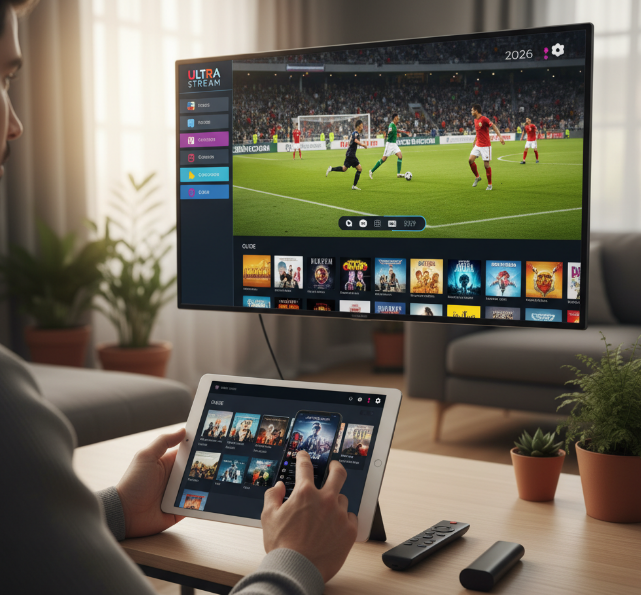
Key Features That Make IPTV Smarters Pro a Top Choice
Xtream Codes API Integration
IPTV Smarters Pro supports the Xtream Codes API, which allows for seamless integration with your server. Whether you’re managing your own IPTV service or just streaming, this feature ensures smooth connectivity with minimal hassle.Multi-Screen Support
One of the standout features is multi-screen support. You can watch content across multiple devices, like your smartphone, tablet, or smart TV, all at once. This makes it ideal for families or small businesses who want to offer different content to multiple users without any glitches.Electronic Program Guide (EPG)
The EPG ensures you never miss your favorite shows. It provides a detailed schedule of live TV programs, making it easy to plan your viewing and catch your shows on time.Firestick Compatibility
With compatibility across Firestick and many other streaming devices, IPTV Smarters Pro gives you flexibility in how you watch your content. Setting it up is as easy as plugging it in, and you can enjoy high-quality live TV streaming and video on demand from anywhere.
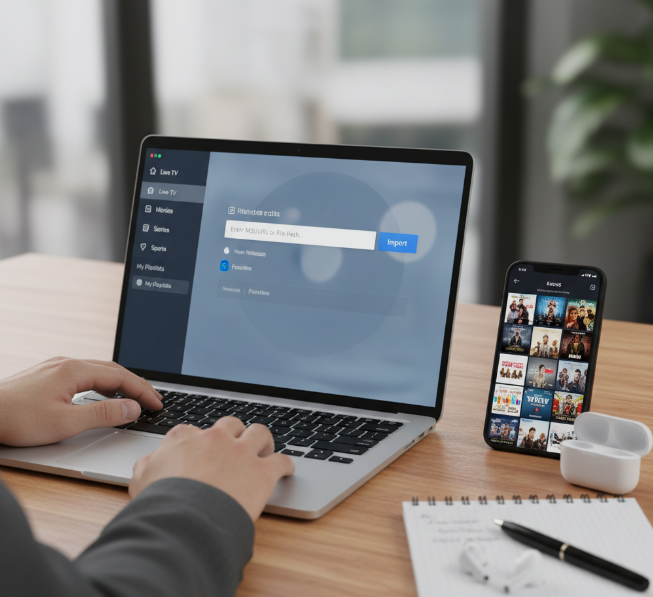
Streamlining Your Viewing with Advanced Features
Live TV Streaming
Stream live TV from hundreds of channels. Whether it’s news, sports, or entertainment, IPTV Smarters Pro brings it all straight to your device in high quality.
Video on Demand (VOD)
VOD is another game-changer. You can watch movies, TV shows, and even documentaries on your own time, all from an easy-to-use interface.
Catch-up TV
Don’t worry if you miss a show—catch-up TV lets you watch what you missed, ensuring you’re always up to date.
M3U URL Support
IPTV Smarters Pro supports M3U URLs, so you can easily import playlists. Whether you’re a casual viewer or a business looking to offer a custom IPTV service, this flexibility is a huge win.
What Makes IPTV Smarters Pro Stand Out in 2026?
| Feature | Description | Benefit | Example Use Case |
|---|---|---|---|
| Cross-platform App | Available on Android, iOS, Smart TVs, and more | Use on any device without limitations | Watch from your phone, tablet, or TV |
| User Interface | Clean and easy-to-navigate UI | No technical skills required, user-friendly | Streamline your setup and content management |
| Parental Controls | Restrict access to inappropriate content | Perfect for families and businesses | Keep kids safe while streaming |
| Xtream Codes API Integration | Seamlessly connect to server data | Effortless streaming, fewer errors | Business providers manage content more easily |
Real Talk: What Experts Say About IPTV Smarters Pro
The strongest current evidence comes from the official Smarters Pro product messaging and live app listings rather than unsupported third-party staff quotes.
“Smarters Pro is a professional media player designed for seamless, high-quality playback of legally acquired content. It supports M3U and JSON playlists...” — official Smarters Pro site
Another point consistently reflected across current product pages is the focus on simplicity and cross-device use:
“Smarters Pro supports multiple platforms, including smartphones, tablets, smart TVs, web browsers, and desktop systems.” — official Smarters Pro site
What’s New in IPTV Smarters Pro for 2026?
Expanded Multi-Screen Support: Watch across different devices with broader platform coverage.
Improved Content Management: Better playlist organization, favorites, and smoother navigation.
Enhanced Security Messaging: Clearer emphasis that the app is a standalone media player and that users should verify official sources for downloads.
Why This Matters for You
For those running businesses or just looking to enjoy seamless streaming at home, IPTV Smarters Pro is an investment that pays off. It’s reliable, adaptable, and packed with features that help you control your content the way you want. Whether you're streaming live TV or catching up on your favorite shows, this app has everything you need.
For readers comparing providers, this is also where a trustworthy IPTV setup Canada, a working free iptv trial, and a clear IPTV subscription Canada path can improve conversion because they reduce setup friction and build confidence with first-time users.
Conclusion
Setting up IPTV Smarters Pro is a game-changer, and it's clear that this app offers some serious flexibility. From customizing your channel list to fine-tuning video quality, it’s like having a personal TV station right at your fingertips. With the tips shared in this guide, you’ll be ready to dive into the world of IPTV in no time.
But remember, the beauty of IPTV apps like Smarters Pro lies in how you can make it your own. Want to watch on multiple devices? No problem. Having issues with buffering? There’s a fix for that too. The key is to keep playing around with the settings and tailor them to your needs. Don’t be shy to explore!
And looking ahead, IPTV apps will only keep improving. As new tech rolls in, expect even more features to streamline your streaming experience. Keep your app updated and stay on top of fresh updates so you can enjoy watching your content the way you want to—on your terms.
If you want a stronger CTA path for this topic, the most natural internal next steps are how to setup IPTV Canada, IPTV free trial Canada, and the main IPTV Canada offer page, all of which are aligned with the StarIPTV knowledge base and setup-focused search intent.
References
[StarIPTV.ca – Knowledge Base - uploaded file]
[How to Use IPTV Smarters Pro App in 2026 (source article draft) - uploaded file]
[Smarters Pro 2026 Update - https://smarterspro.com/discover-the-latest-2026-updates-of-smarters-pro-features-availability/]
[Smarters Pro Terms & Conditions - https://smarterspro.com/terms-conditions/]
[Smarters Pro Download Links - https://smarterspro.com/category/uncategorized/]
[Smarters Pro on App Store - https://apps.apple.com/us/app/smarters-pro/id6450746159]
[Downloader on Amazon Appstore - https://www.amazon.com/AFTVnews-com-Downloader/dp/B01N0BP507]
[HTTP Live Streaming (HLS) - https://developer.apple.com/streaming/]
[MPEG-DASH - https://www.mpeg.org/standards/MPEG-DASH/]
[Compatible Media Transcoding / HEVC - https://developer.android.com/media/platform/transcoding]
[Transport Layer Security (TLS) - https://developer.mozilla.org/en-US/docs/Web/Security/Defenses/Transport_Layer_Security]
[Advanced Encryption Standard (AES) - https://www.nist.gov/publications/advanced-encryption-standard-aes]
[IPTV apps - https://www.startiptv.ca/blog/top-10-free-iptv-apps-and-services-to-use-in-2025]
[IPTV Smarters Pro Canada - https://www.startiptv.ca/blog/is-iptv-smarters-pro-legal]
[IPTV setup Canada - https://www.startiptv.ca/blog/how-do-i-set-up-iptv]
[free iptv trial - https://www.startiptv.ca/blog/top-5-iptv-free-trials-in-2025]
[IPTV subscription Canada - https://www.startiptv.ca/pricing.html]
[IPTV free trial Canada - https://www.startiptv.ca/setup-guide.html]
[IPTV Canada - https://www.startiptv.ca]
FAQ
What are the main advantages of IPTV apps in 2026?
IPTV apps in 2026 offer more flexibility, smoother cross-device streaming, better adaptive bitrate playback, and easier access to both live TV and on-demand content. For users and providers alike, they make it simpler to manage content on smart TVs, phones, tablets, and streaming boxes without the limitations of traditional cable systems.
How do I set up IPTV Smarters Pro in 2026?
To set up IPTV Smarters Pro, install the app on your device, open it, and log in using your provider’s M3U playlist URL, Xtream Codes API, or other supported credentials. After that, configure your EPG, adjust playback settings if needed, and test your channels or VOD library to make sure everything is working smoothly.
What does adaptive bitrate streaming do in IPTV Smarters Pro?
Adaptive bitrate streaming automatically adjusts video quality based on your internet speed and device performance. This helps reduce buffering, prevents sudden playback interruptions, and keeps streaming stable whether you are on strong Wi-Fi, mobile data, or a more limited connection.
How do M3U and M3U8 playlists work in IPTV Smarters Pro?
M3U and M3U8 playlists act like content maps that tell the app where to find live channels, movies, or series streams. In IPTV Smarters Pro, you simply enter the playlist URL or upload the file, and the app uses that information to organize and display the available content inside its interface.
What can I customize inside IPTV Smarters Pro?
IPTV Smarters Pro lets you customize channel groups, favourites, parental controls, playback settings, aspect ratio, interface layout, and sometimes even multi-screen display options. These features help users create a more organized and personal viewing experience that fits their habits and device type.
How can I fix buffering problems in IPTV Smarters Pro?
Start by checking your internet stability, reducing background network usage, and trying a wired connection if possible. You can also adjust cache or playback settings, use a closer VPN server if you stream through VPN, and make sure the playlist or provider source is working properly, since buffering is often caused by either network instability or source-side issues.
What is the role of EPG in IPTV Smarters Pro?
EPG, or Electronic Program Guide, helps display channel schedules, show titles, and program timing inside the app. It makes IPTV Smarters Pro easier to use because viewers can browse what is currently playing, see what is coming next, and navigate live channels more like a traditional TV guide.
Can IPTV Smarters Pro play on multiple devices at the same time?
Yes, IPTV Smarters Pro supports use across multiple device types, but simultaneous playback depends on your IPTV provider’s subscription rules and stream limits. The app itself is designed for cross-platform access, while the actual number of devices that can stream at once is usually controlled by the service credentials you receive.
What security settings should I pay attention to in IPTV Smarters Pro?
You should pay attention to secure login credentials, parental control PIN settings, trusted playlist sources, app download source authenticity, and whether your connection is protected when needed. It is also smart to avoid unknown APK files and to verify that your provider details are legitimate before entering them into the app.
How can I make the most of multi-screen support in IPTV Smarters Pro?
To get the best out of multi-screen support, use a stable high-speed connection, organize your preferred channels in advance, and test playback on the devices you use most often. Features like split-screen, picture-in-picture, and seamless switching between devices work best when your network, provider access, and display settings are properly configured.