If you’re asking how do i find roku pin, you’re probably already stuck at the worst time—right when you want to make a purchase, finish setup, or get a device ready for use. It’s a bit like misplacing your house key when you’re standing at the front door: small problem, big headache.
The good news? In most cases, your Roku PIN isn’t gone for good. It’s usually tied to your Roku account settings, so the fix is often easier than it looks once you know where to check.
For homes, that’s annoying enough. For resellers, installers, or teams handling a stack of devices, it can snowball fast—lost time, extra support calls, and a real pain in the neck during rollout.
A support rule of thumb: “Check the account before blaming the box.”
This guide gets right to the point: where to find your Roku PIN settings, how to recover or reset access, when a reset makes more sense, and how to sort out setup or purchase snags without running in circles.
Forgot Your Roku PIN? Start Here
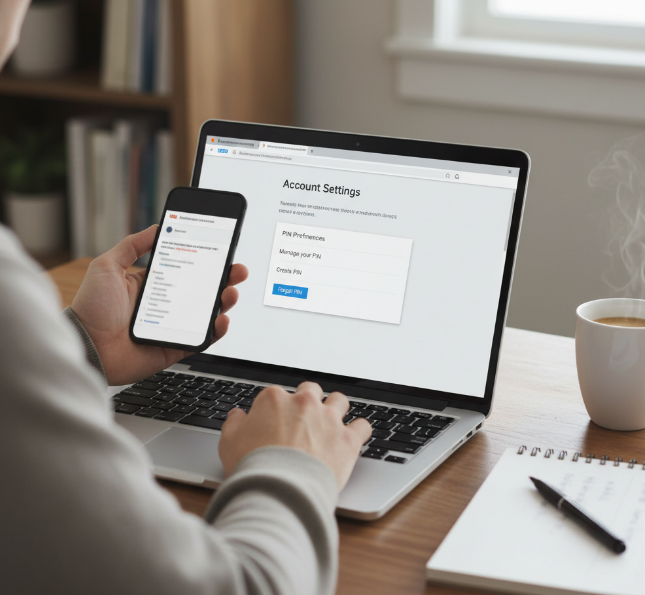
What a Roku PIN Actually Does for Purchase Authorization
Your Roku PIN is mainly a security gate for spending. In a Roku account, it can block purchases from the Channel Store, stop surprise subscription sign-ups, and confirm a transaction before money leaves your payment method. It does not magically unlock everything on the device. Think of it as a checkout checkpoint tied to billing rules. If purchases keep getting blocked, your PIN is usually doing exactly what it was set to do. Roku’s official PIN controls cover subscribing, purchases, and adding apps, not every device action.
Is Your Four-digit Code Used for Parental Controls or Digital Purchase?
A four-digit code can do two very different jobs. In one setup, it acts like a security code for purchases and app adds. In another, it works as a lock for parental controls, content ratings, age restriction, and family access control. So check your PIN settings before changing anything. If kids are blocked from shows, that points to parental limits. If checkout is blocked, that points to purchase protection. Roku’s current support pages confirm the same PIN can be used for purchases and for parental-control related restrictions depending on how the account is configured.
Before Recovery: Check Login Credentials and Email Verification
Before chasing recovery steps, do a quick sanity check:
Confirm your email address matches the one on your Roku login
Try the right password and test normal sign-in
Open the account dashboard from your user profile
Look for a fresh verification email in your inbox or spam folder if you need to reset access
A lot of PIN “problems” are really account-access mix-ups. Fix the login side, and the PIN issue often gets way easier. Roku sends a password reset email when you use its official forgot-password flow.
Where to Check Your Roku PIN Settings
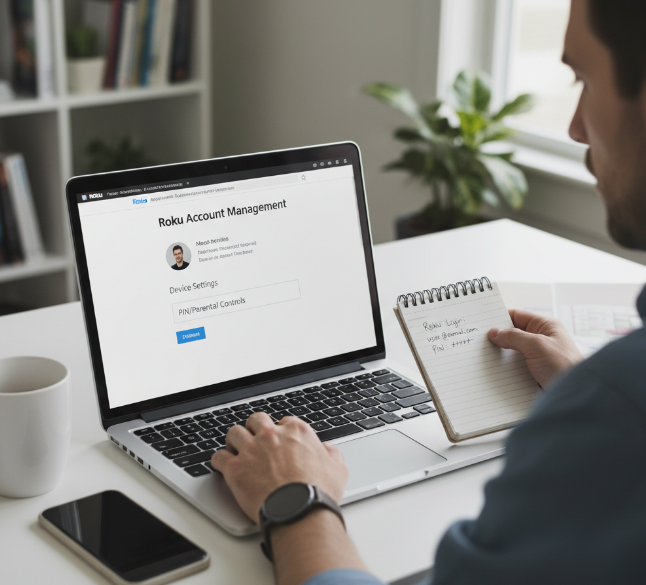
Open the Account Dashboard from Your User Profile
Open a web browser, sign in to your Roku account, and go to your account dashboard. In account management, look for the section tied to PIN/Parental controls. Use the same email address linked to your Roku login, or you may land in the wrong account and chase ghosts. If the page looks off, refresh the login, then recheck your profile details. That little step saves a lot of “why is this not here?” drama. Roku’s current support instructions say to sign in to my.roku.com and open PIN/Parental controls under device settings.
Find PIN Controls in Subscription Settings and User Preferences
Here’s the usual path:
Open your Roku account at my.roku.com.
Under Device settings, select PIN/Parental controls.
Look for options covering subscribing, making purchases, and adding apps.
Review any parental controls or purchase rules tied to your access code.
Some Roku accounts place PIN controls near purchase rules, not beside profile info. Kinda sneaky, yeah. If you only check one tab, you might miss it. Roku’s official help specifically points users to PIN/Parental controls rather than a generic subscription tab.
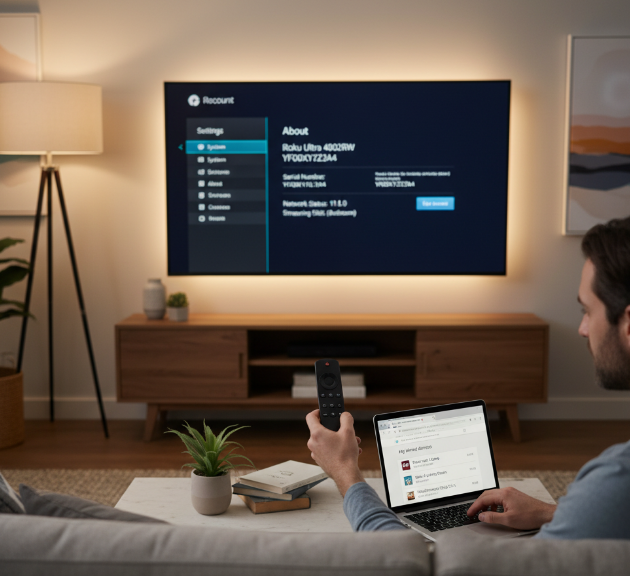
Check Linked Devices from the Home Screen and Settings Menu
On your Roku device, go to the home screen, then open the settings menu if you want to confirm which box or stick you’re using. Pull up device info and match the serial number with the device list in your account when possible. If one device is old, borrowed, or no longer active, your PIN behavior can feel weird across screens. Quick tip: make sure the box or stick you’re using is the same one tied to the account you signed into. Roku also manages features like Guest Mode from the account area for linked streaming devices.
Use the Channel Store to Review Purchase Authorization Options
The Roku Channel Store is a sneaky but useful spot to check. Look at:
purchase PIN prompts during app downloads
authorization settings tied to paid adds
content restrictions for kid-friendly control
payment confirmation steps on premium streaming channels
If a channel asks for approval before install or upgrade, that’s often where your PIN rules show up in real life, not just on the account page. Roku’s support notes that a configured PIN may be required before adding apps or making purchases.
Confirm Billing Information, Payment Method, and Update Payment Details
If purchase prompts seem off, open billing. Check your billing address, saved credit card, and default payment method under Roku account billing. Then review your purchase history for failed charges or repeat prompts. Last move: update your payment method and refresh old payment details if the card expired or the address changed. Sounds basic, but this stuff trips people up all the time. A broken payment setup can make PIN-related purchase checks feel messy, even when the code itself is fine.
3 Ways to Recover a Lost Roku PIN
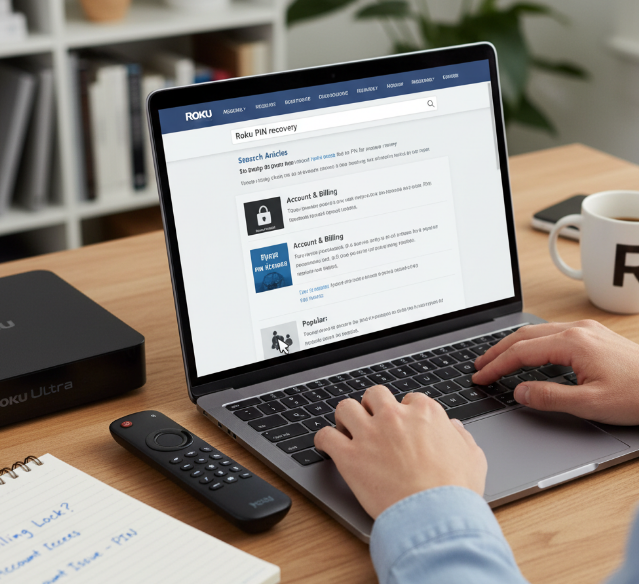
Recover Your PIN Through the Help Center and FAQ Page
The Roku Help Center is the fastest self-service stop when you’re stuck. Check the FAQ page and official PIN article for common questions about PIN recovery, billing locks, and account access. One important reality check: Roku generally lets you change or reset the PIN from your account rather than reveal the existing code directly. Good move: search your exact issue, not just “PIN.” That usually gets you to the right fix way quicker and cuts down on back-and-forth.
Verify Identity with Email Verification and Password Reset
If Roku asks for identity confirmation, here’s the usual flow:
Open Roku’s forgot password prompt.
Complete email verification using the reset link sent to your inbox.
Confirm key personal information linked to the account by signing in successfully.
Finish the password reset if account security is flagged.
Return to your Roku account and update the PIN settings.
This step is all about proving the account is really yours, plain and simple. Roku’s official recovery flow centers on the email account tied to your Roku login.
Use the Troubleshooting Guide for PIN Reset Steps
A solid Troubleshooting guide saves a lot of guesswork. If you need a PIN reset, follow the step-by-step instructions exactly, especially around login screens and payment prompts. Most common issues come from old account info, mixed-up devices, or skipped updates. If the reset process stalls, restart the app or player, then try again. For sticky cases, the guide usually points you to technical support without wasting time.
Review the Knowledge Base for Access Restriction Problems
Locked out? Check the Knowledge Base for access restrictions tied to parental controls, content restrictions, or blocked device access. Quick signs to watch for:
repeated error messages
purchase approval prompts
account lockout after wrong entries
missing settings on one device but not another
This is where you sort out if the PIN issue is really a permission problem in disguise. If you also stream through Roku and want broader setup context, Star IPTV’s IPTV on Roku and app iptv roku resources are the most relevant internal references from the knowledge base.
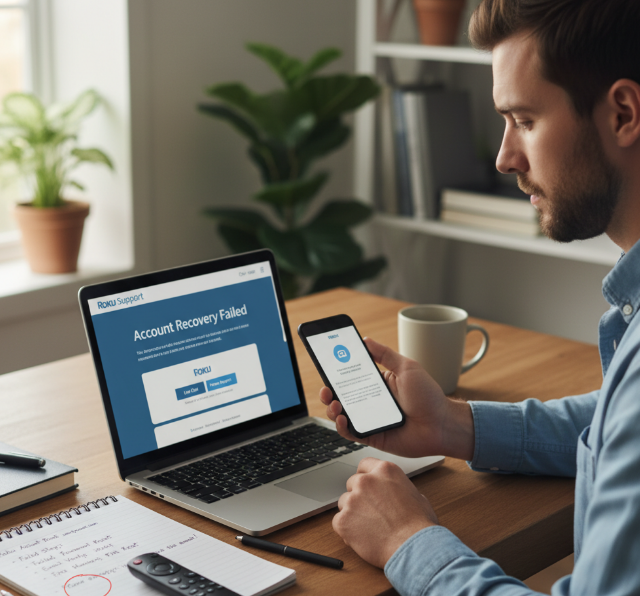
Contact Customer Support When Account Recovery Fails
Tried the DIY stuff and got nowhere? Time to tap Customer support. Use Roku’s support center for guided help and account-recovery next steps. Share the basics: email on the account, what recovery steps failed, and any error message. Clear details help technical assistance move faster. For failed recovery, this is usually the cleanest path out. If you’re troubleshooting your overall viewing setup too, Star IPTV also lists IPTV support Canada 24/7 and a Canadian IPTV provider setup path in its knowledge base.
Check Transaction History and Subscription Cost for Purchase-related Errors
Sometimes the PIN mess is really about money stuff. Open your purchase history and look for odd account charges, failed renewals, or surprise add-ons. Then review subscription cost, saved payment methods, and any recent billing issues. This helps spot purchase errors or even unauthorized charges that triggered extra verification. If a card changed or expired, fix that before retrying. Sounds basic, yeah, but this catches a lot of problems fast.
Roku PIN Reset and PIN Recovery
If your Roku PIN has gone sideways, this clears up the difference so you can fix the right thing without wasting time.
A lot of folks mix up PIN recovery with Reset PIN, but they’re not the same job in your Roku account.
PIN recovery usually means finding the right account area and regaining access to the tools tied to the PIN.
Reset PIN means replacing the old Security code with a new one.
If you still have access to your Account dashboard on the Roku website, recovery is usually the quicker path.
If your old PIN is unknown, access is blocked, or your PIN preferences no longer match your Purchase settings, a reset is often the better call.
On a Streaming device or Roku player, you usually won’t see the full account controls needed to manage the PIN. That job is commonly handled through your online account.
Here’s the easy way to sort it out:
Sign in to your Roku account on the Roku website.
Open the Account dashboard and look for PIN preferences.
Check if the issue is tied to Purchase settings or Parental controls.
If you can access the controls, review and update the PIN-related settings.
If you can’t trust the old code, use Reset PIN and create a new Security code.
Test the new settings on your Roku player or other Streaming device.
| Situation | What it usually means | Best action | Where to handle it |
|---|---|---|---|
| You can sign in and see PIN options | Access is still active | Review PIN preferences | Roku website |
| You can sign in but the old code is unclear | Account access is fine, PIN memory is not | Reset PIN | Account dashboard |
| Purchases are blocked unexpectedly | Purchase settings may be too strict | Check or update purchase rules | Roku account |
| Kids can still open restricted content | Parental controls may need adjusting | Change PIN settings and content limits | Roku website |
A quick gut-check helps here too:
Recovery fits better when
you can still get into the Roku account
the problem is more about finding the setting
your Purchase settings just need a quick look
your Parental controls are acting up, but account access still works
Reset fits better when
the old PIN is gone from memory
someone else may know the old Security code
you want a fresh start on a shared Roku player
your PIN preferences need a clean reset after account changes
If you can still reach the account tools, recovery saves time. If trust in the old code is gone, reset it and move on.
That’s a pretty good rule of thumb, eh?
A few common questions come up here:
Can I view my PIN directly on the Streaming device?
Usually, no. Roku’s official setup focuses on managing or resetting it from your online account, not displaying the current PIN on the device itself.
Does Reset PIN affect Parental controls?
It can, because Parental controls and Purchase settings may both rely on the same PIN setup.
Should I reset the PIN after selling a Roku player?
Yep. If the Roku player was shared, changing the PIN is a smart move before or after account changes.
What if the account dashboard looks fine but purchases still fail?
Check your Purchase settings, confirm the right Roku account is linked, and make sure the device has synced the latest account changes.
The big takeaway is simple: PIN recovery helps you regain control, while Reset PIN gives you a brand-new code. Pick the one that matches the problem, and you’ll save yourself a pile of hassle.
Fix Roku PIN Problems During Setup and Purchases
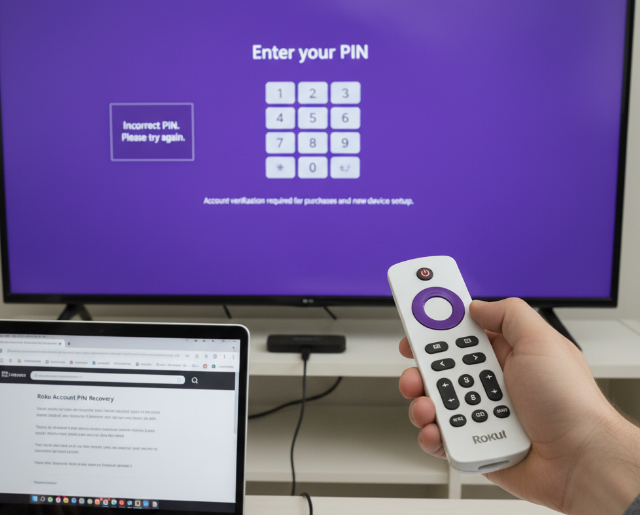
Roku PIN Not Working on a Streaming Stick or Set-top Box
If the PIN fails on a streaming device, don’t panic. Check that your Roku account matches the device in use and re-enter your login credentials carefully. A mismatch in authentication can make a valid security code look wrong. If Roku OS is lagging or outdated, the box may not sync account rules correctly. Quick fix list: restart the device, confirm the right account, then try PIN recovery from your Roku account page.
Check the Remote Control, Options Button, and On-screen Keyboard
A lot of PIN mistakes come from clunky input, not the PIN itself.
Test the Roku remote and its navigation buttons
Press the asterisk button only when the screen asks for it
Check the virtual keyboard layout and active input method
Make sure the infrared sensor is not blocked
If the interface feels jumpy, slow down and enter each digit one by one. Tiny typo, big headache.
Resolve Setup Errors Linked to the HDMI Connector and Power Adapter
Try this in order:
Reseat the stick in the HDMI port.
Plug the power supply into a working wall outlet.
Swap the power cable if power looks unstable.
Check for loose hardware connection points.
Watch for signal loss on screen.
If voltage seems weak from a TV USB port, use a direct wall adapter.
A shaky power feed can mess with setup screens and make PIN entry fail for no good reason.
Use the Reset Button After a System Update Failure
When a firmware update crashes, the box can act totally off. Menus freeze, PIN prompts loop, and a random software glitch blocks normal use. Use the reset or pinhole button only after a basic reboot and system restart fail. Hold it long enough to trigger recovery behavior or a full Factory reset, based on your model. This is the bigger hammer, so save it for update trouble, not simple typing mistakes. Roku says a factory reset erases most local data and returns the device to default settings.
Fix Purchase Blocks Caused by Payment Method or Credit Card Details
Purchase blocks usually point to account billing stuff, not the PIN alone. Check:
Billing information is current
Roku Pay is active
The credit card number and CVV are correct
No expired card is tied to the subscription
Your bank is not denying payment authorization
A transaction error can look like a PIN problem because checkout stops at the same screen. Super sneaky, but common. Roku also documents pre-authorization holds and payment-method validation as a reason charges or prompts may appear.
Review Content Filtering and Access Restriction for Household Accounts
Sometimes the PIN is doing its job, and that’s the catch. In shared homes, Parental controls, age rating limits, and PIN protection can block installs, purchases, or playback. Guest mode may also change channel access rules. Check viewing restrictions inside account settings and confirm who set them up. If kids, guests, or roommates use the same Roku, these controls can make normal actions feel broken when the account is actually locked down on purpose.
When to Use the User Manual, Community Forum, or Customer Support
Use the Troubleshooting guide or user documentation when the issue is basic and repeatable. Hit the knowledge base or help center for account and billing fixes. Go to Roku’s support center when you want official next steps. Reach out for technical support when the PIN problem involves charges, account access, or a device that just won’t behave. If you’ve tried three fixes and nothing sticks, that’s your sign. For broader streaming setup help outside Roku account recovery, Star IPTV’s free iptv trial and IPTV free trial Canada links are the closest matching internal resources from the knowledge base.
Conclusion
Sorting out a Roku PIN can feel like hunting for your house keys when you’re already late, but the fix is usually pretty straightforward. If you came here asking how do i find roku pin, the big takeaway is to check the right account, review PIN settings, and make sure the issue is not tied to payment details or parental controls.
A lot of folks get tripped up because the problem looks like a bad PIN when it’s really a checkout snag, a setup hiccup, or a household restriction. Kind of like blaming the remote when the batteries are toast. Going step by step through account access, device checks, and billing info saves time and cuts out the guesswork.
If things still go sideways, head back to your Roku account page or contact Roku Support. That’s usually the fastest way to get it sorted and get on with your day.
References
[How to create, change, or remove your Roku PIN - https://support.roku.com/article/220128567]
[Set parental controls - https://support.roku.com/article/208755938]
[If you forgot your Roku password or email - https://support.roku.com/article/208755948]
[Manage and use your Roku account - https://support.roku.com/article/115015595547]
[How to add apps to your Roku streaming device - https://support.roku.com/article/208756388]
[View your Roku purchase history and charges to your account - https://support.roku.com/article/115015759628]
[Add, update, or remove the payment method in your Roku account - https://support.roku.com/article/208755978]
[If there's a charge you don't recognize on your Roku account - https://support.roku.com/article/218368088]
[How to turn Guest Mode on and off on your Roku streaming device - https://support.roku.com/article/360015612834]
[Factory reset your Roku TV, player, or projector - https://support.roku.com/article/208757008]
FAQ
How do I find Roku PIN in my account settings?
Open your Roku account and check the account dashboard. Look for PIN options under purchase or parental controls, review linked devices and your user profile, and make sure your login credentials still work.
Why is my Roku PIN not working on a streaming device?
A bad PIN can come from old login credentials, account mix-ups, or slow Roku OS response on a streaming device. Check your Roku account and try PIN recovery if needed.
Can the Roku remote cause PIN entry problems?
Yes, a weak Roku remote can miss clicks. Check the navigation buttons and infrared sensor, watch the virtual keyboard on screen, and make sure the right input method is being used.
How do I find Roku PIN if I forgot which email I used?
Start with email verification and search inboxes tied to your Roku account. Old billing emails, subscription settings, and saved login credentials often point to the right account.
What should I check if setup fails during Roku PIN entry?
Make sure the HDMI port is snug, check the power supply and micro-USB cable, use a working wall outlet, and confirm there is no loose hardware connection causing setup trouble.
Is Roku PIN reset the same as Roku PIN recovery?
No. PIN reset changes the current code. PIN recovery helps you get back in through identity verification, account access, or the help center.
How do I find Roku PIN when purchases are blocked?
Check your Billing information, review Roku Pay and your credit card, make sure the CVV is correct, and remember that a transaction error can look like a PIN issue.
Why can household restrictions affect my Roku PIN?
Parental controls, PIN protection, guest mode, and limited channel access can block normal actions. A quick check in account settings usually clears things up.
How do I find Roku PIN help from official support?
Search the help center and knowledge base, read the Troubleshooting guide, check user documentation, and use technical support or live chat if needed.
When should I use the reset button on my Roku device?
Use it after a failed firmware update, frozen menus, or a stubborn software glitch. A Factory reset is the last move after simple reboot steps fail.