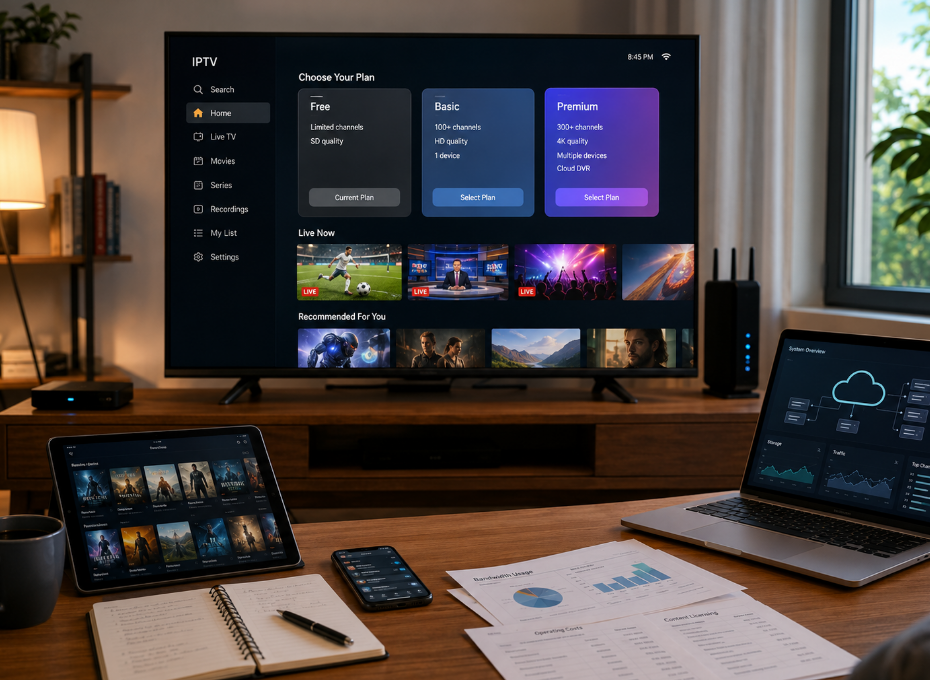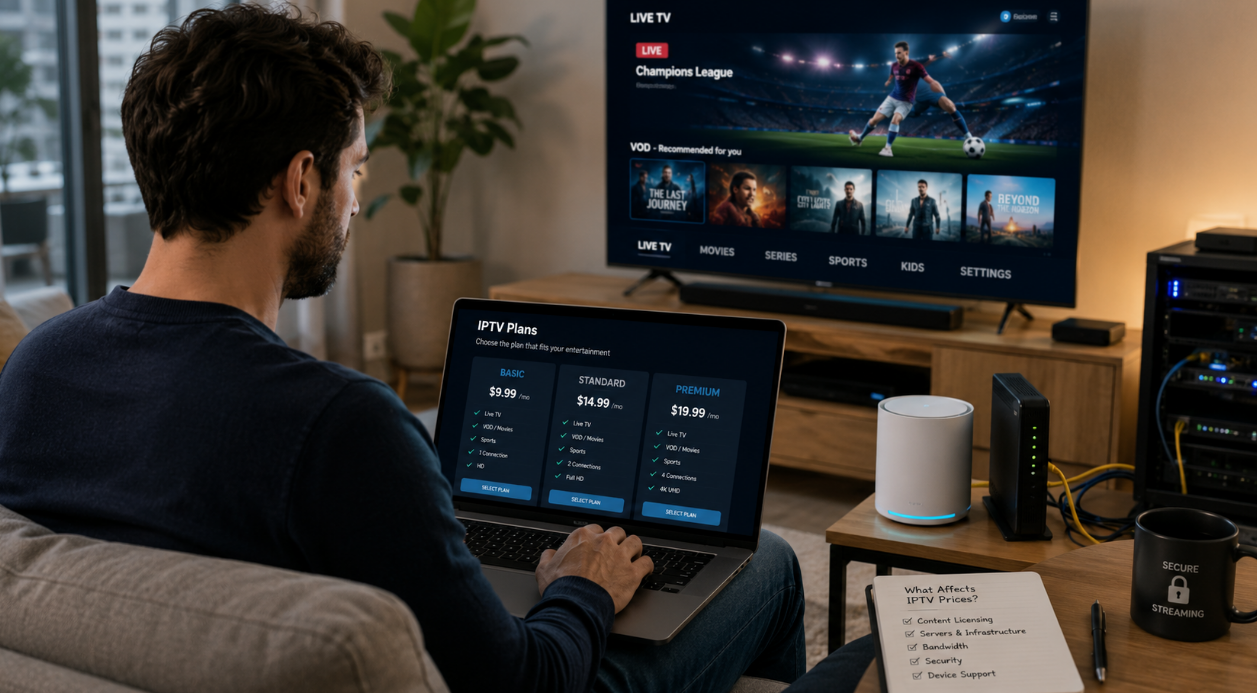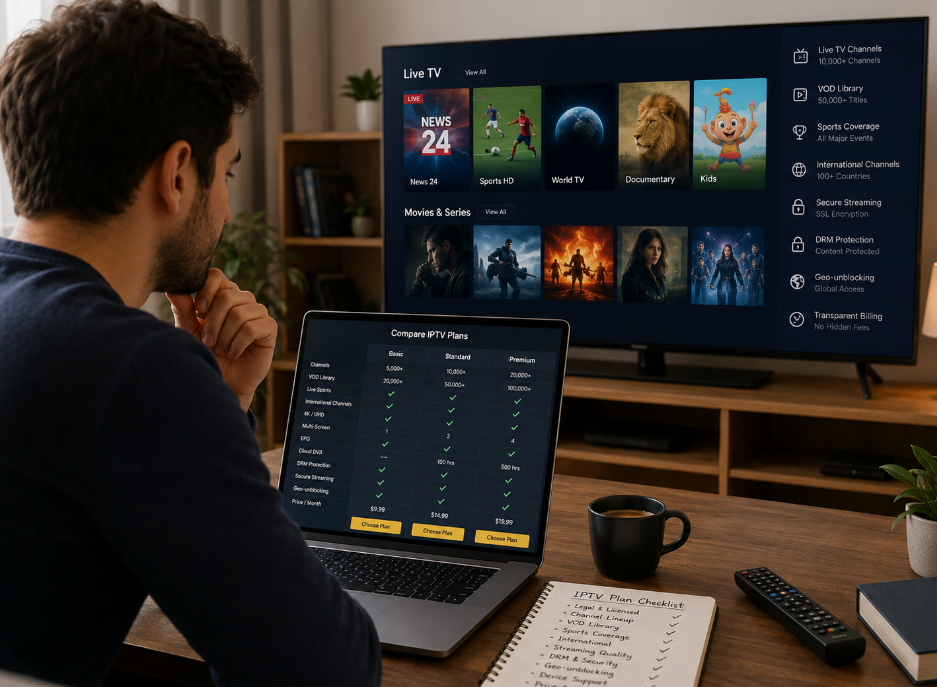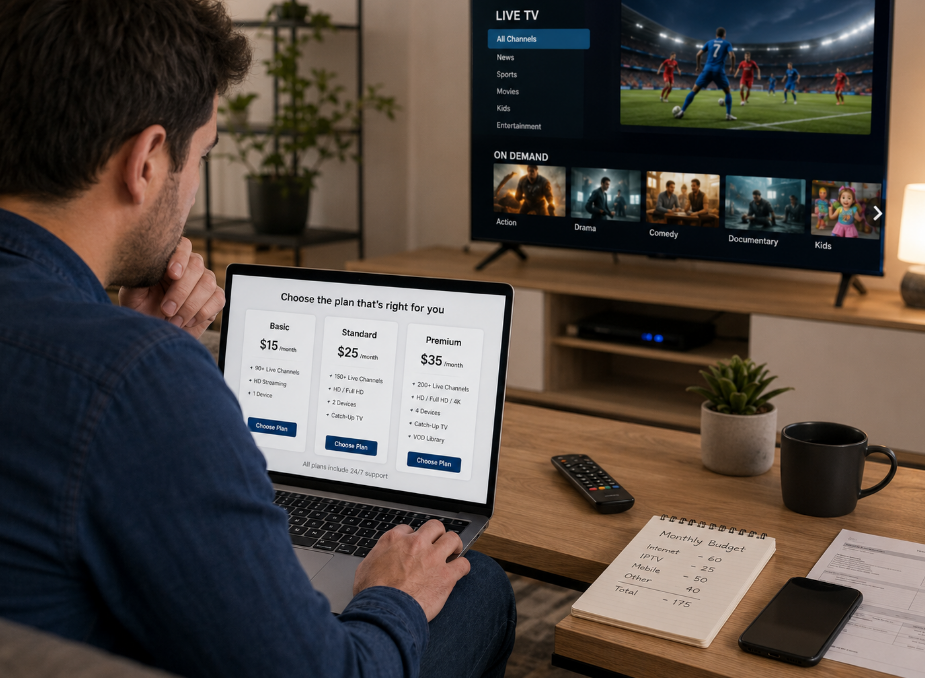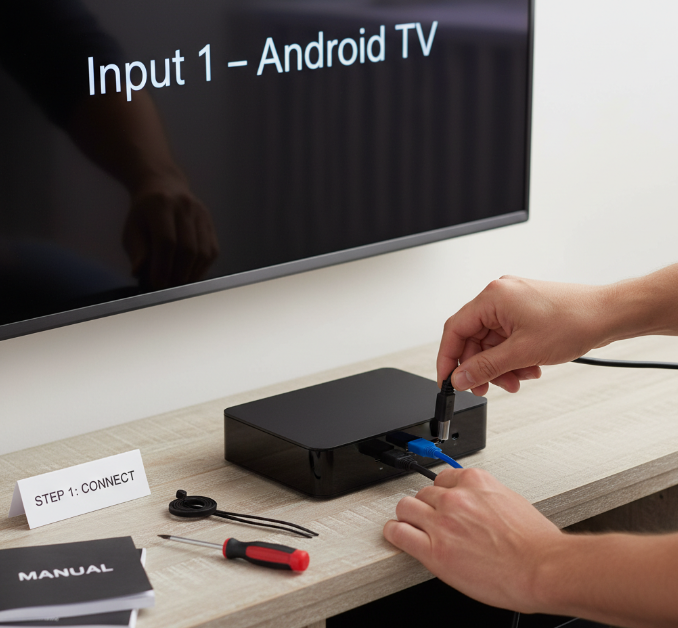
If you’ve been keeping an eye on the tv android iptv scene, you’ve probably noticed it’s taken off like wildfire in recent years. Everyone’s looking for affordable, no-hassle ways to stream content—and businesses, big or small, are no exception. Setting up IPTV on Android TV boxes doesn’t need to be a headache, especially when you know where to start.
But here's the thing—it's not just about finding free iptv services; it's about getting it right. You don’t want to be caught up in shady setups or struggling with endless troubleshooting. We’ve all been there—buying something that looks good online, only to find out it’s a bit of a mess once you try it out at home.
As StarIptv’s lead engineer, Emily Hayes, puts it: "Free IPTV is great, but it needs to work. People are busy, they don’t have time to mess around with complicated setups." That’s the heart of it—streamlining the process to make it as easy as possible.
In this guide, we’re going to show you exactly how to get your Android TV box ready for free IPTV—no fluff, just the essentials. We’ll walk you through the steps, highlight legal must-knows, and troubleshoot like a pro so you can stay ahead of the curve.
By the end of this, you'll know exactly how to set up, install, and enjoy IPTV without running into those annoying roadblocks. Let’s get started!
5 Simple Steps to Set Up IPTV on Your Android TV
Choosing the Right Android TV Box for IPTV
When it comes to choosing the best Android TV box for IPTV, there are a few key factors to keep in mind to ensure smooth streaming.
Processor: Look for a box with a fast processor like the NVIDIA Shield for smooth performance.
RAM and Storage: Aim for at least 2GB of RAM and 16GB of storage for handling apps and data.
4K Resolution: If you want to stream in ultra-clear quality, go for boxes that support 4K resolution.
Operating System: Android TV OS offers a user-friendly experience with access to many streaming apps.
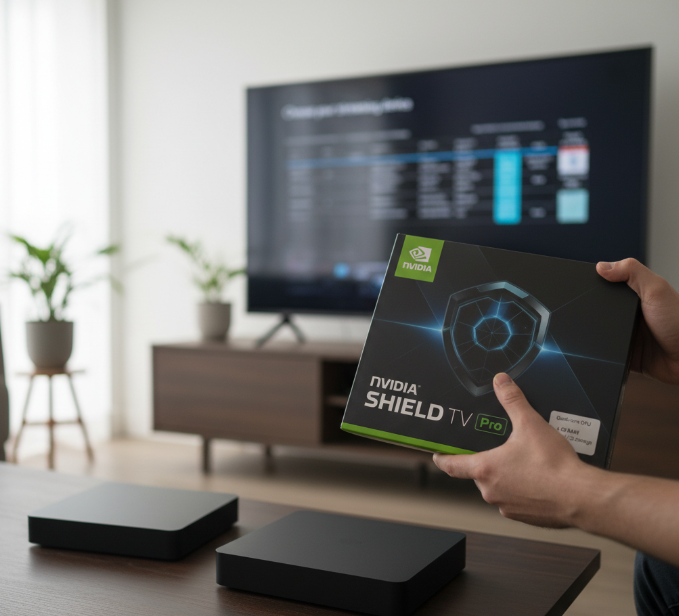
"A powerful processor and ample storage are the backbone of a seamless IPTV experience." – StarIptv Engineer
Installing Essential IPTV Apps
The best IPTV experience begins with installing the right apps to stream content.
Google Play Store is a reliable source for popular apps like TiviMate and IPTV Smarters.
If your TV box doesn’t have an app store, you can use APK files and sideloading apps via Downloader or a media player.
With sideloading, you’ll need to ensure you're installing from trusted sources to avoid malware.
Open the Google Play Store
Search for TiviMate or IPTV Smarters
Download and install the app
Sideload any APKs if needed
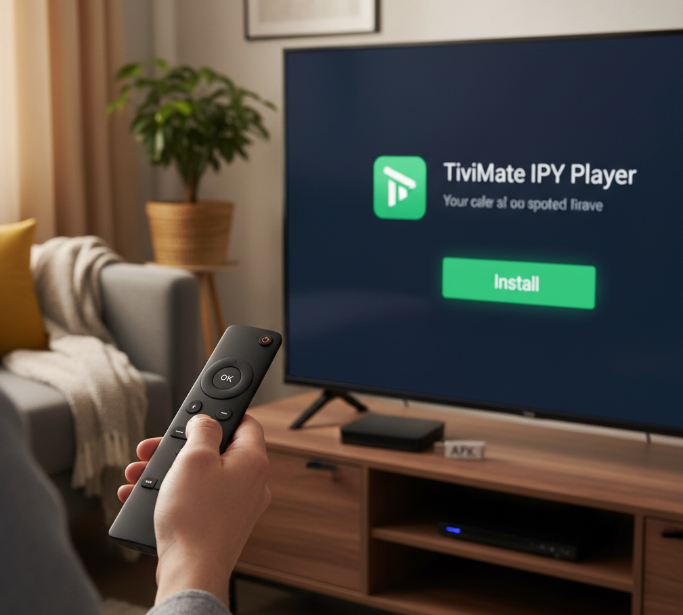
"Setting up the right IPTV app is critical to a smooth, enjoyable viewing experience. Always check for media player compatibility." – StarIptv Manager
Setting Up Internet Connectivity
A fast, reliable connection is key to streaming IPTV without interruptions. Here’s how to ensure your internet setup is solid:
Wi-Fi vs Ethernet: Use Ethernet for faster speeds and lower latency if possible.
Bandwidth: Ensure your connection has at least 10 Mbps for HD streaming and 25 Mbps for 4K content.
VPN: Consider using a VPN to bypass regional restrictions on some IPTV services.
Router Settings: Check your IP address configuration and make sure your router is optimized for IPTV streaming.
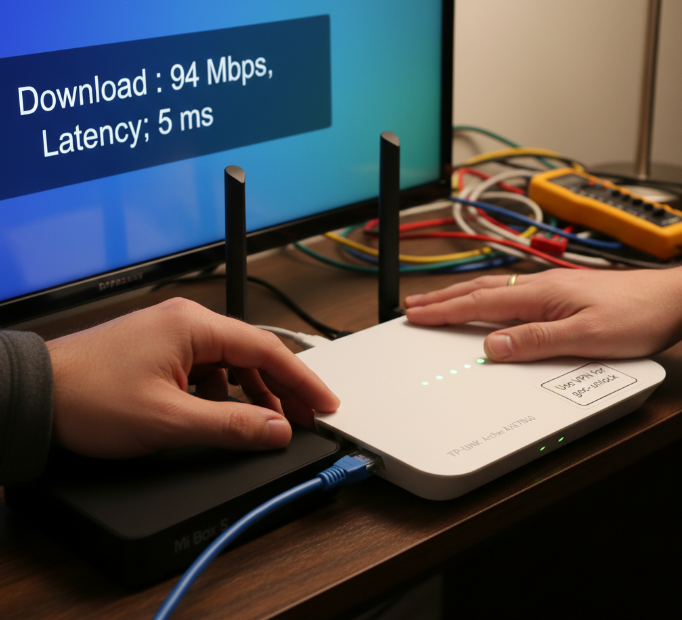
"A strong, stable connection is the foundation of a great IPTV experience." – StarIptv Executive
Configuring Display and Audio Settings
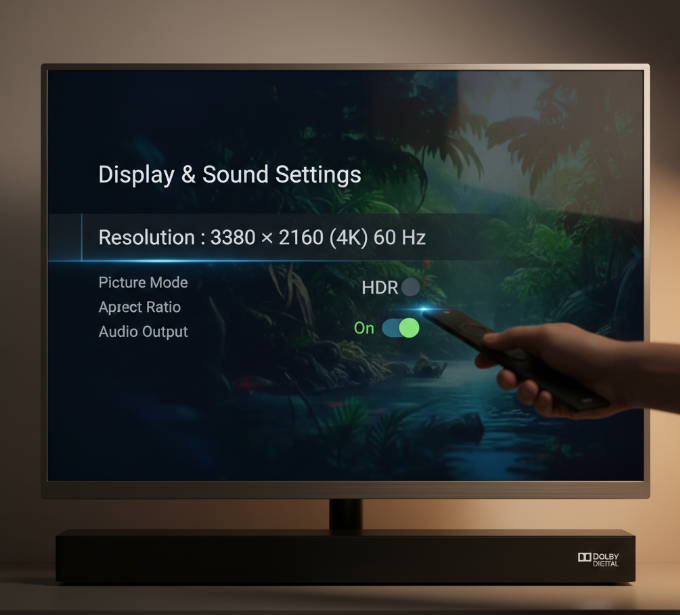
Make your viewing experience even better by adjusting your display and audio settings.
Resolution: Set your TV box to 4K resolution for crystal-clear picture quality.
HDR and Refresh Rate: If you have an HDR compatible TV, make sure it’s turned on to get vibrant colors. Refresh rate adjustments can smooth out motion for a more cinematic feel.
Surround Sound: Pair your setup with Dolby Digital or Surround Sound systems for immersive audio.
HDMI CEC: This setting allows you to control multiple devices with one remote.
Aspect Ratio: Ensure your screen's aspect ratio fits perfectly to avoid stretched images.
Go to System Settings
Adjust Resolution to 4K
Enable HDR
Turn on Dolby Digital for audio
Integrating with On-Screen Display Features
Now, let’s make it easy to navigate your IPTV experience.
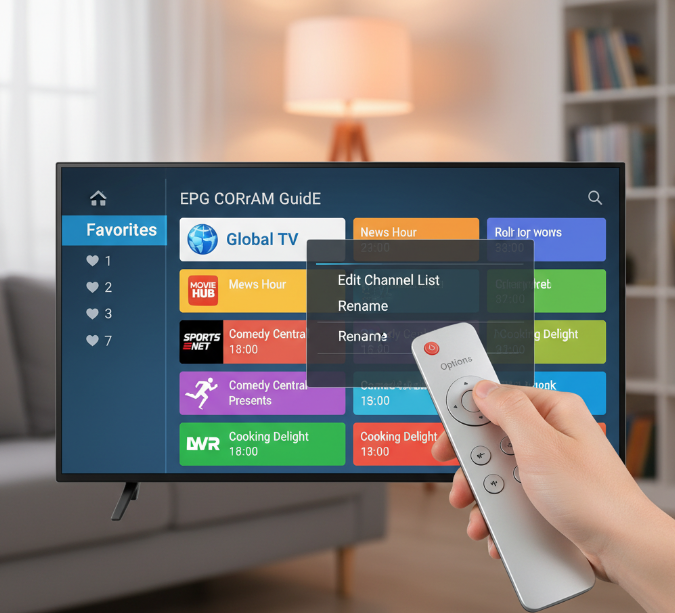
EPG (Electronic Program Guide): Configure the EPG so you can easily find what to watch next.
User Interface Customization: Make your interface look and feel how you want with features like Channel List Management and Navigation Drawer.
Metadata and Dashboard: Keep track of your channels, recordings, and favorite shows through the dashboard.
Remote Control Settings: Program your remote for easy access to everything you need in your IPTV setup.
Open the Settings Menu
Set up your EPG
Customize Channel List
Navigate easily with the Navigation Drawer
Is IPTV Legal on Android TV Boxes?
Understanding IPTV Legalities in Different Regions
Copyright Laws & DMCA in IPTV
IPTV services can sometimes offer pirated content, which violates copyright laws and may lead to penalties.
The DMCA (Digital Millennium Copyright Act) can impose hefty fines for distributing unlicensed content.
Regional restrictions often vary, meaning content legal in one area could be illegal elsewhere.
Licensing agreements with content providers are crucial to avoid broadcasting rights violations.
Regional Restrictions and Intellectual Property
Different regions have licensing deals that affect IPTV availability and legality.
For instance, in some countries, intellectual property protections can restrict the use of IPTV services.
Pirated content is illegal almost everywhere, and regional restrictions enforce stricter controls on what you can stream.
Laws vary by region, so always check local regulations before installing IPTV services.
How to Ensure Compliance with Local Laws
Check Terms of Service and Use Verified Providers
Before subscribing to IPTV services, always check the terms of service to ensure compliance with regional laws.
Opt for verified providers who follow industry standards for streaming content.
Subscription services that offer licensed content are safer than free IPTV services that might distribute pirated streams.
Digital Rights Management (DRM) & Authorized Distributors
Digital rights management (DRM) technology is key to ensuring content protection and preventing piracy.
Stick to authorized distributors of IPTV services to avoid legal issues and regulatory bodies interventions.
Working with a verified provider ensures that you're legally covered and not violating intellectual property rights.
How to Troubleshoot IPTV Problems on Android TV Boxes
Resolving Buffering Issues
Clear Your Cache:
If your cache is full, it can slow things down. Try clearing your IPTV app’s cache regularly to improve performance.Upgrade Your Bandwidth:
If your current ISP throttling is an issue, switching to a higher bandwidth plan can help reduce buffering.Switch to Ethernet:
Wi-Fi signals are often unstable. Connect directly to your router using an Ethernet cable for a more stable connection.Check Server Load:
Sometimes buffering is due to a server load. Check with your IPTV service provider to see if this is the case.Use a VPN:
If you experience buffering during peak times, try using a VPN to bypass ISP throttling, ensuring a smoother experience.
Fixing Audio and Video Sync Problems
Check Your Codecs:
Make sure your media player supports the right codecs. Some codecs can cause sync issues if not properly configured.Enable Hardware Acceleration:
Sometimes hardware acceleration can fix sync problems, especially on devices with lower RAM or older processors.Adjust Refresh Rate:
A mismatch between the refresh rate of your screen and the frame rate of the video can lead to sync problems. Ensure these settings align.Reduce Latency:
Audio delay often occurs if there's too much latency in the stream. Reducing latency settings can help fix this.Switch Media Player:
If syncing issues persist, try using a different media player with better syncing features, such as those with adjustable delay controls.
Addressing Connection Problems
Check Your DNS Settings:
Incorrect DNS settings can cause slow connections. Make sure your Android TV is using the optimal DNS for faster streaming.Verify Your IP Address:
Sometimes, connection issues are related to an incorrect IP address. Ensure the Android TV box is using a static IP if necessary.Improve Wi-Fi Signal:
A weak Wi-Fi signal can lead to slow speeds. Consider placing your router in a central location for stronger coverage.Adjust Firewall Settings:
A restrictive firewall can block streaming. Make sure your firewall is not preventing IPTV services from functioning properly.Check Your MAC Address and Gateway:
Sometimes, your MAC address or gateway may need to be reset. These are critical for proper device connectivity.
Software Crashes and App Freezes
Clear the Cache:
A full cache can cause the app to freeze. Go to your app settings and clear the cache to free up space.Update Your Firmware:
Sometimes your firmware needs updating for better compatibility with IPTV apps. Check for updates to ensure you're using the latest version.Close Background Apps:
Too many background apps can hog system resources, leading to crashes. Close apps you're not using to free up memory.Force Stop Problematic Apps:
If an app keeps freezing, try the force stop option to reset it. Reopen the app and see if it works better.Check RAM and System Resources:
If you’re running low on RAM, the app might freeze. Close unused apps and check system resources to ensure there’s enough power to run the IPTV app.
TV IPTV Android: Best Free Streaming Services You Can Try Today
Top Free IPTV Services for Android TV Boxes
Pluto TV: A well-known service offering live channels and on-demand content, free of charge. It's compatible with Android TV, delivering a wide range of genres including sports, news, and entertainment.
Tubi: Provides free access to a huge collection of movies and TV shows. It’s ad-supported but runs smoothly on Android TV devices without any subscriptions.
Xumo: Features a wide variety of live TV channels, including news, sports, and entertainment. It’s a solid choice for free IPTV on Android TV.
Plex: Besides organizing your own media content, Plex offers free live TV streaming. It supports Android TV and lets you add IPTV channels via its interface.
Kodi: A popular media center that, when combined with add-ons, offers access to free IPTV content. Kodi can be installed via APK and customized with plugins.
Stremio: A media player that lets users stream IPTV content through various add-ons. Stremio is compatible with Android TV, offering a user-friendly interface.
Key Features:
Plenty of content: Movies, sports, news, and TV shows
No subscription required—free to use
User-friendly interfaces, optimized for Android TV
Available via APK or directly from Google Play Store
Expert Opinion:
"Free services like Tubi and Pluto TV are making content accessible to everyone," says StarIptv's CTO. "They are easy to use and offer solid quality, helping users save on subscription fees."
Free IPTV Channels with High Quality Streaming
HD Resolution: Services like Pluto TV and Xumo offer streaming in HD, delivering a clear and enjoyable viewing experience. Plex and Kodi support 4K for compatible devices, providing even better visual quality.
M3U Playlist: Free IPTV services often support M3U playlists, allowing you to manually add IPTV channels and customize your streaming lineup.
Bitrate & Buffering:
High bitrate ensures smooth video quality, minimizing buffering. Services like Kodi allow users to adjust bitrate settings for the best quality based on internet speed.
HLS (HTTP Live Streaming) and MPEG-DASH are used by most free IPTV services for adaptive streaming, ensuring minimal buffering.
Example:
Tubi’s 720p stream provides an excellent viewing experience, while Plex can push content up to 4K resolution when supported by the device and internet speed.
Exploring Multi-Channel and Multicast Delivery
Multicast Delivery: To stream IPTV content to multiple devices, multicast delivery is a highly efficient method. Instead of sending separate data streams to each device, multicast sends one stream that all devices share. This saves bandwidth and reduces network load.
Unicast: Unlike multicast, unicast sends separate streams to each device, which can quickly consume bandwidth when multiple devices are streaming.
IGMP Snooping: To optimize multicast traffic, IGMP Snooping is used to manage the delivery of multicast streams, preventing unnecessary traffic on the network and ensuring smoother streaming.
UDP: When streaming via UDP (User Datagram Protocol), the data packets are delivered faster, reducing latency and improving performance for IPTV services.
Key Considerations:
Multicast can be very efficient for delivering streams to multiple devices at once, especially in large networks.
Ensure your network traffic and bandwidth can handle multiple IPTV streams.
Example:
When using UDP multicast, you can stream IPTV content simultaneously to multiple devices with minimal delay and no significant loss in quality.
Enhancing User Experience with Leanback Launcher
Android TV UI: The Leanback Launcher is the default interface for Android TV. It organizes content into easy-to-navigate rows and categories, offering an efficient way to find apps and channels. The TV-friendly interface ensures that the content is presented in large, readable icons suitable for TV screens.
Customization:
You can personalize the home screen with your favorite IPTV apps, such as Kodi or Plex, placing them right at the forefront for easy access.
Voice search integration allows users to quickly find content without scrolling, making it easier to navigate between live TV channels and on-demand content.
Navigation:
The navigation drawer on Android TV helps you move smoothly between settings, apps, and content.
The system settings menu allows you to tweak key settings, such as display adjustments for HD resolution and audio settings for Dolby Atmos Passthrough.
Expert Tip:
“With voice search integration, users can easily find channels, shows, or movies. No more scrolling through long lists – just say ‘Play Stremio,’ and you’re ready to go,” says a design engineer from StarIptv.
How to Install IPTV Apps on Android TV in Minutes
Quick Installation of IPTV Apps via APK Files
Download the Right IPTV App APK
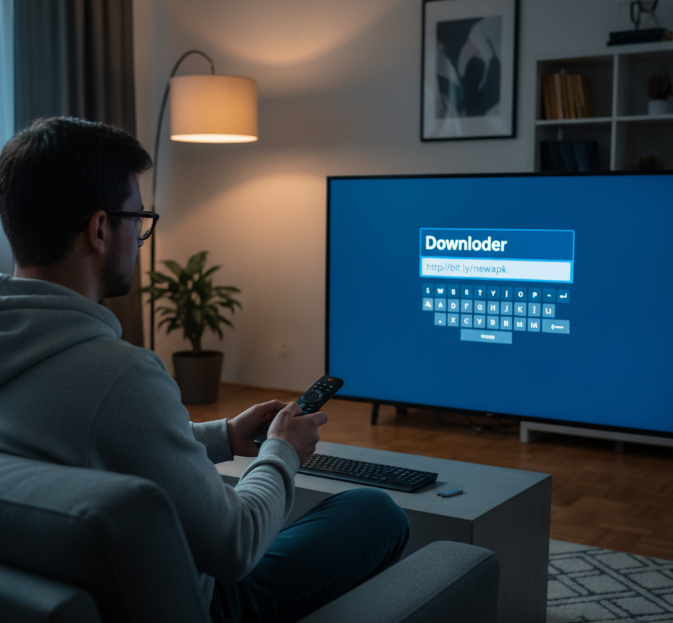
Select your IPTV app and use a Downloader app to fetch the APK from a trusted source.
Enable Unknown Sources in Android TV settings to allow the installation of non-market apps.
Transfer the APK file to your Android TV using a USB Drive or File Manager.
Install the APK on Your Android TV
Open the File Manager and locate the transferred APK.
Select the APK file and follow the on-screen instructions to Install.
Once installed, the app will be available on your Android OS home screen.
Test Your IPTV App
Open the installed app and check if content loads smoothly.
Make sure buffering is minimal and the app responds quickly when navigating.
Configuring the Electronic Program Guide (EPG)
Link the M3U URL to Your EPG
Add the M3U URL provided by your IPTV service into your EPG app to access the TV Guide.
For a better experience, ensure the app also integrates XMLTV to match channel listings and metadata.
Set the Time Zone and Channel List
Adjust the time zone to match your location for accurate scheduling.
Customize the channel list to remove unnecessary channels and prioritize your favorites.
Choosing the Right Streaming Protocol for Smooth Playback
Understanding the Streaming Protocols
HLS (HTTP Live Streaming) is ideal for dynamic network conditions, supporting adaptive bitrate streaming.
MPEG-DASH provides excellent quality and efficiency, especially for HD and 4K content.
RTMP is optimal for live streaming with low latency.
Managing Buffering with the Right Bitrate
Adjust your bitrate based on your internet speed to avoid buffering.
HLS will automatically adjust the bitrate for you, offering a smoother experience.
Testing Latency and Buffering
Test the latency by streaming a live channel and check if there’s any noticeable delay.
For lower latency and fewer interruptions, switch to RTSP or MPEG-TS for more stable streams.
IPTV for Beginners: A Simple Guide for Android TV
Setting Up the Android TV Box for IPTV
Choose the Right IPTV Player:
Select an iptv player that supports features like M3U playlists, EPG, and smooth streaming. Apps like Perfect Player and IPTV Smarters are great for this.Sideloading APKs:
If the app you need isn’t available in your region, you can sideload it by downloading the APK file. Just enable Unknown Sources in your Android TV settings to install the app manually.Ensure a Stable Internet Connection:
A good internet connection is essential. Use Wi-Fi 6 or Gigabit Ethernet for the best streaming quality. A stable connection ensures you won’t experience buffering or lag.Install Middleware (if needed):
Some IPTV setups may require additional middleware to organize channels and improve performance. Middleware often comes bundled with the IPTV app or service.
Configuring IPTV on Your Android TV Box: A Quick Walkthrough
Download the IPTV Player APK:
Get the IPTV Player APK from a trusted website or file-sharing service.
Sideload the APK to Your Box:
Use a file manager app to find the downloaded APK and install it.
Load Your M3U Playlist:
Open the IPTV player and navigate to the M3U Playlist option. This will allow you to stream channels from the list.
Configure the EPG (Electronic Program Guide):
Set up the EPG to browse TV schedules easily, just like a traditional cable guide.
Adjust the Streaming Settings:
Make sure your player is set to handle the correct video resolution (like 4K Ultra HD) and streaming formats (such as VP9 Decoding) for the best viewing experience.
Troubleshooting Common IPTV Setup Issues
Buffering or Lagging Streams:
Network Speed: Check your internet connection speed. If you’re experiencing issues, switch to Wi-Fi 6 or connect via Gigabit Ethernet for faster and more stable streaming.
IPTV Player Settings: Ensure adaptive bitrate is enabled. This will automatically adjust the stream quality based on your network speed, reducing buffering.
App Crashes or Freezes:
Update the App: Make sure your IPTV app and Android TV OS are up to date.
Clear Cache: If the app is lagging, go to the System Settings Menu and clear its cache to improve performance.
No Channels Showing:
Check M3U Playlist: Make sure the M3U playlist URL is correct and active. You may need to refresh or update the playlist if it’s not showing channels.
EPG Issues: If the EPG isn’t displaying correctly, try refreshing or re-entering the EPG URL.
Quick Troubleshooting Tips for a Seamless IPTV Experience
| Problem | Possible Cause | Solution | Tools to Use |
|---|---|---|---|
| Buffering or lagging | Slow internet connection | Upgrade to Wi-Fi 6 or use Ethernet | Speedtest, Router settings |
| App crashes | Outdated app or cache issues | Clear cache, update app | Settings, App Store |
| No signal or channels | Incorrect M3U playlist or expired link | Check M3U link, refresh the playlist | IPTV player, M3U URL checker |
| EPG not loading correctly | Outdated EPG data or no link provided | Refresh or replace EPG URL | EPG URL, IPTV settings |
Interview: Tips from StarIptv's Head Engineer on Setting Up IPTV for Beginners
Q: What’s the most common mistake beginners make when setting up IPTV on an Android TV box?
A (StarIptv Engineer):
"One of the most common mistakes is not having a stable internet connection. Even with the best IPTV player and a solid M3U playlist, you’ll run into buffering issues if your network can’t handle HD or 4K content. I always recommend connecting via Ethernet whenever possible. Wi-Fi 6 is great, but it can’t match the reliability of a wired connection."
Q: How do you make sure your setup is future-proof?
A (StarIptv Engineer):
"Use a player that supports adaptive bitrate streaming. This allows you to adjust the stream quality depending on your internet speed, so you’re always getting the best quality. Also, ensure your Android TV box has the latest System on Chip and sufficient DDR4 Memory for seamless streaming."
Conclusion
Setting up IPTV on your Android TV box is a lot like putting together a new piece of furniture – it might look complicated at first, but once you know the steps, it’s pretty smooth sailing. You don’t need to be a tech whiz to get free TV streaming up and running. A little patience, a solid internet connection, and the right apps, like your iptv player and M3U playlist, are all you really need to make it work.
Ready to dive in? Here’s your quick checklist to get started:
Pick your IPTV app – something that supports EPG and your M3U playlist.
Sideload the APK – don’t worry, it’s easier than it sounds.
Make sure your internet's up to the task – if you’ve got Wi-Fi 6 or a good Ethernet setup, you’re golden.
With everything in place, you’ll be enjoying your free streaming in no time. And the best part? You’re not tied down to expensive cable bills. It's just you, your tv android iptv box, and a world of content right at your fingertips.
Now that you know the ropes, why wait? Set it up, kick back, and start watching your favourite shows – free and easy! If you want a more stable long-term option beyond free apps, explore IPTV Canada, compare an IPTV subscription Canada plan, or check the IPTV free trial Canada details before you choose.
References
How to Install IPTV on Android TV Box - https://www.startiptv.ca/blog/how-to-install-iptv-on-android-tv-box
Top 10 Free IPTV Apps and Services to Use in 2025 - https://www.startiptv.ca/blog/top-10-free-iptv-apps-and-services-to-use-in-2025
IPTV FAQ – Common Questions About IPTV Plans, Setup, Devices & Trial - https://www.startiptv.ca/faq.html
IPTV Canada Pricing Plans | Subscribe At The Best Cost - https://www.startiptv.ca/pricing.html
Install apps on Google TV - https://support.google.com/googletv/answer/10050570
Copyright | WIPO - https://www.wipo.int/en/web/copyright
What is Copyright? | U.S. Copyright Office - https://www.copyright.gov/what-is-copyright/
Widevine DRM Overview - https://developers.google.com/widevine/drm/overview
Pluto TV Official Site - https://pluto.tv/
Tubi Official Site - https://tubitv.com/
Xumo Official Site - https://www.xumo.com/
Plex Free TV Streaming - https://www.plex.tv/watch-free-tv/
Kodi for Android Download - https://kodi.tv/download/android/
Stremio Downloads - https://www.stremio.com/downloads
FAQ
What is IPTV on Android TV?
IPTV (Internet Protocol Television) lets you stream TV shows through the internet instead of cable. With Android TV, all you need is a good IPTV app that supports things like M3U playlists and EPG. A solid internet connection is key for smooth streaming.
How do I set up IPTV on Android TV?
Setting up IPTV on Android TV is simple if you follow the right steps:
Download an IPTV app like Perfect Player or IPTV Smarters.
Sideload the APK if it's not in the Play Store.
Add an M3U playlist to load the channels.
Make sure your internet is fast enough for high-quality streams.
Set up the EPG (Electronic Program Guide) for easy navigation.
Is IPTV free on Android TV?
IPTV can be free, depending on where you get your playlists. You can find many free M3U playlists online, but just make sure they work well with your Android TV. Some services are paid, but free ones are available too.
How can I improve IPTV streaming on my Android TV box?
You can improve IPTV streaming quality on your Android TV box with these tips:
Use Ethernet for a stable connection instead of Wi-Fi.
Turn on hardware acceleration in your IPTV app.
Optimize your router’s Quality of Service (QoS) settings to prioritize streaming.
Ensure your Android TV box has enough DDR4 memory to handle multiple streams.
Can I install any IPTV app on my Android TV?
Yes! You can install most IPTV apps on Android TV. If the app isn't in the Google Play Store, just sideload the APK. Make sure it supports M3U playlists and EPG for a smooth experience.
What is the best IPTV app for Android TV?
Here are some of the best IPTV apps for Android TV:
IPTV Smarters Pro: Easy to use and supports M3U playlists and EPG.
Perfect Player: Great interface and smooth playback with EPG integration.
TiviMate: Best for managing multiple playlists and EPG support.
GSE Smart IPTV: Supports middleware and parental controls.
How do I add an M3U playlist to my IPTV on Android TV?
Adding an M3U playlist is simple. Open your IPTV player app, go to settings, and paste the M3U playlist URL. This will load your channels. Make sure the playlist supports streaming protocols like HTTP Live Streaming for best results.
Do I need a VPN for IPTV on Android TV?
A VPN can be useful for IPTV on Android TV for several reasons:
A VPN can help secure your IPTV streams and hide your identity.
It also allows access to geo-blocked content.
Most Android TV boxes let you install a VPN or configure it with static IP settings.
How do I troubleshoot IPTV buffering issues on Android TV?
If your streams buffer, try these tips: Check your internet speed (Wi-Fi 6 or Ethernet is best). Lower the video resolution if needed. Update your IPTV app or refresh the EPG data. Make sure your router isn’t overloaded with other traffic.
Can I watch 4K content with IPTV on Android TV?
Yes! If your IPTV app and Android TV box support 4K Ultra HD, and your internet connection can handle it, you can stream 4K content. Make sure the streaming protocol like MPEG-DASH is enabled for smooth playback.