A Fire TV Stick can be a straightforward way to watch an authorized IPTV service on a television. The key is to separate the player app from the content service: the app is simply the tool that opens a playlist or account, while the service must have the rights to provide the channels and on-demand programmes you use in Canada.
This guide explains a cautious, app-store-first IPTV Firestick Canada setup. It does not cover unverified downloads, copied playlists, location workarounds, or services that do not have permission to distribute their content.

What you need before setting up IPTV on a Fire TV Stick
Have the Fire TV Stick connected to your TV and home network, an Amazon account configured for your normal Canadian location, and an IPTV subscription or personal media source you are authorized to use. You also need the player details your provider actually supports—usually an account sign-in or a provider-issued playlist address. Do not guess at server details or reuse someone else’s credentials.
A player does not come with channels by itself. Content availability is affected by the provider’s rights and by region. The CRTC notes that online services may show a region message when they do not hold the right to display a programme where the viewer is located. See its overview of TV, movies and other content online for that consumer context.
Fire TV Stick: running current software and connected to a reliable home network.
Authorized player: install only from the Amazon Appstore or the player developer’s verified distribution channel if your device supports it.
Valid service details: supplied directly by the service you chose.
Enough bandwidth: the required speed depends on video quality, Wi-Fi conditions, and other devices sharing the connection.
Amazon’s developer documentation describes Fire TV apps as being distributed through the Amazon Appstore; availability can differ by device and region, so use your Fire TV search screen to confirm the current listing rather than relying on old tutorials. Amazon Fire TV documentation
Step 1: Install a compatible IPTV player from the official Appstore
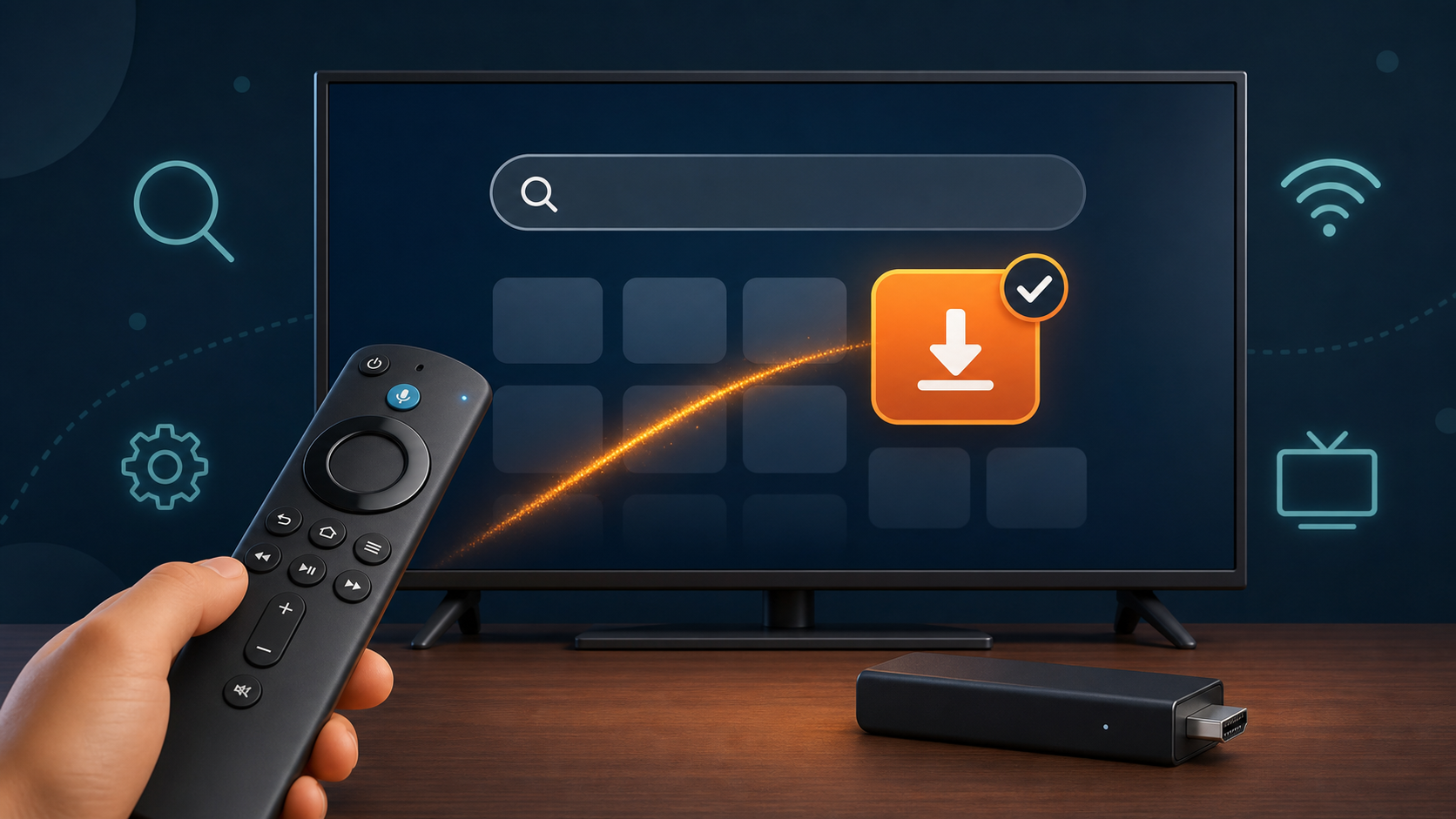
From the Fire TV home screen, open Search.
Search for the exact name of the player recommended by your authorized provider.
Check the publisher name and listing carefully, then select Get or Download.
Open the player once installation completes and allow only the permissions it needs to function.
Menus and app availability change over time, particularly across Fire TV generations. If the app is not listed, ask the provider which current, official option it supports for your model. Avoid third-party APK sites and “free channels” bundles: they may be unsafe, unsupported, or unauthorized.
Step 2: Add your authorized IPTV service details
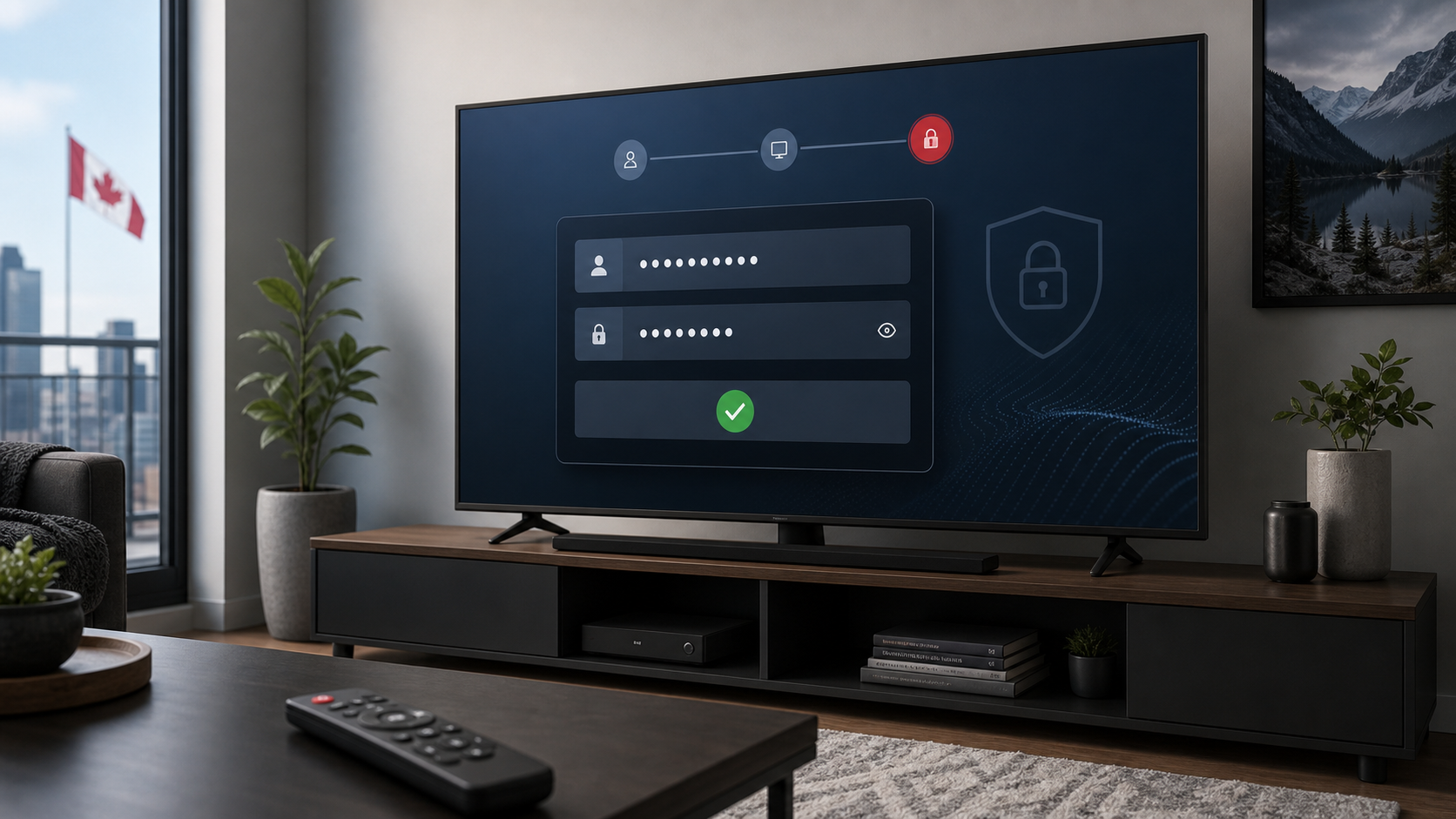
Open the player and choose the sign-in method specified in the provider’s setup material. Enter only the account details or playlist information sent to you directly. Keep those details private: they can be tied to a subscription, a device limit, or personal account information.
Select the provider-supported sign-in or playlist option in the player.
Enter the details exactly as issued, including the server address if one is provided.
Give the connection a recognisable name, such as “Living room,” if the player offers that option.
Wait for the guide and catalogue to load, then play a programme you are entitled to watch.
Check the audio track, subtitles, guide time zone, and parental controls before settling in.
For startiptv.ca customers, the site’s setup guide says that its service details are entered in a player after installation. Its FAQ page also lists Amazon Fire Stick among the supported device types. Confirm the current player, subscription terms, and content authorization directly with the provider before purchase or activation.
Step 3: Make the setup work well in Canada
Start with your ordinary home connection and a service that is authorized to serve you where you live. A VPN is not a substitute for rights or subscription eligibility, and using one to bypass territorial restrictions can breach the service’s terms. If a channel is unavailable in Canada, treat that as a licensing or product question for the provider—not as a technical problem to work around.
Improve the connection before changing settings
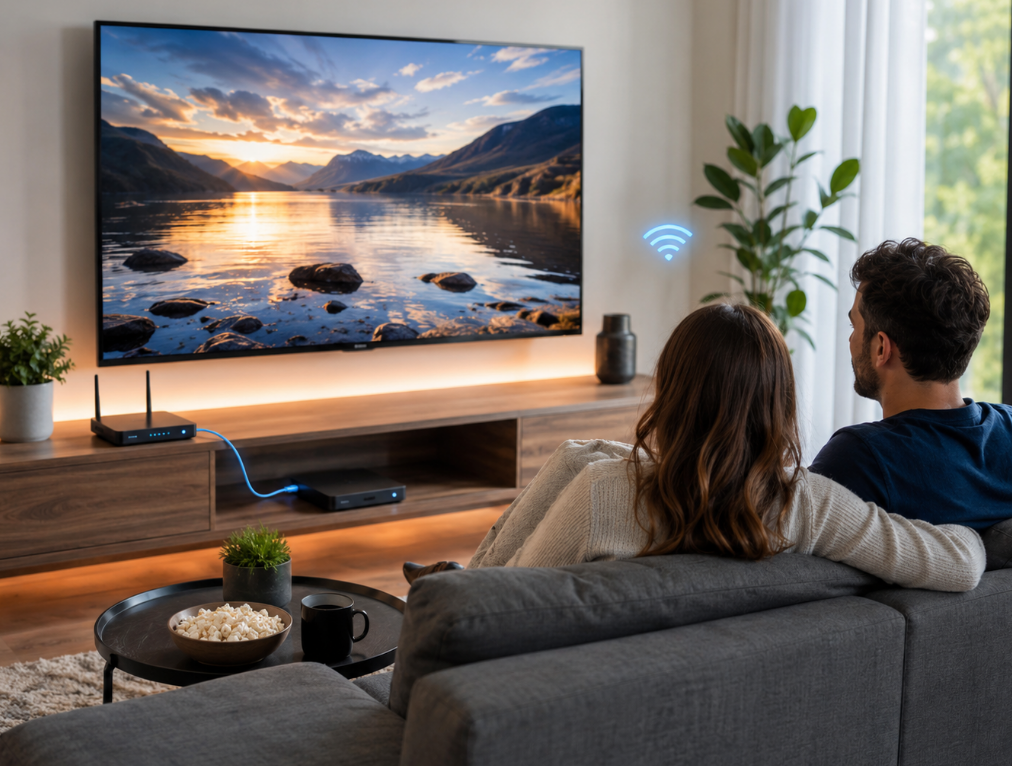
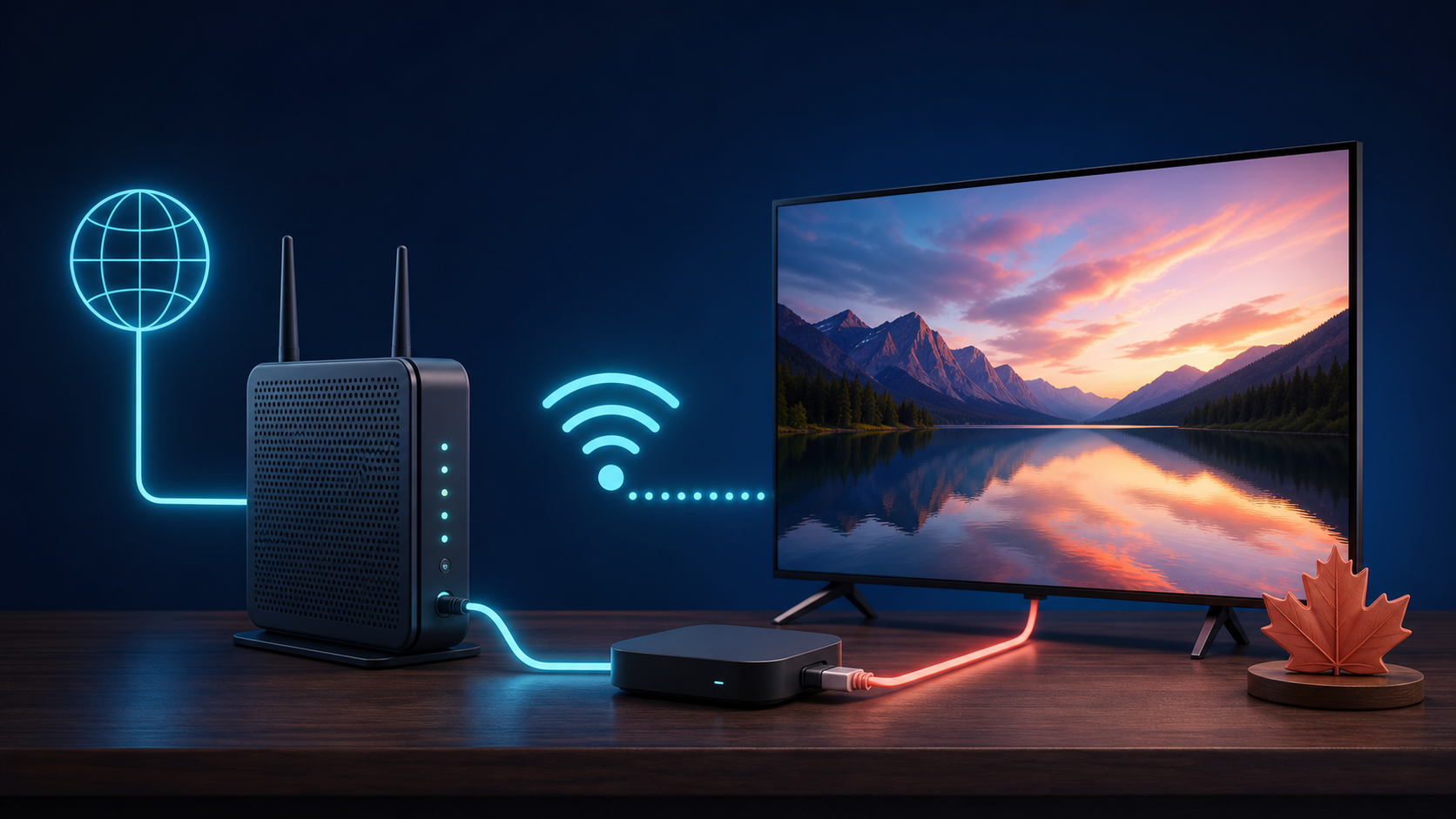
Place the Fire TV Stick where it has a good Wi-Fi signal, keep its operating system and player current, and reduce heavy downloads when watching. If the TV is far from the router, a wired network adapter may be more consistent than crowded Wi-Fi, but the benefit varies by home layout. startiptv.ca’s own Canada internet-speed guide is a useful starting point; check your plan and actual home conditions rather than treating any published figure as a guarantee.
Review the service before committing
Check the provider’s supported-device list, number of permitted concurrent streams, cancellation and refund rules, support contact method, and the content it is authorized to deliver in your region. startiptv.ca publishes plan information and a refund-policy page; review the live terms because prices, trial details, and policies can change.
Troubleshooting IPTV on Fire TV Stick
| Problem | Try first | When to contact support |
|---|---|---|
| The player will not install | Confirm your Fire TV model, account region, storage space, and the publisher name in the official listing. | The approved player is unavailable or your provider’s recommended option is unclear. |
| Sign-in fails | Re-enter the provider-issued details, check for spaces, and confirm the subscription is active. | The same details fail after a restart and you have not changed them. |
| Video buffers | Restart the Fire TV Stick and router, pause other intensive downloads, and test another authorized programme. | Multiple titles still fail while your home network works normally for other services. |
| Guide times are wrong | Check Fire TV time-zone settings and refresh the player’s guide if it provides a refresh control. | The programme guide remains misaligned after a refresh. |
| One channel is unavailable | Check whether it is offered to your subscription and region. | The provider confirms it should be included but it remains unavailable. |
For more network basics, startiptv.ca also has a buffering troubleshooting article. Do not share passwords or full playlist addresses in public forums when asking for help.
A sensible first-night checklist
Use an authorised service and an official player source.
Confirm a programme loads, then check video, audio, subtitles, and guide time.
Test the same setup at the time you usually watch, when home Wi-Fi may be busiest.
Set a parental PIN if the player supports it and the household needs it.
Save the provider’s official support channel and policy pages before you need them.
A clean IPTV Firestick Canada setup is less about installing a particular app and more about verifying the source, using only credentials issued to you, and confirming the experience on your own network. That approach is safer than following outdated device hacks and gives you a clearer path to support when something changes.
FAQ: IPTV Firestick Canada
Can I use IPTV on a Fire TV Stick in Canada?
Yes, a Fire TV Stick can run compatible player apps, subject to Appstore availability and device support. Use it only with services, personal media, or streams you are authorized to access in Canada.
Does an IPTV player include channels?
No. A player is a playback tool. It needs a legitimate account or authorized playlist from a provider or media source; the player itself does not grant rights to channels.
Which IPTV app should I install on Fire TV?
Choose an app that your authorized provider supports and that you can confirm through the official Amazon Appstore for your device. Verify the publisher name before installing.
Do I need to enable unknown apps for IPTV Firestick Canada setup?
No. This guide recommends installing from official sources. Avoid unknown-app settings and unverified downloads, which can introduce security, support, and rights problems.
Why is my IPTV player missing from the Appstore?
Availability can vary by Fire TV model, account region, and publisher decisions. Check the exact app name and contact the provider for a current official alternative rather than using an unverified copy.
How much internet speed do I need?
There is no single figure for every home. Higher resolutions, Wi-Fi congestion, and other connected devices all matter. Test your normal viewing time and use the service’s current recommendation as a starting point.
Can I use a VPN to access channels that are not available in Canada?
A VPN does not create viewing rights and may conflict with a provider’s terms. If a programme is unavailable where you are, ask the provider about authorised options for your region.
Why does IPTV buffer on my Fire TV Stick?
Common causes include a weak Wi-Fi signal, busy home network, device issues, or a problem at the authorized provider. Restart the Fire TV Stick and router, then test another permitted stream before contacting support.
Can I use one IPTV account on more than one TV?
That depends on the provider’s subscription terms and permitted simultaneous streams. Installing an app on several devices is not the same as having permission to stream on them all at once.
What should I check before subscribing to startiptv.ca?
Review the live pricing, supported devices, stream limits, refund policy, support route, and whether the offered content is authorised for your intended use in Canada. Ask direct questions before paying if anything is unclear.