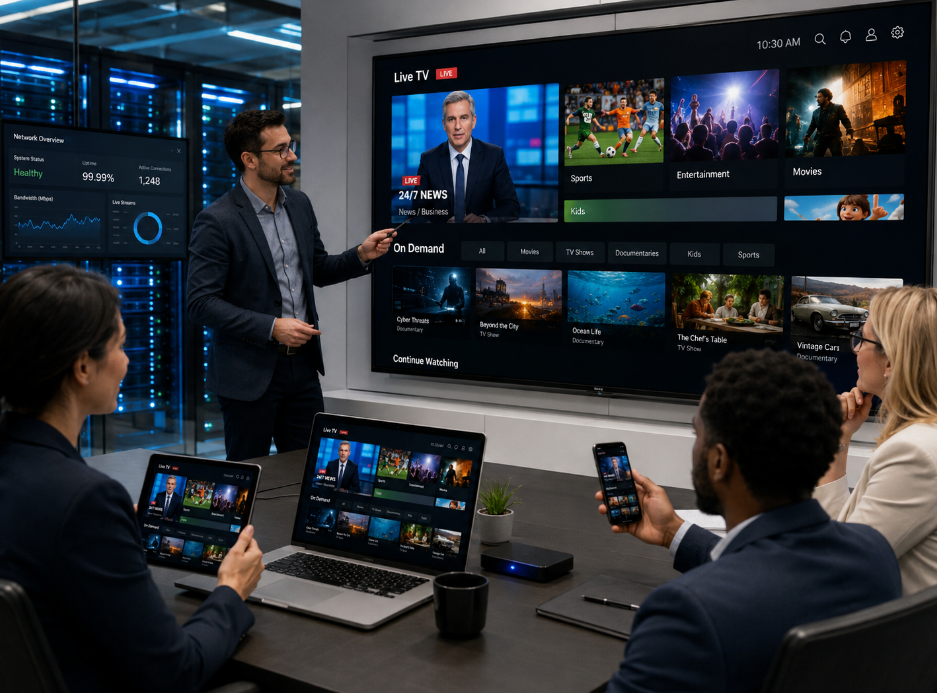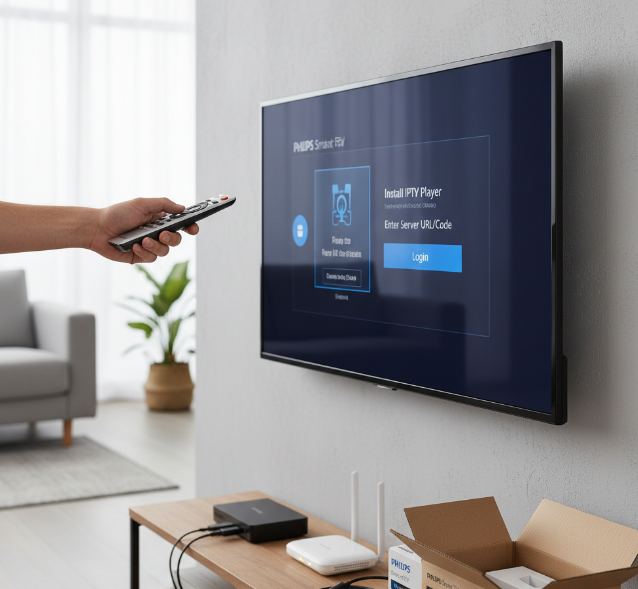
Getting iptv in tv running on a Philips Smart TV sounds simple on paper, but bulk buyers know the real story starts after the box is opened. One model works fine, another throws a fit, and a small setup issue can snowball into returns, support tickets, and unhappy clients.
In Canada, buyers usually want gear that just works, no fuss, no runaround. For hotels, retail chains, and property projects, a smooth IPTV setup is not only about watching channels. It is about saving time, cutting service calls, and keeping rollouts on track.
A good IPTV solution should feel like a well-cut key: easy to turn, hard to jam. If the app crashes, the stream buffers, or the TV chipset does not play nice, the whole job can go sideways fast.
One StarIptv manager puts it simply: “Stability beats flashy features every time.”
This guide gets to the point. It covers how to set up IPTV on Philips Smart TV, what can trip you up, and what wholesale buyers should check before placing bigger orders.
Why Is IPTV in TV Compatibility So Important for Bulk Orders?
Philips Smart TV System Requirements and IPTV in TV Readiness
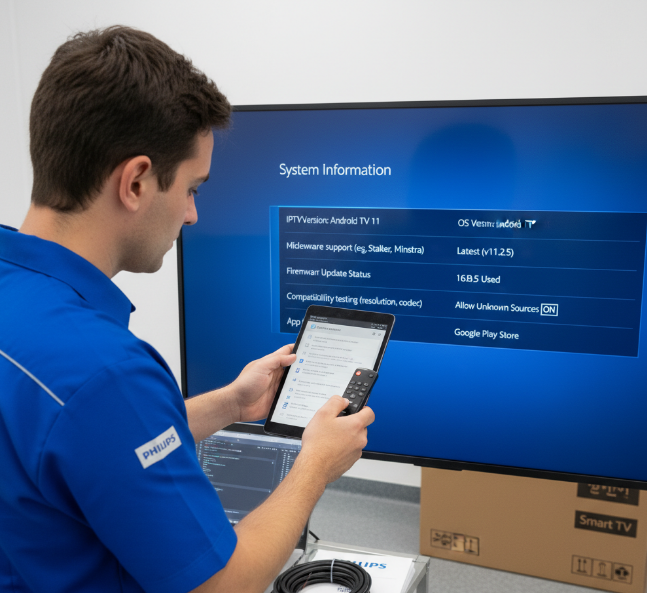
Check the Philips Smart TV OS version before rollout.
Confirm firmware updates are current, not ancient.
Match IPTV readiness with app format and middleware support.
Review hardware specifications like RAM, storage, and decoding support.
Test compatibility with your provider before bulk shipping.
If this stuff is off, installs get messy fast and support tickets pile up.
Display Panel, Tuner, and Microprocessor Factors That Affect Playback
The display panel affects sharpness, color, and viewing comfort.
The tuner matters when live channels and signal handling are part of the setup.
The microprocessor drives video decoding, app response, and playback quality.
Resolution and refresh rate shape how smooth sports and live TV feel.
A weak chip can choke on heavy streams, so processing power really is a big deal.
Ethernet Port, Wi-Fi Antenna, and Network Interface Card Considerations
Ethernet port: best pick for stable installs in hotels and shops.
Wi-Fi antenna: handy, but walls and distance can mess with signal strength.
Network interface card: helps manage network speed and cleaner data flow.
Internet connection and bandwidth: if either is shaky, streaming stability drops real quick.
For bulk projects, wired beats wireless most days. Less drama, fewer callbacks.
Internal Storage, Middleware, and Digital Rights Management Support
Internal storage helps with app installs, content caching, and smoother loading. Middleware connects the IPTV service, user interface, and Playlist flow so the whole thing feels clean instead of clunky. Widevine DRM support is a must for content protection, especially when premium channels or licensed video are on the menu. Add a solid EPG, and users get a setup that feels easy, not janky.
Unstable Streaming? Choose IPTV in TV Solutions With Better Chip Support
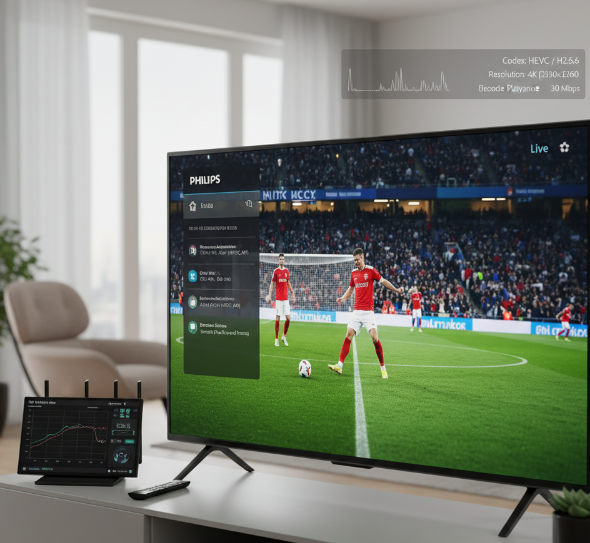
How Microprocessor Performance Impacts H.265, HEVC, and AV1 Decoding
On Philips TV, the CPU, GPU, and SoC do the heavy lifting. If Hardware Acceleration is weak, high Bitrate streams and fast Frame Rate sports can stutter hard. For smooth IPTV in TV playback, stronger codec support for H.265, HEVC, and AV1 matters just as much as internet speed. See HEVC, AV1, and Philips TV support resources for why decoding support and software readiness matter in real deployments.
UDP, RTP, and TCP/IP Settings for Smoother IPTV Streaming
Pick the right Network Protocol for your stream source.
Reduce Packet Loss, Latency, and Jitter with proper QoS.
Tune Buffer Size so playback stays steady.
Check Port Forwarding only when the provider requires it.
Keep MTU values clean across the network.
Bad settings here can make a good IPTV feed look pretty rough.
Multicast, Unicast, and IGMP Handling on Philips Smart TVs
Multicast works great for many screens, but it needs clean IGMP Snooping on the Switch and a decent Router. Unicast is simpler, though it can eat more Bandwidth per Stream. In hotel or retail IPTV in TV rollouts, solid Network Topology, tidy VLAN setup, and stable Data Transmission stop random freezing and channel dropouts.
Content Delivery Network, Edge Server, and Load Balancer Stability Factors
CDN: pushes content closer to the viewer.
Edge Server: trims Server Latency for local requests.
Load Balancer: spreads sessions for cleaner Traffic Management.
Node, Proxy, and Caching layers keep streams from piling up in one spot. Add Redundancy across each Data Center, and the service stays calm when traffic spikes hit out of nowhere.
Time-shifting, Catch-up TV, and Video on Demand Without Buffering
Smooth Time-shifting and Catch-up TV depend on more than internet speed. The DVR or PVR flow needs enough Storage, accurate Metadata, and a responsive Streaming Server. If EPG data is messy, users click the wrong show and blame playback. Good Streaming Media delivery keeps rewind, pause, and Video on Demand feeling snappy instead of laggy.
Philips TV vs. Android TV: Which IPTV Setup Scales Better?
Hardware Fit for Scaling
Philips TVs feel neat for light rollout, but Android TV boxes usually stretch further when channel loads rise. Key stuff that matters:
RAM for app switching
Quad-core processor and SoC for smoother decoding
Internal storage for cached data
Hardware acceleration for H.265 playback
Buffer capacity during busy hours
GPU performance for fast menu response
For bulk setups, Android gear often gives more room before things get janky.
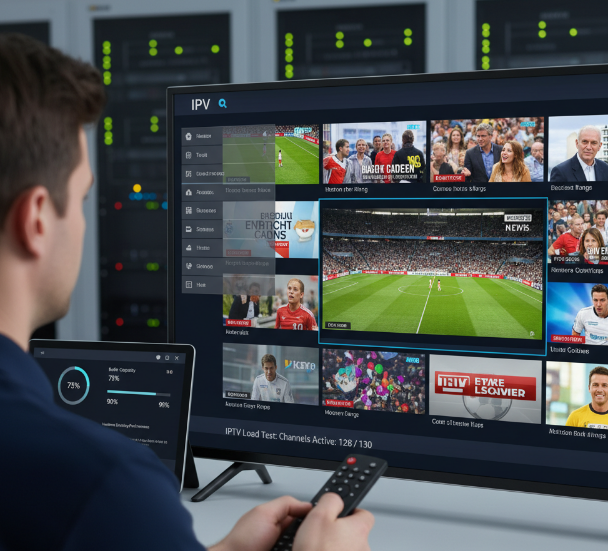
Protocol Support at Scale
HLS and M3U8 are easy to maintain on mixed networks.
MPEG-TS stays common in older IPTV pipelines.
UDP Multicast cuts bandwidth in hotels and retail screens.
RTMP and RTSP still show up in legacy workflows.
DASH helps on unstable internet links.
Codec compatibility decides if streams play clean or choke.
Android TV setups usually offer wider protocol flexibility, while Philips TV apps may depend more on app support.
Middleware and Playlist Management
Xtream Codes API support can make daily admin way less annoying. M3U playlist import is quick, but Playlist synchronization is where scale gets real. One broken Portal URL can mess up a whole rollout. Stalker Middleware and Ministra are still used in many commercial jobs, and EPG data needs to load fast, not lag behind. Philips TV can work for simpler stacks. Android TV tends to give more freedom when middleware choices start stacking up.
Ports and Remote Control Workflow
Ethernet port for stable feeds. USB 3.0 for quick installs. HDMI CEC for easier screen control. Nice and simple.
Now the user side:
Bluetooth remote feels smoother than an IR blaster in crowded spaces
D-pad navigation should reach live TV fast
Hotkeys save time for staff
User interface needs to stay clean, not cluttered
For scaled deployment, Android TV usually gives a more flexible control flow. Philips TV keeps things tidy for basic use. For teams comparing app-first TV setups with Android-based alternatives, the StarIPTV knowledge base also points readers toward tv android iptv resources that can help evaluate mixed-device rollouts.
5 Steps to Deploy IPTV in TVs for Hotel and Retail Projects
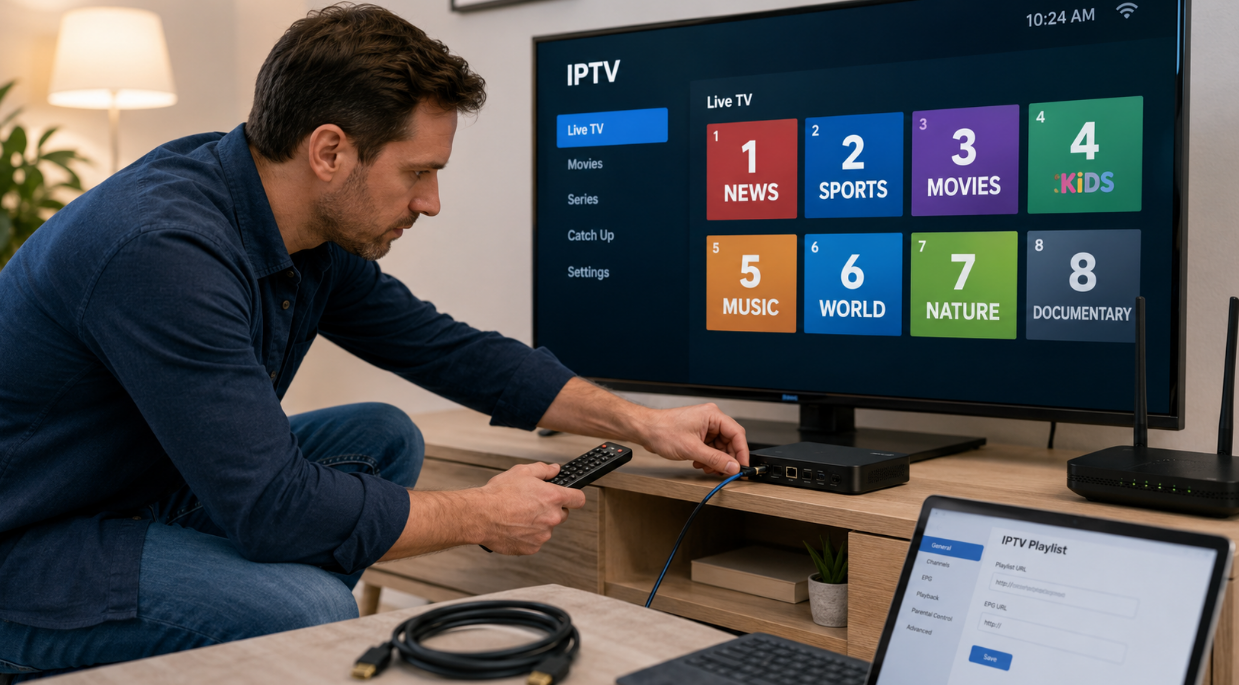
Step 1: Connect the Set-top Box Through HDMI Port or USB Port
Grab the STB, plug it into the Philips TV with an HDMI cable, or use the USB port if your media player supports direct playback. Then switch the input source to the right hardware interface. Quick checklist:
Power on the STB
Confirm HDMI cable seating
Select the correct input source
Test picture and audio
If the screen stays blank, swap ports before blaming the box. Nine times out of ten, it is just a loose connection.
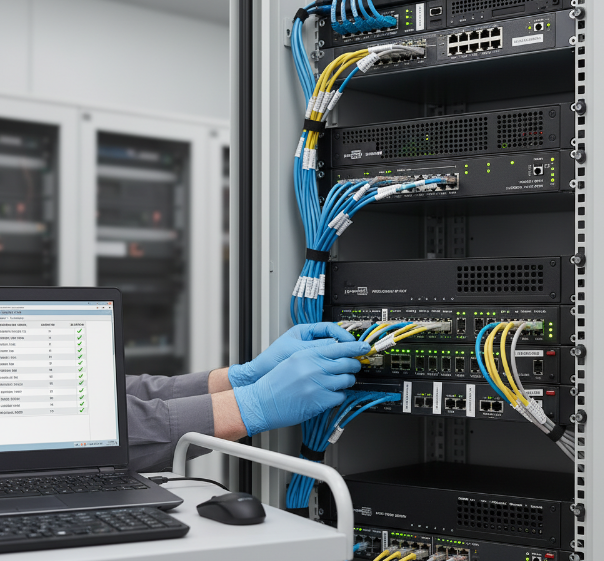
Step 2: Configure Gateway, Headend, and Video Server Distribution
Link the IPTV Gateway to the IP network.
Connect the Headend system for signal distribution.
Map channels through Middleware.
Sync the Video server with content management rules.
Push streams to target screens.
For hotel and retail rollouts, this flow keeps signal distribution tidy and avoids a messy setup. If one node acts weird, check IP mapping and middleware rules before touching the headend gear.
Step 3: Optimize HLS, RTSP, and Multicast Delivery for Multiple Screens
HLS protocol works nicely on mixed devices, RTSP helps with low-delay streaming, and Multicast cuts bandwidth burn when many Philips TV units show the same feed. Good bandwidth optimization keeps video delivery smooth and trims network latency during busy hours. For shops and hotels, that means fewer frozen screens and less support drama. Keep bitrate sensible, watch switch capacity, and test peak traffic, not just quiet hours. Apple’s HLS docs and Cisco’s multicast guidance both support this approach.
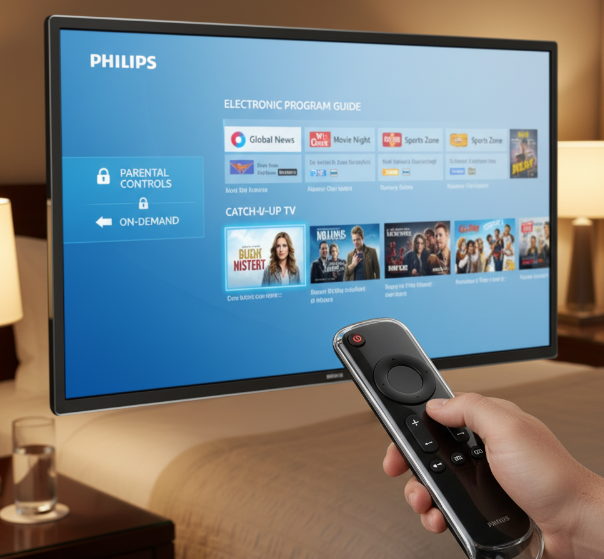
Step 4: Enable Electronic Program Guide, Parental Controls, and Catch-up TV
Short wins matter here.
EPG makes the TV guide easy to scan.
Parental controls help block content that does not fit the venue.
Catch-up TV gives guests and visitors a second shot at missed shows.
On-demand options make the user interface feel less clunky.
A clean content filtering setup saves staff time too. If people can find what they want fast, complaints drop and the whole system feels way more polished.
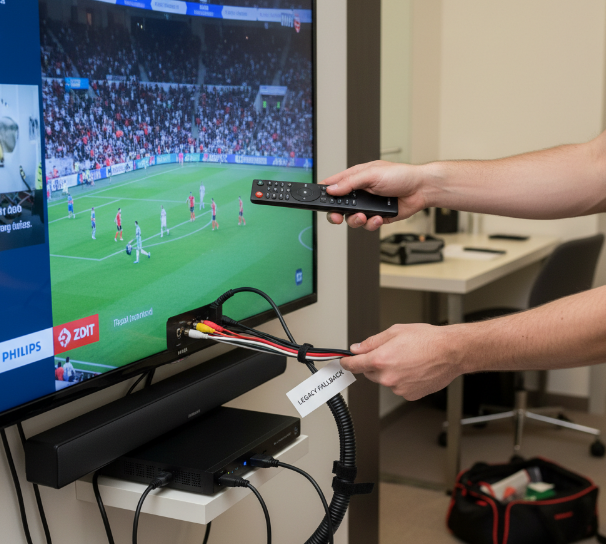
Step 5: Test Remote Control Access, Optical Audio Out, and Composite Video
Run a final signal testing pass before rollout. Check these points:
Remote control response over Infrared
Optical audio link to the sound system
Composite video and RCA fallback output
Output ports on both TV and STB
Channel switching speed
If audio drops, inspect the optical audio path. If older displays are still in use, composite video can save the day. This last check is boring stuff, sure, but it stops nasty surprises later.
For readers who want a broader onboarding path beyond Philips-specific deployment, the StarIPTV knowledge base also includes internal resources for IPTV setup Canada, IPTV apps, and a general Canadian IPTV provider setup flow.
Bulk Procurement Essentials
Buying IPTV-ready Philips Smart TV solutions at scale is not just about price; it is about fewer headaches after rollout.
For Wholesale buyers, the sweet spot sits where Hardware reliability, clean Licensing terms, and steady Subscription Management all line up. If one piece is off, the whole deal can go sideways. A low quote may look great on paper, but if the Middleware is clunky, the Multi-room setup flakes out, or the White-label options are half-baked, the support load gets brutal pretty fast.
A practical buying checklist helps keep the order tight:
Confirm the Licensing model for every screen, room, or device.
Check if the Middleware supports Philips Smart TV deployment without odd workarounds.
Ask for White-label options if you sell under your own brand.
Review Subscription Management tools for renewals, trials, and account control.
Make sure the supplier can handle Enterprise deployment sizes, not just small shop orders.
Look for a real Volume Discount instead of a tiny price cut dressed up as a deal.
Verify Multi-room support for hotels, care homes, sports bars, and housing projects.
Test the Hardware with live IPTV streams before committing to a full pallet.
A lot of buyers in Canada learn this the hard way: the unit cost is only one slice of the bill. Returns, truck rolls, customer complaints, and staff time can chew through margin in no time. That is why seasoned distributors pay close attention to backend fit, not just the sticker price.
Here is a simple way to size up a supplier.
Price the full package, not just the screen
Include Hardware, Licensing, Middleware access, and support terms. If the supplier only talks box price, that is a bit sketchy.Check White-label flexibility
Resellers often need branded apps, custom login screens, or a Reseller Panel. Without that, growth gets boxed in.Review Subscription Management controls
You want easy account activation, suspension, renewal tracking, and package changes. Manual handling is a killer at scale.Stress-test Multi-room use cases
Hotels and care facilities need room-by-room control. If every change needs hands-on support, the rollout will feel like a gong show.Ask about Enterprise support response times
One delayed fix can affect dozens or hundreds of screens. You need a supplier that can answer fast and fix faster.Negotiate Volume Discount tiers early
Better pricing usually kicks in at certain order levels. Nail that down before procurement starts so there are no surprises later.
| Buying Factor | What to Verify | Risk If Ignored | Why It Matters for Margin |
|---|---|---|---|
| Licensing | Per-device, per-room, or per-site terms | Extra fees after rollout | Protects profit and keeps pricing predictable |
| Middleware | Philips compatibility, app stability, content control | Crashes, poor UX, high support load | Cuts service calls and customer frustration |
| White-label | Custom branding, reseller controls, login options | Weak brand identity | Helps Reseller growth and retention |
| Subscription Management | Renewals, account edits, package changes, billing sync | Manual admin mess | Saves staff time and reduces billing errors |
| Multi-room | Room grouping, user permissions, content assignment | Poor hotel or campus experience | Supports larger deals and Enterprise installs |
| Hardware | Screen reliability, remote quality, port durability | Returns and replacements | Reduces warranty costs and downtime |
Not every buyer needs the same setup, and that is where deal planning gets a lot more real.
For a hotel group
Multi-room control matters more than fancy branding. The buyer usually wants easy room assignment, central content control, and clean Licensing. A stable Middleware stack is worth paying for.
For a regional Reseller
White-label tools and a Reseller Panel are a bigger deal. The brand experience helps close local clients, and solid Subscription Management keeps recurring revenue from getting messy.
For an Enterprise rollout
Support capacity becomes a massive factor. If a supplier cannot handle rollout planning, device staging, and post-install fixes, the project can stall out.
A few signs that a supplier is ready for serious procurement:
clear Volume Discount brackets;
written Licensing terms with no fuzzy language;
live demo access to the Middleware;
admin access to the Reseller Panel;
proof of Multi-room deployment history;
proper support contacts for Enterprise accounts;
White-label samples that look finished, not slapped together.
Q: What is the most common purchasing mistake?
Liam Chen, StarIptv Procurement Manager: “A lot of teams chase the cheapest Hardware and miss the ongoing costs. If your Subscription Management is rough, your support desk will wear it.”
Q: What should a Reseller ask before placing a large order?
Ava Moreau, StarIptv Channel Sales Executive: “Ask to see the Reseller Panel in action. Not screenshots. A proper live walkthrough. If the White-label flow is awkward, your clients will notice right away.”
Q: What helps reduce return rates?
Noah Sinclair, StarIptv Systems Engineer: “Stable Middleware and sensible Licensing. That combo solves more grief than flashy promises ever will.”
One memory from a Canadian installer sums it up nicely: a buyer saved a few bucks per unit on a big Wholesale order, then spent months sorting out account issues because Subscription Management was half-manual. By the end of it, the “cheap” deal cost more than the premium option. Bit of a rough lesson, but a useful one.
The smartest procurement moves are not flashy. Good buyers keep the math clean, test the Hardware properly, and lock in licensing, White-label control, and Middleware support before the PO goes out. That is how you build a Wholesale offer that actually holds up in the wild.
For commercial buyers who also want a service-side comparison path, the StarIPTV knowledge base includes matching internal paths for IPTV subscription Canada, IPTV free trial Canada, and broader how does IPTV work Canada reading.
How to Reduce After-Sales Issues in IPTV in TV Wholesale Business
Common Failures in Set-top Box, Remote Control, and Tuner Integration
A lot of support tickets come from small hardware failures, not huge disasters. Common pain points include:
Set-top box not pairing with the remote control
tuner mismatch after firmware updates
connectivity problems from loose HDMI or power cables
integration issues between hotel TV modes and IPTV apps
Keep troubleshooting simple: test the remote control batteries, recheck tuner input, swap the Set-top box, and confirm signal handoff before blaming the whole system.
How Transcoder and Video Server Choices Affect Service Reliability
Bad Transcoder and video server choices can wreck service reliability fast. A weak server architecture often causes:
lag during peak traffic
blurry streaming quality on busy screens
failed content delivery to multiple rooms
random playback drops with mixed bitrate feeds
Pick a Transcoder that handles load cleanly, and pair it with a video server sized for real traffic, not best-case demos. That performance impact shows up in fewer complaints and less midnight firefighting.
Reducing Complaints Through Playlist Management and Electronic Program Guide Accuracy
Playlist management and EPG accuracy shape user experience more than many sellers expect. If channel names, logos, time slots, and metadata look messy, customer complaints pile up fast. Clean content organization keeps the program guide easy to scan, helps guests find live shows, and cuts “missing channel” reports. Good habits matter: refresh playlists on schedule, audit metadata after provider changes, and remove dead links before users hit them. Small housekeeping jobs save a lot of grief.
Support Checklists for H.264, MPEG-4, MPEG-2, and VP9 Playback
Keep this troubleshooting list handy for codec support and playback issues:
H.264: check app decoding settings and bitrate limits
MPEG-4: test older panels for video formats mismatch
MPEG-2: confirm legacy stream support on older tuner builds
VP9: verify firmware support and CPU headroom
When a screen goes black or audio drifts, compare the source video formats with device specs. A basic codec support checklist stops guesswork and speeds up fixes.
Conclusion
Setting up IPTV on a Philips Smart TV can feel a bit like tuning a new hockey setup at home: once the pieces click, the whole thing just works. The big wins are simple—check compatibility, use the right app or device, and make sure your network is steady. That saves you from frozen screens, missing channels, and support headaches down the road.
If your iptv in tv setup keeps going on the fritz, the usual culprits are poor stream quality, codec mismatch, or messy playlist data. Fix those early, and you’re already ahead of the game.
In the end, the goal is not just getting a stream to play. It is getting a setup that feels reliable day after day, with clear guides, tidy channel info, and fewer “why is this not working?” moments. For home users and business buyers alike, that is the real sweet spot: less hassle, better viewing, and a setup done right off the hop.
References
[Install apps on Google TV - https://support.google.com/googletv/answer/10050570]
[TV support | Philips - https://www.philips.com.sg/c-w/support-home/televisions.html]
[How to update the software of Philips TV via USB? | Philips - https://www.philips.ie/c-f/XC000013816/how-to-update-the-software-of-philips-tv-via-usb]
[Multicast in a Campus Network: CGMP and IGMP Snooping | Cisco - https://www.cisco.com/c/en/us/support/docs/switches/catalyst-6500-series-switches/10559-22.html]
[HTTP Live Streaming | Apple Developer - https://developer.apple.com/streaming/]
[MPEG-DASH | MPEG - https://www.mpeg.org/standards/MPEG-DASH/]
[What is a content delivery network (CDN)? | Cloudflare - https://www.cloudflare.com/learning/cdn/what-is-a-cdn/]
[What is load balancing? | Cloudflare - https://www.cloudflare.com/learning/performance/what-is-load-balancing/]
[Widevine DRM Overview | Google for Developers - https://developers.google.com/widevine/drm/overview]
[AV1 Video Codec | Alliance for Open Media - https://aomedia.org/specifications/av1/]
FAQ
Why is IPTV in TV compatibility important for Philips Smart TVs?
Compatibility matters because the Microprocessor, tuner, Internal storage, and Middleware shape app support and playback. If one piece is off, you can run into black screens, setup trouble, or Digital Rights Management errors.
What can cause IPTV in TV buffering on a Philips Smart TV?
Buffering can come from a weak Wi-Fi antenna, an unstable Ethernet port, slow TCP/IP handling, HLS or RTSP delays from the Content Delivery Network, low Microprocessor power for H.265 or HEVC, or messy Playlist management that slows channel loading.
Do I need a Set-top box to watch IPTV on Philips Smart TV?
Not always. If the TV app supports Middleware, codec support, and Digital Rights Management, you may not need a Set-top box. Still, it can help when playback issues or tuner conflicts keep showing up.
How do I reduce remote control and tuner integration issues?
Re-pair the remote control, check tuner source settings, confirm the HDMI port or USB port is active, test the Set-top box for hardware faults, and run simple troubleshooting before replacing gear.
Which video formats should Philips Smart TV users check before setup?
Check H.264, MPEG-4, MPEG-2, and VP9 before setup. Missing codec support can cause playback issues, no video, or broken sound, especially with Video on Demand from mixed video formats.
How does IPTV in TV playlist management affect user experience?
Playlist management keeps channels tidy, Electronic Program Guide data improves EPG accuracy, clean metadata lowers customer complaints, better content organization makes browsing easier, and fewer dead links improve overall user experience.
Is Ethernet better than Wi-Fi for IPTV in TV streaming?
Usually, yes. An Ethernet port is often more stable than a Wi-Fi antenna for HLS, UDP, or Multicast traffic. That means fewer drops, smoother streaming quality, and less troubleshooting.
What backend components affect IPTV service reliability?
Reliability depends on Transcoder performance during bitrate changes, Video server capacity at busy times, Gateway stability between source and screen, Edge server speed for content delivery, and Load balancer setup to reduce outages.
Why does IPTV in TV fail even when the app installs correctly?
An app can install fine and still fail from Digital Rights Management limits, bad Middleware mapping, weak Network interface card performance, or unsupported HEVC and AV1 decoding. Install success is only part of the story.
What should wholesalers check before deploying IPTV in TVs?
Wholesalers should check Set-top box and TV compatibility, HDMI port, USB port, and Optical audio out, plus Electronic Program Guide and Parental controls support, Headend, Transcoder, and Video server readiness, along with H.264, MPEG-4, MPEG-2, and VP9 playback tests.