Apple TV can be an excellent living-room device for an authorized IPTV service, but the setup has one easy-to-miss detail: the Apple TV player app and the IPTV content subscription are separate. This guide explains how to choose a compatible player, enter credentials safely, improve playback, and check the points Canadian viewers should confirm before subscribing.

What you need to watch IPTV on Apple TV
For a straightforward IPTV Apple TV setup, prepare four things: an Apple TV HD or Apple TV 4K connected to the internet, an Apple ID that can access the App Store in your region, a compatible IPTV player, and credentials or a playlist supplied by an authorized provider. A player is the software that displays a permitted channel list; it does not supply channels by itself.
Before installing anything, update tvOS and make sure your Apple TV is signed in. Apple’s Canadian support guide includes the current steps for installing apps on Apple TV and notes that app and feature availability can vary by region and device.
| Item | Why it matters | What to check |
|---|---|---|
| Apple TV | Runs tvOS apps and connects to your television. | Install pending tvOS updates and confirm your App Store region. |
| IPTV player | Imports and organizes an authorized playlist or account. | Supported login method, privacy settings, EPG support, and App Store availability. |
| Provider details | Connects the player to the service you have permission to use. | Use the exact portal URL, playlist URL, or username and password issued to you. |
| Home network | Determines whether live playback stays steady. | Test Wi-Fi near the television or use Ethernet where practical. |
Keep account details private. Do not use shared, scraped, or “free premium” playlists, and do not enter credentials on a website you do not recognize.
How to set up IPTV on Apple TV
Set up and update Apple TV. Connect it to your TV and network, sign in with your Apple ID, then install available updates. Apple publishes its current Apple TV setup guidance for Canadian users.
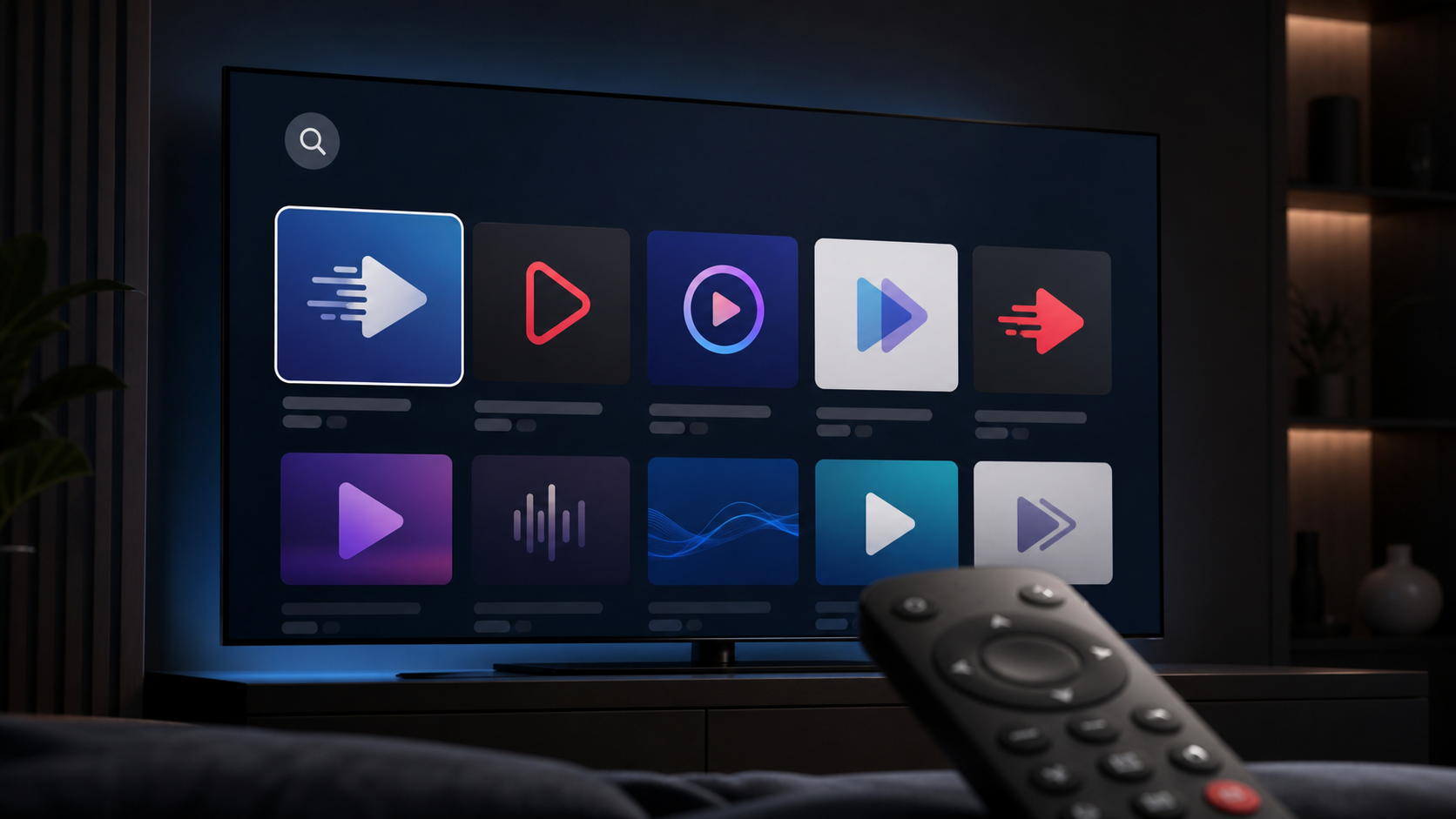
Choose a player from the App Store. Search the Apple TV App Store for a player that supports the login format your provider actually offers. Availability can change, so use the store listing and the provider’s support material rather than an old third-party tutorial.
Install and open the player. Review any privacy prompts and look for an option such as “Add playlist,” “Add user,” “Xtream Codes,” or “Server login.” The wording differs by app.
Enter only the authorized details you received. Depending on the provider, this may be a portal URL with a username and password, or an M3U playlist URL. Copy it exactly; a missing character, an extra space, or an expired trial is a common cause of failure.
Name the connection and let it load. The player may take a few minutes to import its channel groups, guide data, and on-demand library. Do not repeatedly submit the form while it is loading.
Check a few permitted streams. Try a live channel, on-demand title, guide entry, and audio track. If your service has a trial, use it to assess the parts you intend to use before choosing a longer plan.
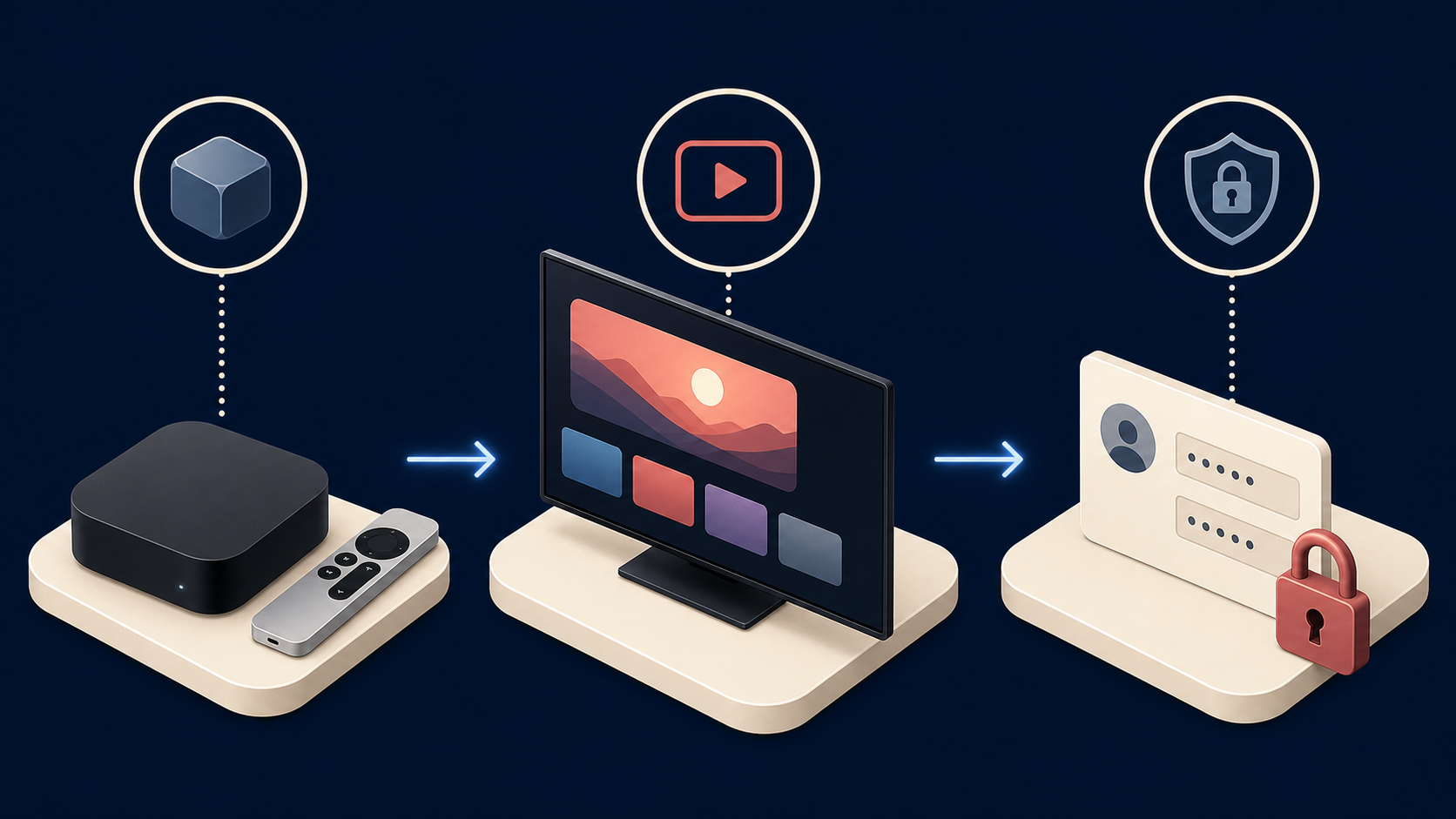
If you use startiptv.ca, compare its current instructions with its published setup guide before entering account details. Its site describes player-based configuration and provider-issued credentials; confirm Apple TV compatibility and the exact login format with support if the guide does not name your player.
Choosing an Apple TV IPTV player
There is no single “best” player for every household. The practical choice is the one available in your Canadian App Store that supports your authorized provider’s sign-in method and is comfortable to use with the Siri Remote. Avoid choosing solely from a feature list; a player can be excellent yet incompatible with your account format.
Login support: Confirm whether it accepts a playlist URL, portal address, or the account method your provider supplies.
Guide and favourites: An electronic programme guide and favourites are useful for large, authorized channel lists.
Subtitle and audio controls: Check these if your household uses multiple languages, captions, or alternate audio tracks.
Privacy and payment: Read the app’s listing, privacy information, and any in-app purchase terms before buying an activation.
Account limits: A player installed on several Apple devices does not automatically create extra simultaneous streams; that depends on the service plan.
Make IPTV playback more stable on Apple TV
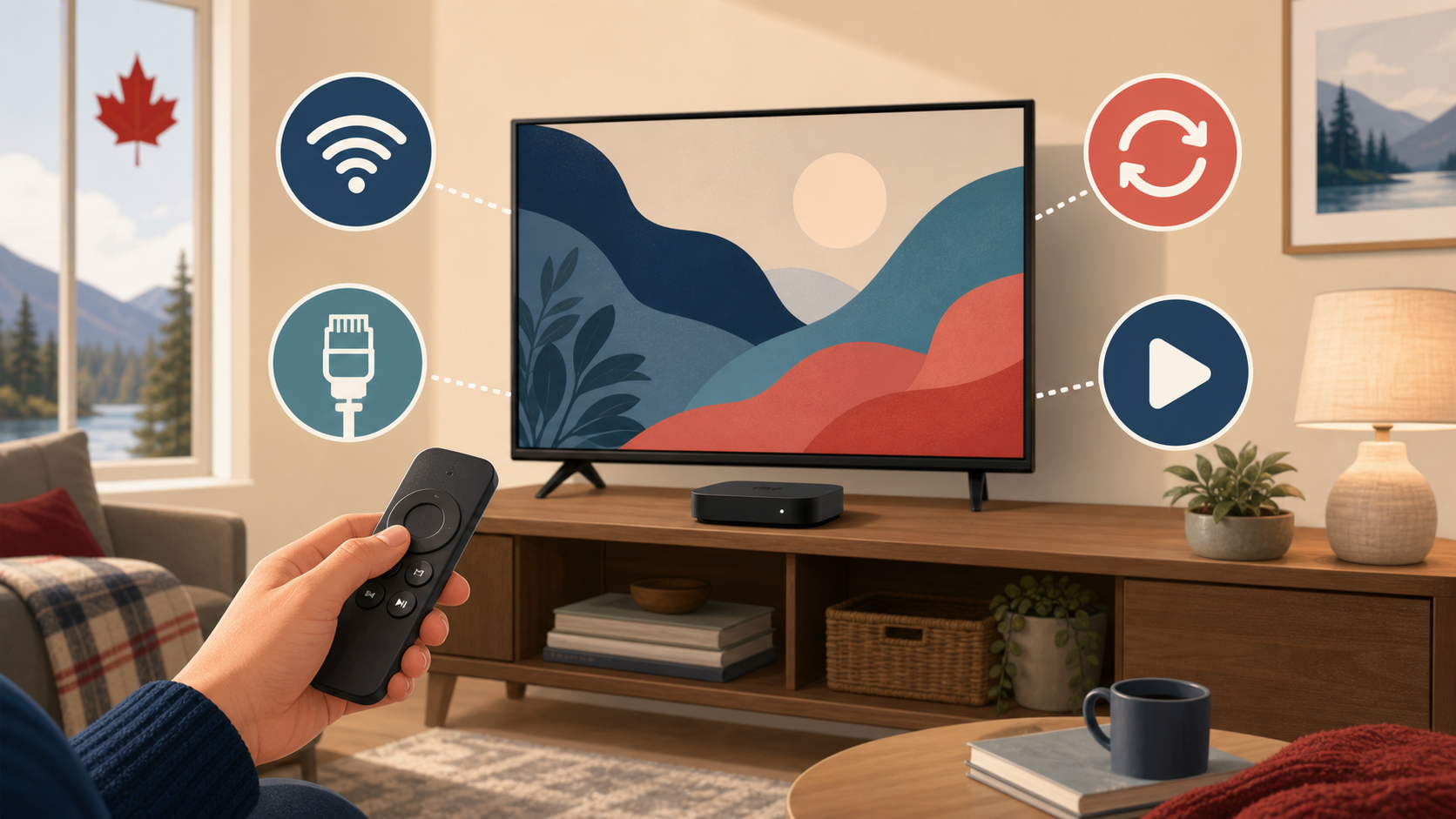
Live streaming is less forgiving than watching a downloaded video. The speed test result is only one part of the picture: Wi-Fi interference, a crowded household network, and the distance between router and TV can all affect playback. Start with the simplest improvement—restart the Apple TV and router—and then test again at the time you normally watch.
Use Ethernet when the Apple TV and router are close enough. It removes one variable from the connection.
On Wi-Fi, prefer a strong nearby 5 GHz or newer band where your router and Apple TV support it.
Pause large downloads, cloud backups, and game updates while checking a live stream.
Use a lower stream quality temporarily if your provider and player offer that option; it helps isolate a bandwidth issue from an account issue.
Keep tvOS and the player current, then relaunch the app after a new release.
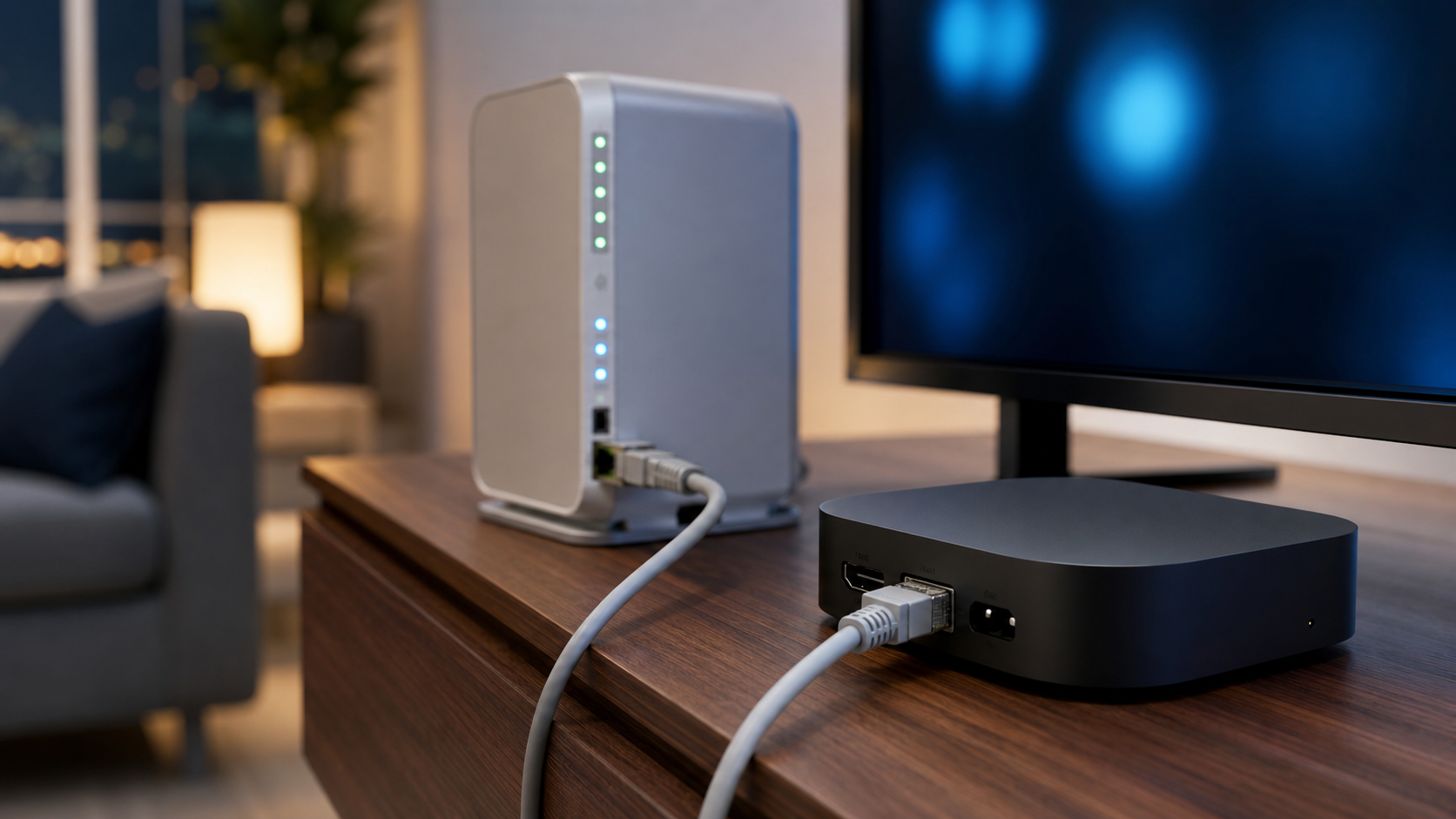
For broader network planning, startiptv.ca also publishes a guide on Ethernet versus Wi-Fi for IPTV. Treat provider speed figures as estimates, not a promise that every stream or home network will behave the same way.
IPTV in Canada: content rights and sensible checks
IPTV describes a delivery method, not a guarantee that a particular channel source is authorized. In Canada, online viewing can be limited by distribution rights and geography; the CRTC explains that content access may be restricted when a service does not hold the applicable Canadian rights. Read its overview of TV, movies, music and other content online for context.
Use only services and streams you are permitted to access. Before paying, ask the provider what content is licensed or otherwise authorized for your location, what devices and concurrent streams are included, how account data is handled, and what the refund terms say. The Canadian Intellectual Property Office notes that communicating protected work to the public without authorization can infringe copyright; this guide is informational, not legal advice.
For a provider comparison, use a written checklist rather than marketing claims. The site’s Canadian IPTV provider checklist, pricing page, refund policy, and FAQ are useful places to verify current terms. Pricing, trials, available channels, player support, and regional eligibility can change.
Common Apple TV IPTV problems
The playlist or account will not load
Re-enter the server address and credentials manually or paste them from the provider’s original message. Check for leading or trailing spaces, confirm the subscription is active, and make sure the player supports that login format. If it still fails, ask the provider to confirm the exact supported Apple TV player and account method; do not send your password in a public chat or forum.
Video buffers or stops
First test another permitted stream, then restart the Apple TV and router. If the issue occurs only in the evening, household congestion may be involved. Switch to Ethernet or move closer to the router for a Wi-Fi test. If every service on the Apple TV is affected, investigate the network before changing player settings.
The app is missing from the App Store
App Store availability varies by country or region and changes over time. Check your Apple ID’s region, search the store directly on Apple TV, and ask the provider for current options. Do not install software from unofficial sideloading or download sites to work around regional availability.
When you need account-specific help, use the provider’s published contact page and include the player name, a brief error description, and whether the problem affects all permitted streams or only one. Avoid including full credentials in the first message unless the provider gives you a secure support channel.
IPTV Apple TV FAQ
Can Apple TV run IPTV?
Yes, Apple TV can run compatible player apps that load content from an authorized IPTV account or playlist. The player does not include channels by itself, and availability varies by App Store region and tvOS version.
What do I need for IPTV Apple TV setup?
You need an internet-connected Apple TV, an Apple ID, a compatible App Store player, and valid credentials or a playlist from a service you are authorized to use. Update tvOS before starting.
Do I need to buy a player app and an IPTV subscription?
Possibly. Some players are free, while others may charge an activation or subscription fee. That cost is separate from the content service, so review each product’s terms before paying.
Which login details should I enter?
Use only the portal address, playlist URL, username, and password sent by your authorized provider. The exact fields depend on the player. Do not use credentials copied from forums, social media, or unknown websites.
Why does my Apple TV player say the playlist is invalid?
Check the address and credentials character by character, remove accidental spaces, and verify the account is active. The other common cause is an unsupported account format, so confirm the player recommended by the provider.
Is Ethernet better than Wi-Fi for IPTV on Apple TV?
Ethernet can be more consistent because it avoids wireless interference. Strong Wi-Fi can also work well. Test both in the room and at the time you normally watch before changing your plan or equipment.
Can I watch on more than one Apple TV?
You may be able to install a player on more than one device, but simultaneous viewing depends on the service plan and its connection rules. Check the plan details before assuming it supports multiple active streams.
Why is an IPTV player not available in Canada?
Apps can be withdrawn, renamed, or unavailable in particular App Store regions. Check the store on your device and your Apple ID region, then ask your provider for a currently supported option. Avoid unofficial installers.
Is IPTV legal in Canada?
Legality depends on the content source, rights, your region, and subscription terms—not on the player or the acronym IPTV. Use only content you are authorized to access and seek qualified legal advice if you need advice about a specific service.
Should I use a VPN with IPTV on Apple TV?
A VPN is not a substitute for content rights and should not be used to bypass regional restrictions or platform protections. If privacy is a concern, review your provider’s privacy policy and use services only according to their terms.
What should I test during an IPTV trial?
Test the player’s login, guide, subtitle and audio controls, a few authorized live streams, evening performance, and the provider’s support process. Read cancellation and refund terms before the trial ends.
How do I get help from startiptv.ca?
Use the published contact and FAQ pages. State the Apple TV model, tvOS version, player name, login method, and a short description of the issue. Verify current Apple TV compatibility, plan terms, and refund conditions before ordering.
Before you finish
Once the player loads, take a few minutes to organize favourites, enable captions if needed, and test playback on your usual home network. Keep your setup simple: use an App Store player, authorized account details, and a provider whose current terms and support information you can review. For startiptv.ca-specific questions, consult the FAQ or contact page.