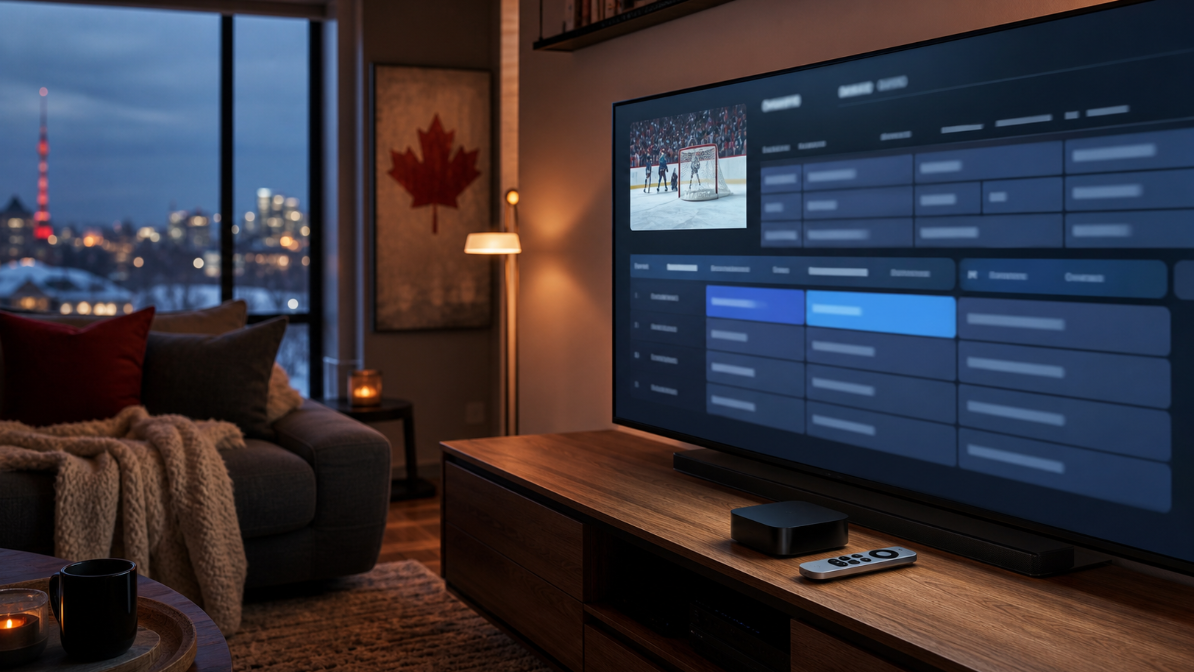
Setting up IPTV on an LG Smart TV is usually straightforward when you separate the player from the content service. For an IPTV LG Smart TV setup, you need an internet-connected TV, an app that is available for your specific LG model in Canada, and access details from a service you are authorised to use. This guide covers the official-store route, ordinary setup checks, and the questions worth answering before you start.
Before you install IPTV on an LG Smart TV
Start with the TV itself. Confirm that it can connect to your home network, that the LG Home screen opens normally, and that you can access Apps or LG Content Store. LG’s official guidance says app support can vary by TV model, webOS version, and country or region, so an app available on one LG TV may not appear on another. Check the listing for your exact model and Canadian region before you make a subscription decision.
It also helps to keep the roles clear: an IPTV player is software that displays a stream or guide; it does not include channels by itself. Use it only with a subscription, stream, or personal media source you have permission to access. In Canada, communicating copyrighted content to the public without the rights holder’s permission can be an infringement; the Canadian Intellectual Property Office explains that only a court can decide a specific case. See LG Canada’s app-installation help and the Canadian Intellectual Property Office guidance on copyright infringement for the relevant boundaries.
Have these ready
An LG Smart TV connected to a stable home network.
An LG account if the Content Store prompts you to sign in or accept its user terms.
The name of a player that the authorised provider says it supports on LG webOS.
Only the account details or configuration information issued to you by that provider.
A few minutes to test playback, guide data, and audio after installation.
Install the player through LG Content Store
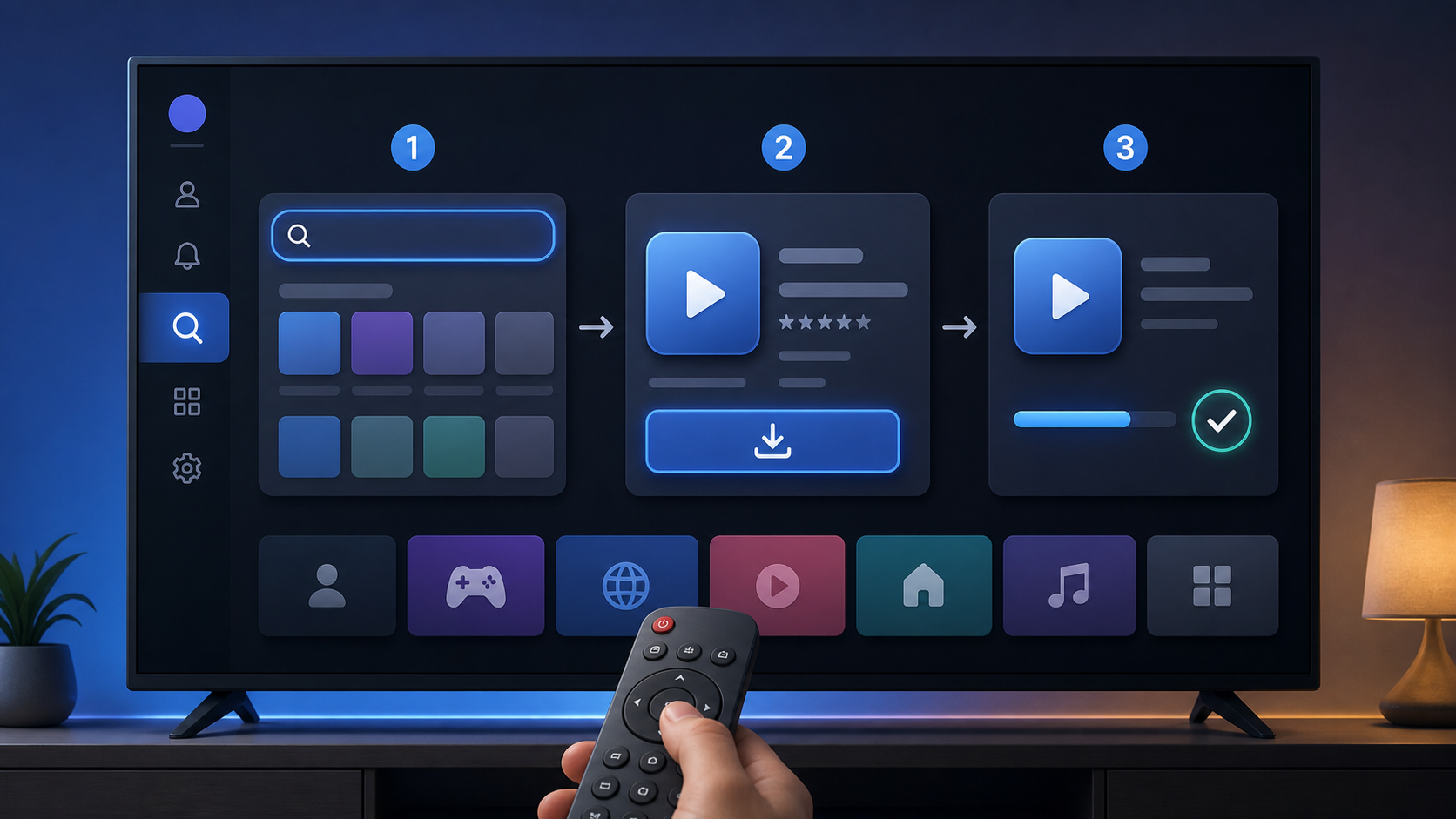
The exact menu labels differ across webOS generations, but the safe route stays the same: install the app from LG’s own store rather than from an unknown download page. On recent TVs, press Home, open Apps, use the search icon, select the app from the result page, and choose Install. On some older models, begin at LG Content Store from the Home menu, then search and install from there.
Turn on the TV and verify that it is online.
Press the Home button and open Apps or LG Content Store.
Search for the player recommended by your authorised service.
Open the listing and review its supported webOS version, publisher, permissions, and Canadian availability.
Select Install, then launch the app from the Home screen when the install completes.
If the app cannot be found, do not assume that a workaround is required. First check your TV’s service-country setting, software version, free storage, and model support. A missing result can simply mean the app is not released for that LG model or region. An external LG support article likewise notes that a TV app must be supported for the model and region in which it is being used.
Add your authorised service access
Open the installed player and follow the sign-in or connection method that your provider documents. Depending on the player and service, this may be a username and password, a provider portal address, an activation code, or another provider-issued option. Enter only details received directly from the service you chose. Do not use public playlists, copied login details, or sources advertised as unrestricted premium content.
Once connected, let the app finish its initial sync before judging it. Then try a few channels or on-demand items that you are authorised to view, open the programme guide if the service provides one, and restart the app once. If the player reports an authentication error, verify each character with the provider rather than repeatedly guessing; repeated failed attempts may trigger the provider’s security controls.
Keep account details private. A service’s permitted number of screens, household rules, and travel or regional terms are set by that service—not by the LG television or player app.
Make IPTV LG Smart TV playback more dependable
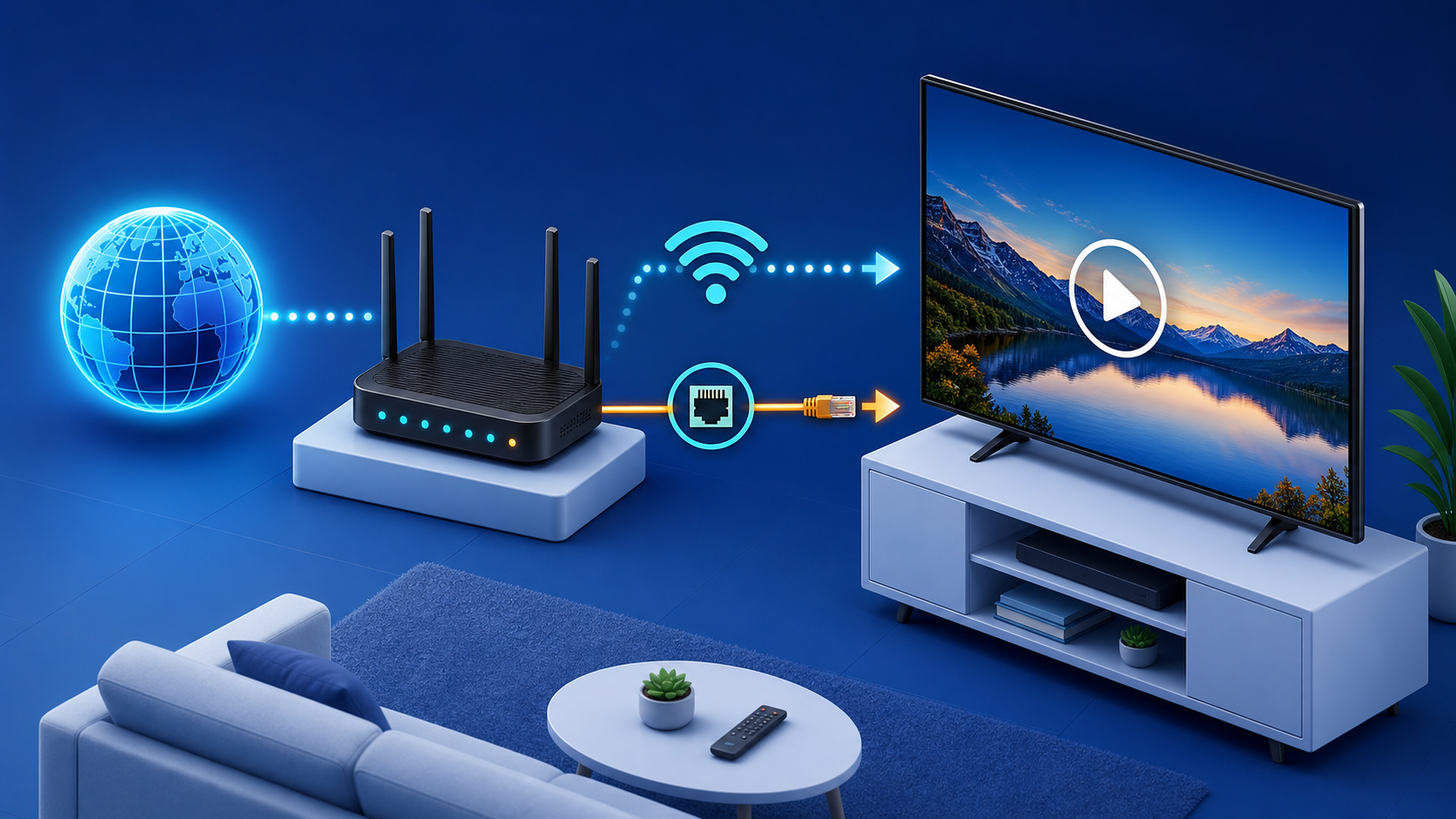
Many playback problems are local rather than app-specific. Before changing settings in the player, check whether another device is using most of the home bandwidth, whether the router is far from the TV, and whether the TV’s network connection is stable. An Ethernet cable can remove one variable when Wi-Fi is weak or crowded, although a good Wi-Fi connection can also be adequate for ordinary HD viewing.
| What you notice | Try this first |
|---|---|
| Playback pauses or lowers quality | Restart the TV and router, pause large downloads, and test closer to the router or with Ethernet. |
| The app will not open | Restart the TV, check for free storage, then confirm that the app is still supported in LG Content Store. |
| The guide is empty or slow | Allow the player to finish synchronising, then ask the provider whether its guide service has a current issue. |
| Audio and picture do not match | Restart the app, try a different authorised programme, and review the TV’s sound-output settings before changing advanced options. |
Check picture, sound, and accessibility settings
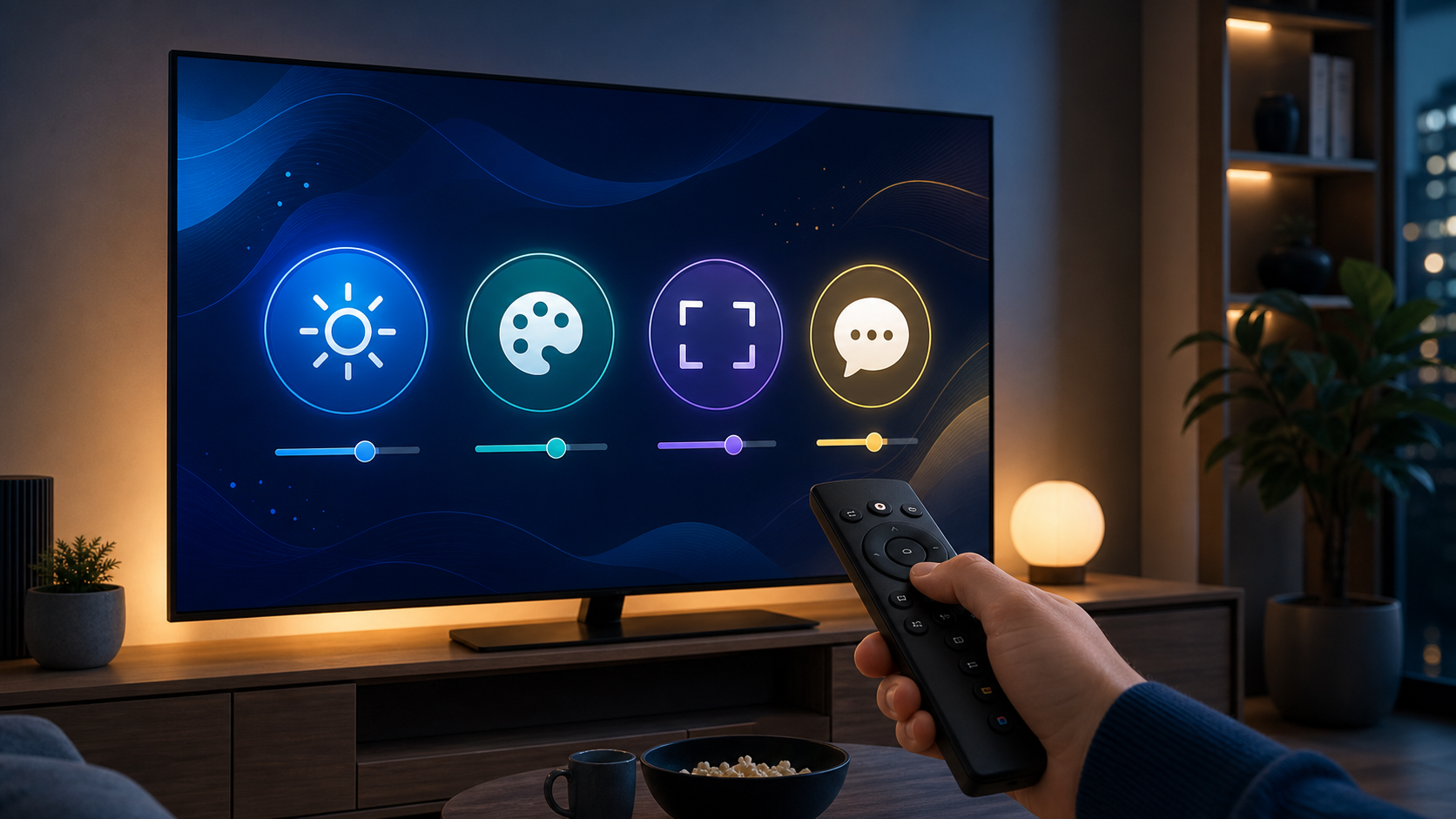
When the stream itself is stable, use your LG TV settings to make viewing comfortable. Start with a picture mode you already like, confirm the correct audio output, and check whether captions or audio-description options are available in the player or programme. Avoid making several advanced changes at once; change one option, test a familiar authorised programme, and keep the setting only if it improves your experience.
If you use a soundbar or receiver, verify that the TV and external device agree on the selected audio format. For picture issues, confirm the player is not forcing an unsuitable display mode before resetting the television. These checks are less disruptive than reinstalling the app and make it easier to describe the issue if you need support.
What to review before choosing an IPTV service in Canada
For Canadian viewers, the important question is not simply whether an app installs. Review whether the service is authorised for the content and location you intend to use, whether its terms explain account sharing and supported devices, and whether its support and refund information is clear. A player app does not make an unauthorised source legitimate, and a provider’s marketing language does not replace an assessment of content rights.
Confirm that the player is available for your LG TV model and Canadian region.
Use only content sources and credentials you are permitted to use.
Read the provider’s current terms, price, renewal terms, device limits, and refund conditions.
Use official app stores and provider documentation; avoid APKs, unverified download pages, and shared credentials.
Keep a record of the support contact and your order details in case the setup needs verification.
Using Start IPTV resources for your LG TV setup
If you are considering startiptv.ca, begin with its setup guide and FAQ to compare the current setup instructions with your LG model. Before ordering, review the live pricing page, terms and conditions, and refund policy. For a model-specific problem, use the site’s contact page and include your LG model, webOS version, player name, and the exact error message—never your password in a public message.
Those pages can help you verify the provider’s current process, but they do not replace your responsibility to use only services and programming you are authorised to access in Canada.
FAQ: IPTV LG Smart TV
Can I set up IPTV LG Smart TV apps on any LG Smart TV?
Not necessarily. The player must support your LG model and webOS version, and it must be available in the LG Content Store for your Canadian region. Search the store on the TV and check the app’s compatibility information before subscribing to a service.
Why can’t I find an IPTV player in LG Content Store?
Availability can vary by model, webOS version, and country setting. Confirm the TV is online, review its LG service-country setting, update the TV through its normal settings if appropriate, and check the player publisher’s official compatibility information. Do not replace a missing app with an unverified download.
Does an IPTV player include channels?
No. A player is a viewing tool. It needs an authorised service account, permitted stream, or personal media source to display content. The source, its rights, and its household or regional terms matter separately from the player app.
Is IPTV legal in Canada?
The technology is neutral; what matters is whether you have permission to access and use the particular content and service. Use authorised sources and follow the provider’s terms. For a legal question about a specific service or stream, seek qualified advice rather than relying on a general setup guide.
What details should I enter in the player?
Enter only the sign-in, activation, or connection details issued directly by the service you chose. Follow its current documentation, protect the credentials, and do not share them or copy public playlists from unknown websites.
Will IPTV work on an older LG webOS TV?
It depends on the player. Older TVs may not support a newer app version, and some apps are limited by model year. Check the Content Store listing and the app publisher’s supported webOS versions before changing hardware or choosing a plan.
How do I reduce buffering on an LG Smart TV?
Start with the basics: restart the TV and router, stop large downloads, check Wi-Fi signal strength, and try Ethernet if practical. Test more than one authorised programme. If the issue remains, record the time and error message so the app publisher or provider can investigate a specific problem.
Can I use the same IPTV account on multiple TVs?
Only if the service’s plan and terms permit simultaneous or household use. The LG TV does not decide this. Check the service’s current plan details and account rules before signing in on another screen; do not share credentials outside the permitted arrangement.
Should I reset my LG TV if the player stops working?
A factory reset is usually a last step. First restart the TV and app, check the network, confirm that the app still appears in LG Content Store, and verify your account status with the authorised provider. Resetting can remove settings and installed apps without resolving a service-side issue.
Where can I get Start IPTV help for an LG Smart TV?
Review the provider’s current setup guide and FAQ first, then use its contact channel for a model-specific issue. Include the LG model, webOS version, player name, and the error message. Confirm content authorisation, account terms, and compatibility directly with the provider before you proceed.