Google TV makes it straightforward to install a compatible player and watch streams from a service you are authorized to use. This guide explains the practical setup path for Canadian households, including the difference between a player and a content service, account setup, network checks, casting, and common fixes.
IPTV Google TV setup: the short version
Confirm that your television or streaming dongle runs Google TV and is online.
Use the Google TV app store to find a compatible IPTV player or the official app supplied by your authorized provider.
Install the app, then enter only the sign-in or playlist information issued to you by that provider.
Check that the device, player, and service are available for your Canadian location and subscription terms.
If playback or casting fails, check the network, restart the equipment, and install available app and system fixes.
The important distinction is simple: a player is an app that organizes and plays streams; it does not supply channels by itself. The legality and availability of any stream depend on the provider’s rights, your location, and the terms of your subscription. Use only services and credentials you are permitted to access.
Before you start: device, account, and rights checks
“Chromecast” can describe different devices. Chromecast with Google TV has an on-screen Google TV interface and can install supported apps directly. Older cast-only Chromecast models rely on a compatible phone, tablet, or browser to send content to the TV. The setup route below is for Google TV devices; a separate casting option is covered later.
Have the following ready:
A Google TV television, Chromecast with Google TV, or another Google TV streaming device connected to your TV by HDMI.
A Google account and a stable home internet connection.
An authorized provider account, official app details, or provider-issued login information.
Access to the provider’s current device guide, connection policy, refund terms, and support channel.
For Canadian viewers, distribution rights can vary by territory. The CRTC notes that online viewing availability is tied to distribution rights and may be limited through geo-blocking. That is a reason to verify Canada availability with the rights holder or provider—not a reason to try to evade those limits. Read the CRTC’s explanation of online content and distribution rights.
Step 1: Install a compatible IPTV player on Google TV
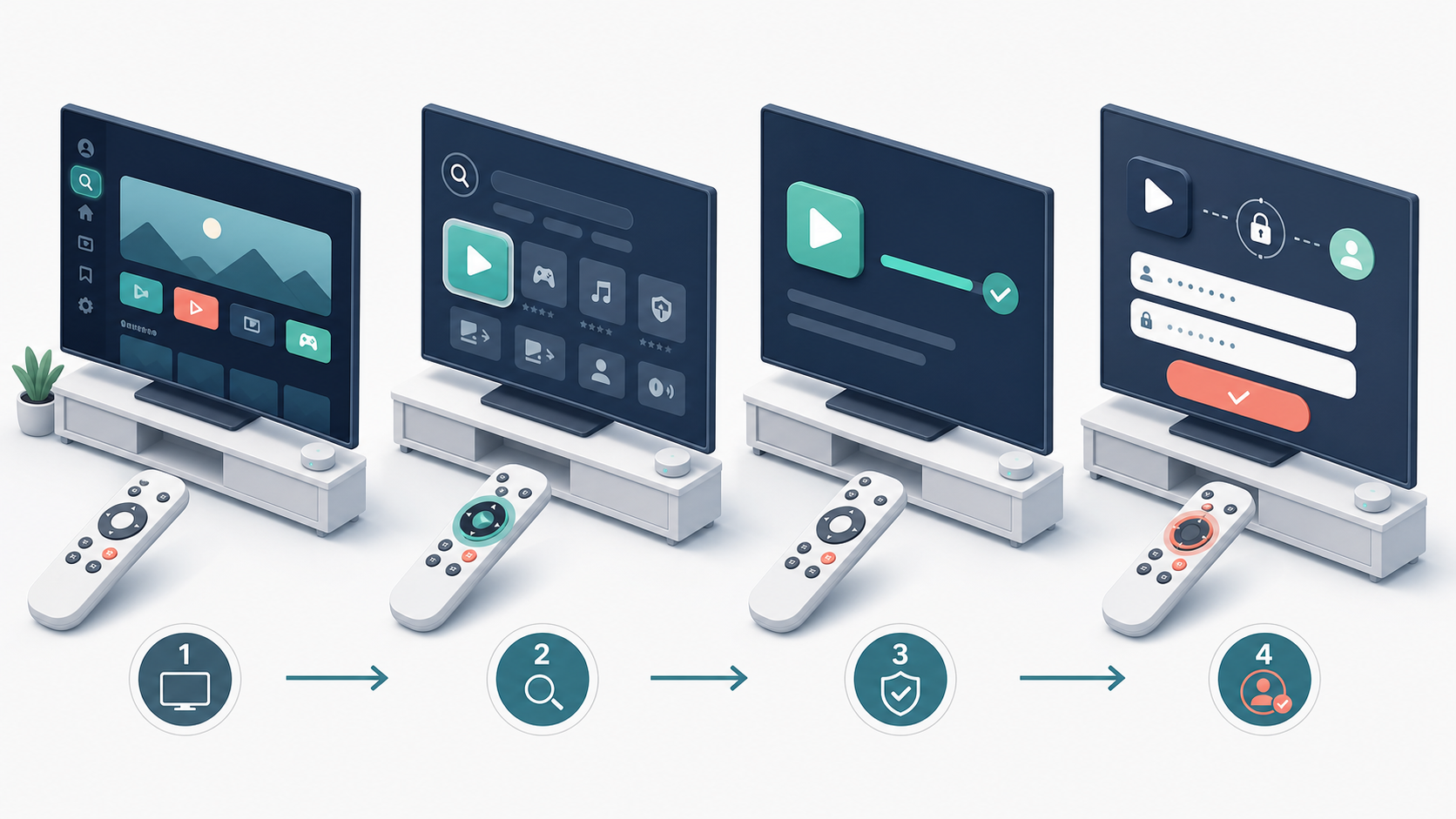
Start at the Google TV home screen. Select Search, or press the Assistant button on the remote, then search for the official app your provider recommends or a player that your authorized provider supports. If the app appears, open its listing and select Install. Google’s current instructions also let you browse from the Apps tab. Google TV’s official app-installation instructions are the reference if the menus look different on your device.
Do not assume every phone app is available on a TV. A useful player should be listed for your device, work with a remote, and support the login method your provider documents. Availability can change by region, device generation, and app developer, so check the live store listing before subscribing or relying on a specific app.
What to look for before installing
It is available in the Google TV app store for your device and Canadian account.
Its publisher and support information are clear.
Its sign-in method matches the details your provider actually sent.
Its privacy settings and billing model are acceptable to you.
Step 2: Add only the service information you are authorized to use
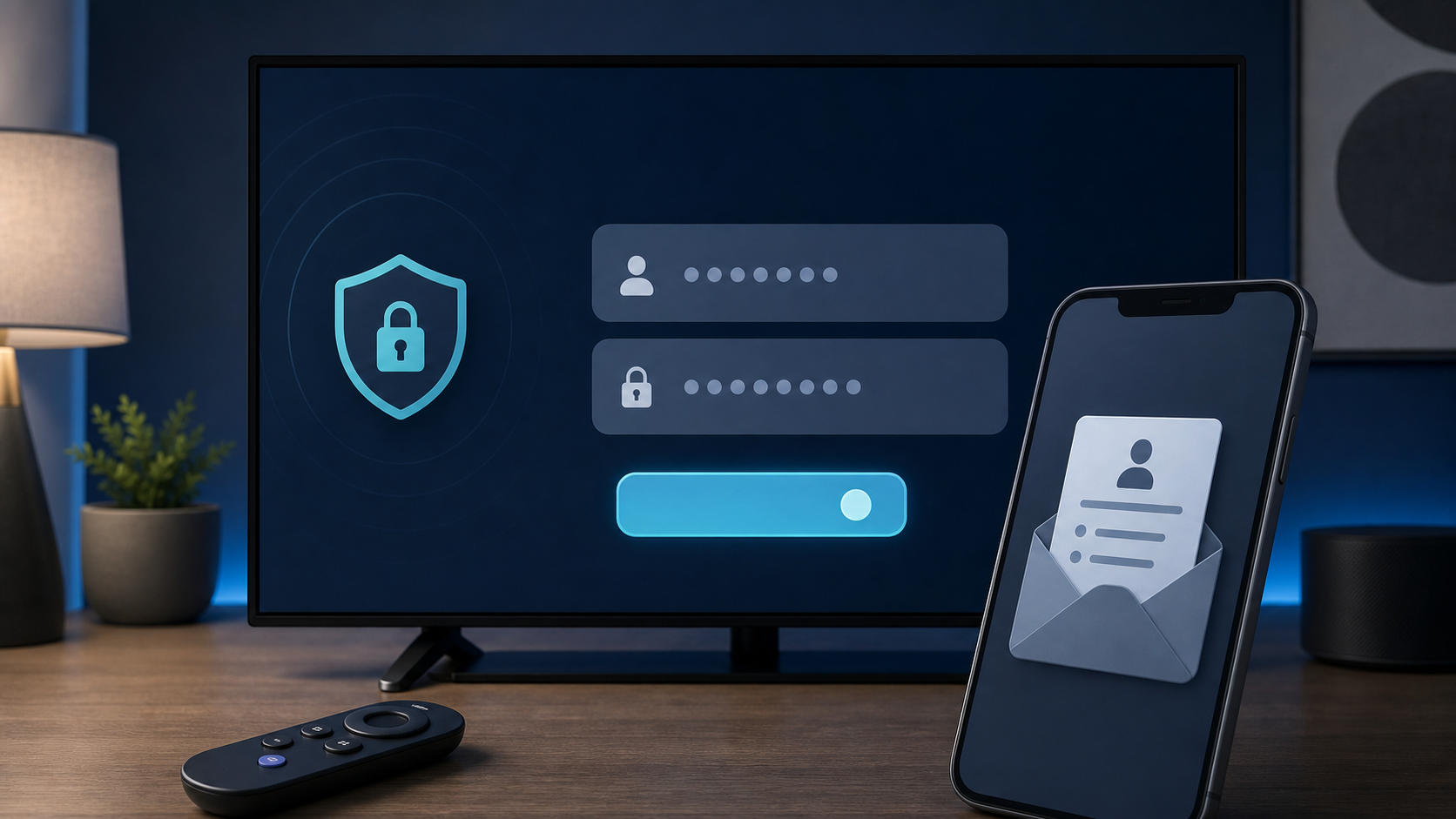
Open the installed player and follow the login choice specified in the provider’s official guide. Depending on the player, this may be a username and password, an activation code, or a private playlist address issued for your account. Use the details exactly as provided and keep them private. A player’s labels vary, so the provider’s current device documentation should take priority over any generic wording in this article.
Once the account loads, check a few ordinary items: the channel guide if one is included, language preferences, parental controls, and the number of simultaneous streams allowed. Do not share credentials or try to use a subscription beyond its stated device or connection limit.
A cautious way to evaluate a service
Before entering payment information, review the provider’s device guide, service terms, refund policy, and support route. For readers considering startiptv.ca, the site provides a setup guide, FAQ, and pricing page. Confirm current Google TV compatibility, Canada availability, connection limits, content rights, and policy terms directly with the provider before ordering. This guide does not independently verify any provider’s catalogue, licensing, or performance claims.
Step 3: Prepare the network, then choose direct playback or casting
Direct playback means the player runs on Google TV itself. It is usually the cleanest option when the app is available in the store and supports your provider. If you are using a cast-only Chromecast or a provider’s mobile app, casting can be the practical alternative—provided that app supports Google Cast.
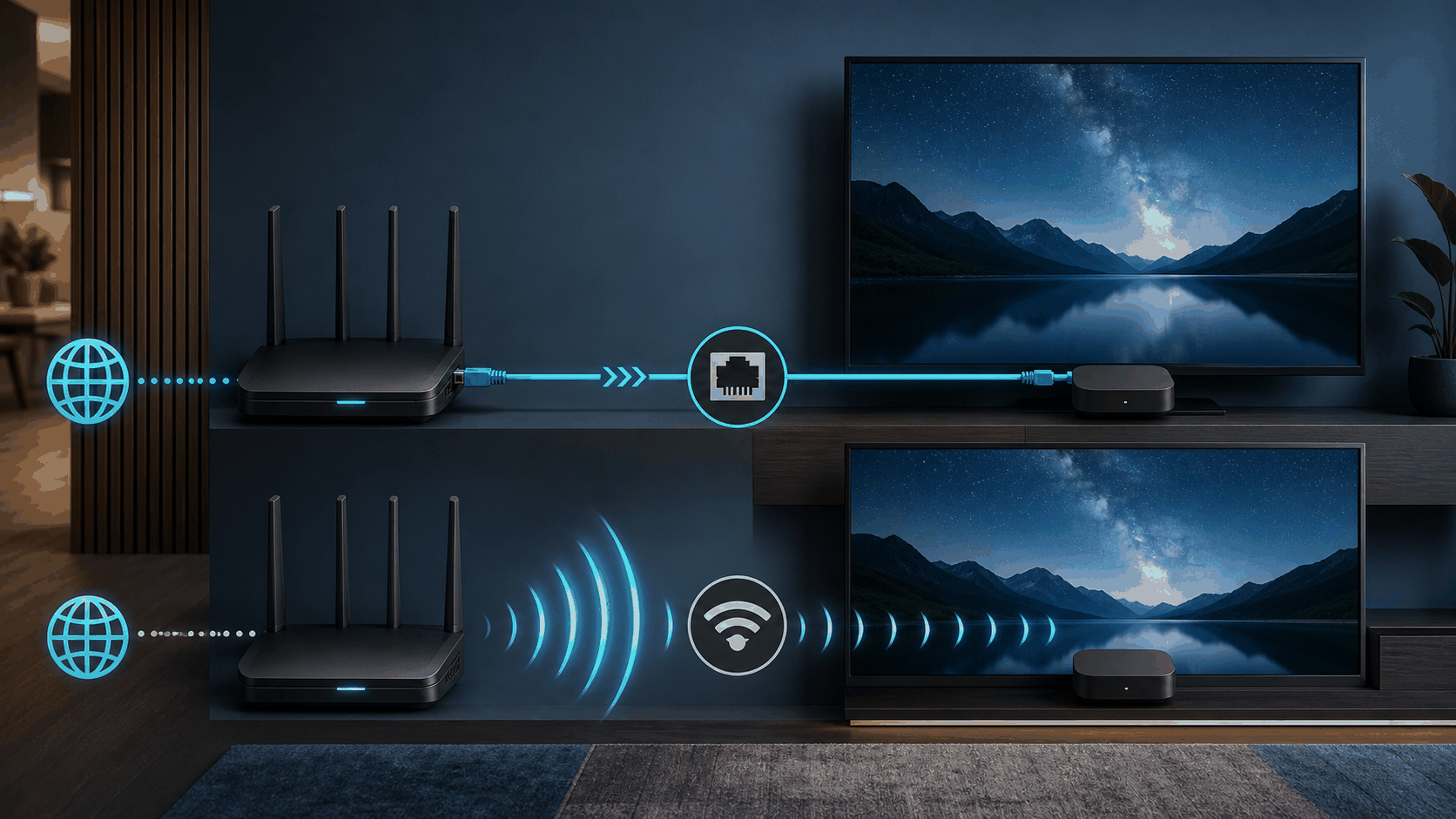
For either route, place the device on a stable network. Ethernet is often worth considering when the TV is near the router because it avoids some Wi-Fi interference; Wi-Fi can still work well when the signal is strong and the router is not overloaded. The useful test is not a promise about a particular speed: try the actual authorized stream at the picture quality you plan to watch, at the time of day you normally use it. For more context, see startiptv.ca’s article on Ethernet versus Wi-Fi for IPTV and its Canadian internet-speed guide.
How to cast to Google TV or Chromecast
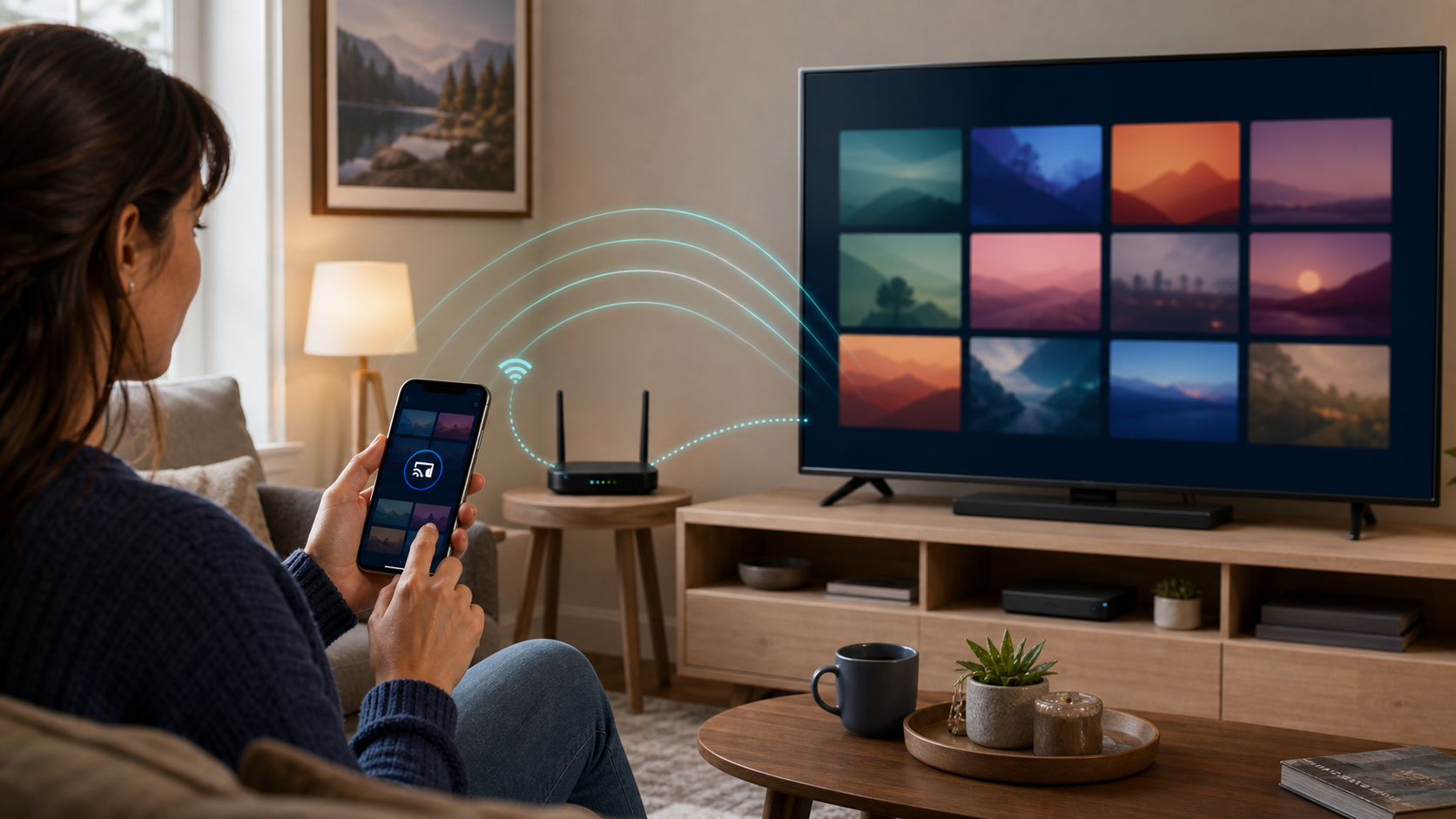
Connect the phone, tablet, or computer and the Google TV device to the same Wi-Fi network.
Open the authorized streaming app or site that supports casting.
Select its Cast control and choose your TV or Chromecast.
Start playback from the app and use the device controls to stop casting when finished.
Google says both devices must be on the same Wi-Fi network, and casting requires a current Chromecast-enabled app or Chrome browser. Review Google’s official casting steps and fixes.
Troubleshooting IPTV Google TV and Chromecast issues
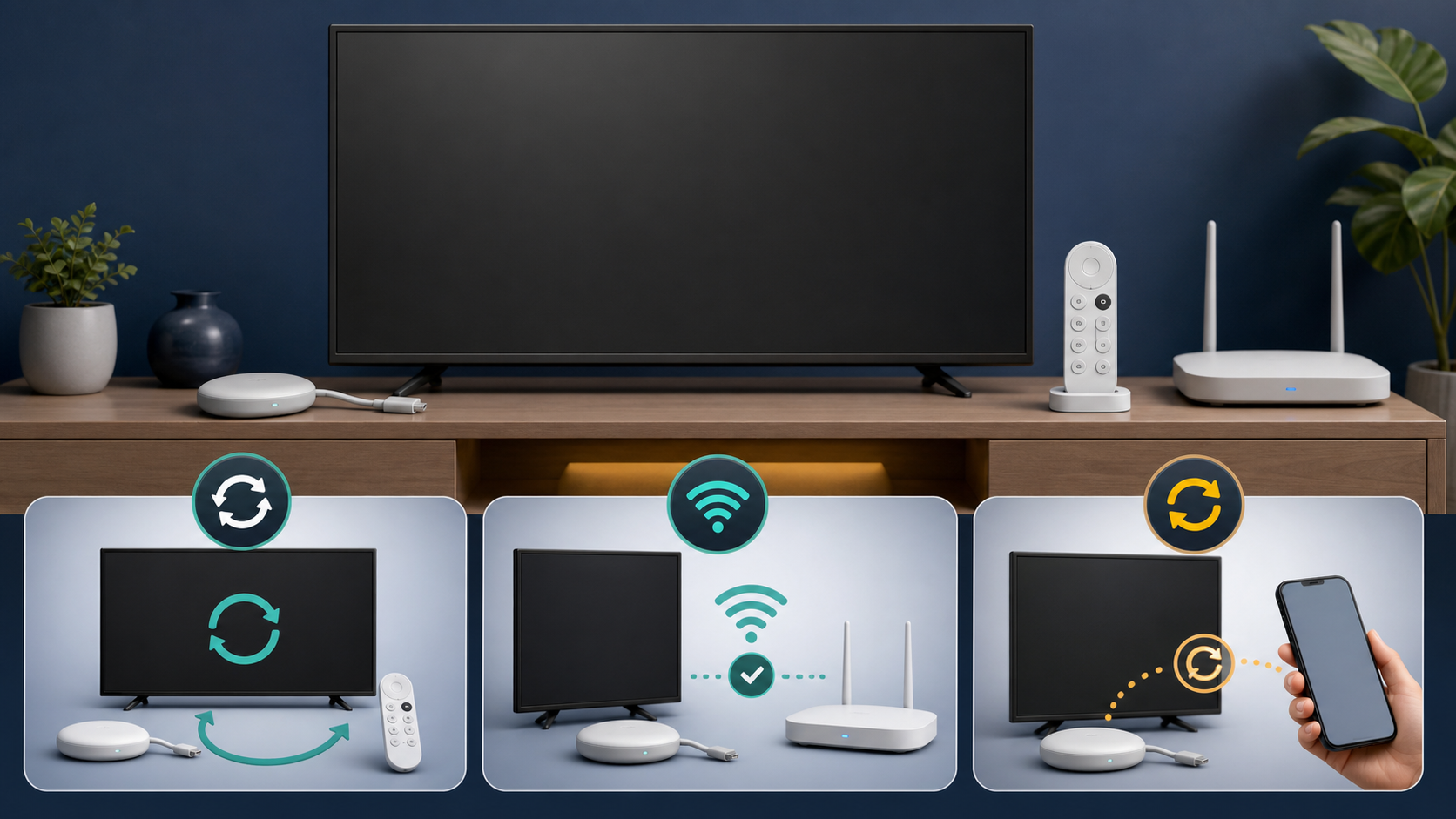
Most setup problems come down to the device, the app, the network, or the account. Work from the simplest check outward so you do not accidentally change several things at once.
If you are still deciding on a service, use a provider checklist instead of relying on channel-count headlines. Startiptv.ca’s Canadian provider checklist can help frame questions about device support, policies, and service fit. Verify those answers with the provider’s current documentation before committing.
Final checklist
Google TV or Chromecast is using current system software and connected to the intended home network.
The player or provider app came from an official, compatible source.
You are using only authorized account details and streams.
You have checked Canadian availability, device support, connection limits, and provider policies.
You know whether direct playback or casting suits your particular Chromecast model.
A careful IPTV Google TV setup is less about finding a shortcut and more about confirming the device, official app, network, and viewing rights all line up. Once they do, the day-to-day experience should be as simple as opening the player or casting from a supported app.
FAQ: IPTV on Google TV and Chromecast
Can I use IPTV on Google TV?
Yes, if your Google TV device has a compatible player or an official provider app available for your region. The player is only the viewing tool; use it with a service and streams you are authorized to access.
Is Chromecast the same as Chromecast with Google TV?
No. Chromecast with Google TV has an on-screen interface and can install supported TV apps. Older cast-only Chromecast models generally receive content from a compatible phone, tablet, or Chrome browser instead.
Do IPTV players include live TV channels?
No. An IPTV player normally does not include channels, subscriptions, or viewing rights. It displays content provided through an account or source that you have permission to use.
How do I install an IPTV player on Google TV?
Use Search or the Apps tab on the Google TV home screen, find the official app recommended by your authorized provider or a compatible player, and select Install. App availability can vary by region and device.
What details should I enter in the player?
Enter only the sign-in, activation, or private playlist details that your authorized provider issued for your account. Follow that provider’s current guide because the wording and supported login methods differ between players.
Why is my IPTV Google TV app buffering?
First check Wi-Fi signal quality, other high-bandwidth activity, and whether the issue affects more than one app. Restart the router and Google TV device, then try Ethernet or a closer router position if the connection is inconsistent.
Can I cast IPTV from my phone to Chromecast?
You can cast when the authorized mobile app supports Google Cast and both the phone and Chromecast or Google TV are on the same Wi-Fi network. The Cast option is controlled by the app, not by the player alone.
Can I use the same subscription on several TVs?
It depends on the provider’s terms and the number of concurrent streams included with your subscription. Installing an app on several devices does not necessarily mean that simultaneous viewing is permitted.
Is IPTV legal in Canada?
IPTV is a delivery method, not a guarantee about any content source. In Canada, rights and availability depend on the content, provider, region, and subscription terms. Use authorized services and streams, and consult a qualified professional if you need legal advice about a particular situation.
What should I verify before choosing startiptv.ca or another provider?
Check current Google TV app compatibility, Canadian availability, content rights, pricing, refund terms, privacy practices, support route, and simultaneous-stream limits. Verify these details directly with the provider before ordering.