An empty, incorrect, or frozen programme guide makes live TV much harder to use. The good news is that an IPTV EPG not working issue is often caused by one of a few fixable problems: stale app data, an incorrect device time zone, a broken guide feed, or channel IDs that no longer match. This guide walks through the checks in the order that usually saves the most time.
Before you start: an IPTV player is only the app that displays a playlist and guide. It does not supply channels on its own. Use these steps only with services, credentials, and streams you are authorized to access.
Start here: the 60-second EPG check
Open a live channel. If video plays but the guide is blank, focus on guide data rather than your internet speed.
Force-refresh the playlist or guide inside the player, then close and reopen the app.
Check that the device date, time, and time zone are automatic and correct for your location.
Try a second channel group and a second device, if available.
Confirm the subscription is active and that you are using the current credentials or playlist details supplied by your provider.
If the guide returns after a refresh, the issue was likely cached or delayed data. If it remains empty across every device, the provider-side EPG feed or the account configuration is more likely than a fault with the TV itself.
What needs to line up for an IPTV guide to appear
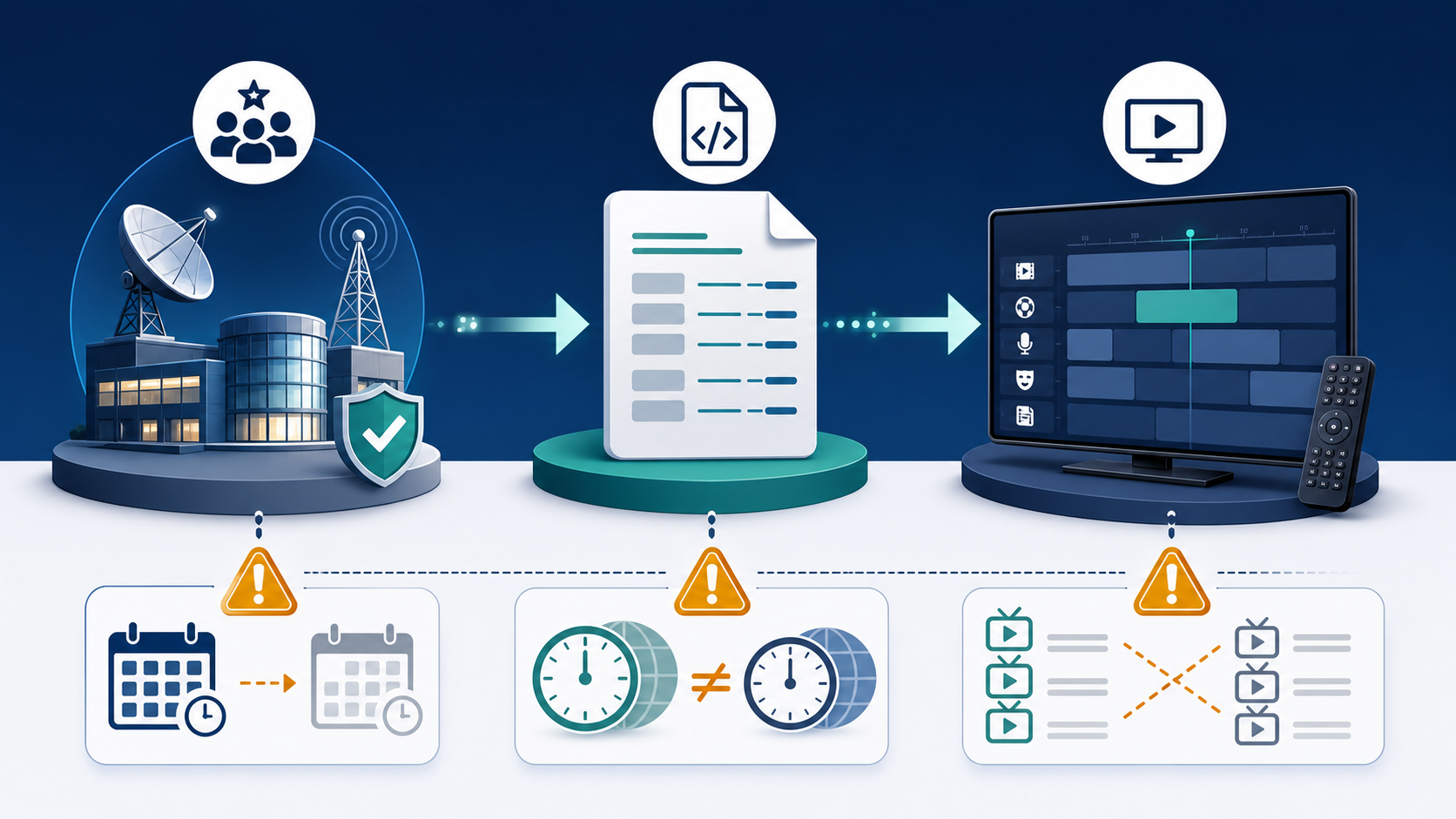
An electronic programme guide is separate from the live video stream. A player typically loads channel information from a playlist or account, receives programme listings from a guide feed (often XMLTV-style data), and then matches each listing to a channel. A channel can play perfectly while its schedule is missing.
| What you see | Most likely cause | Best first action |
|---|---|---|
| All channels play; every guide row is blank | Guide feed did not load, expired account data, or provider-side outage | Refresh the guide; then check the account details with support |
| Programmes are shifted by one or more hours | Device or player time zone is wrong | Set automatic date, time, and time zone; refresh the guide |
| Only some channels have listings | Missing metadata or a channel-ID mismatch | Note the channel names and report the affected group |
| Guide works on a phone but not a TV | Player cache, app version, or device-specific setting | Update/restart the TV app and reload its playlist |
| Guide never finishes loading | Network interruption, DNS issue, or an overloaded app cache | Restart the player and router; test another connection if permitted |
How to fix IPTV EPG not working: 8 practical steps
1. Refresh the guide, not just the channel list
Look in the player settings for Refresh EPG, Update guide, Reload playlist, or a similar option. Some players refresh channels and guide data separately. Wait for the refresh to complete before checking a channel; rapid repeated refreshes can leave an app stuck with the same cached data.
2. Restart the player, then the streaming device
Fully exit the app rather than returning to its home screen. Restart the TV, stick, box, or phone, then sign in again if the player asks. This clears many temporary app-state and memory problems without changing your account.
3. Correct the date, clock, and time zone
A guide matches programme times to the clock reported by the device or app. In Canada, make sure the device is set to the correct local time zone—such as Pacific, Mountain, Central, Eastern, Atlantic, or Newfoundland—and that automatic daylight-saving adjustments are enabled where applicable. A wrong setting may make the guide appear empty at the current time even when listings exist.
4. Reload the current provider details
Do not guess or reuse an old URL from a previous subscription. Re-enter only the current authorized playlist, portal, or sign-in details issued by your provider. If the provider sent revised instructions, use those instead. The Start IPTV setup guide shows the common account-loading methods used by IPTV players; the exact menu labels vary by app.
5. Update the player and check its guide settings
Install updates from the device’s official app store when available. In the player, check whether an EPG source is disabled, whether an external guide URL is still selected, and whether the app has a guide-update interval. Do not install unofficial or modified apps to solve a guide issue.
6. Clear the player cache carefully
On Android- and Fire TV-style devices, clearing an app cache can remove stale guide files. Clearing data may also erase sign-in details, favourites, and settings, so keep your authorized setup information available first. On smart TVs and iOS devices, a full app restart or reinstall may be the equivalent option.
7. Test one other device or player
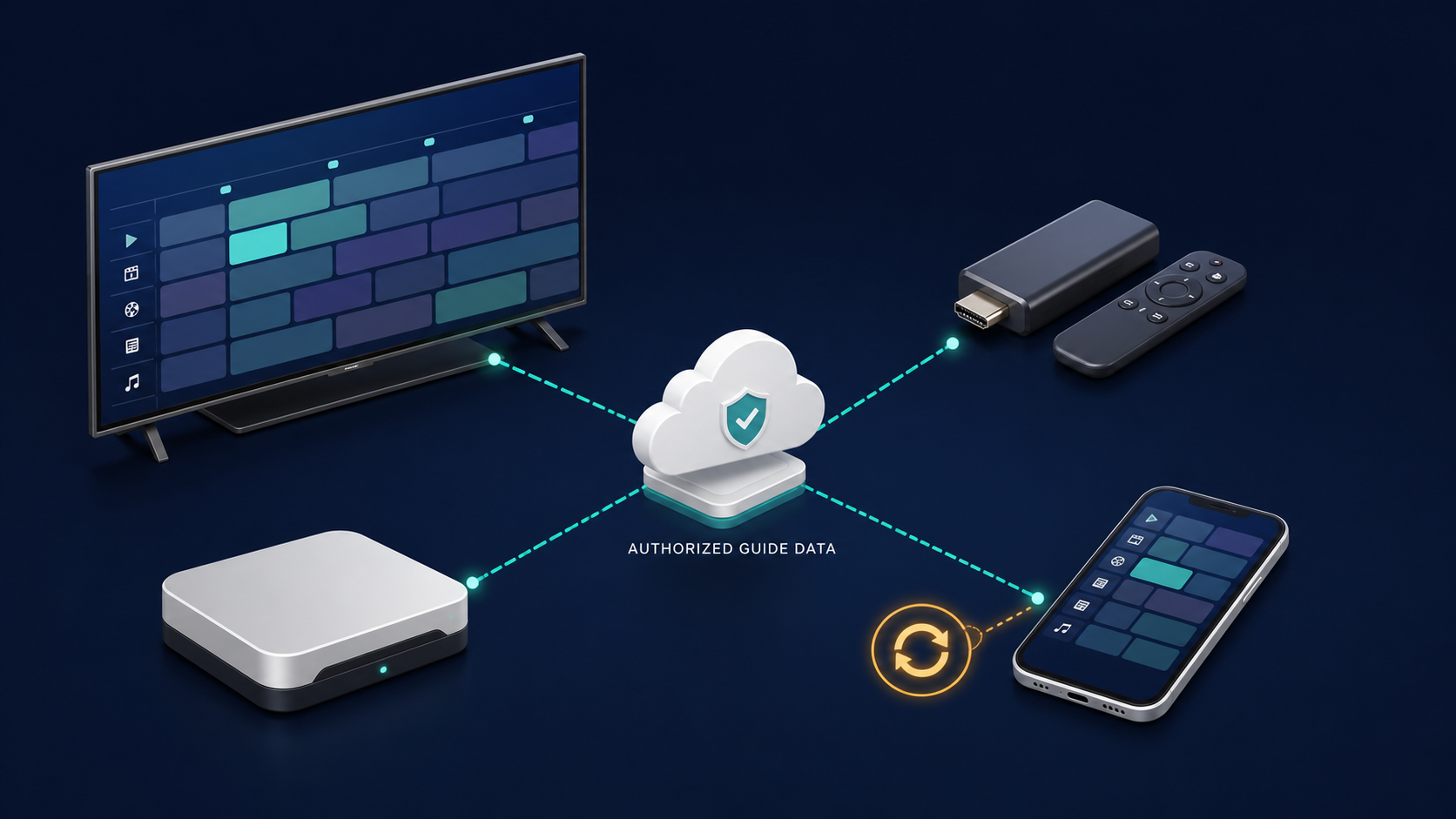
This is a diagnostic step, not a reason to share credentials beyond the service terms. If the same authorized account shows a complete guide on a phone but not on the TV, focus on the TV player, its cache, and its time settings. If the guide is missing everywhere, collect the evidence below and contact the provider.
8. Check the account and guide coverage
Some services provide different guide coverage by region, language, or channel package. Check the provider’s FAQ, current plan details, and support instructions before assuming a particular channel should have listings. A live channel without a guide entry may be a metadata limitation rather than a playback fault.
Use the symptom to narrow the cause
The EPG is blank but live TV works
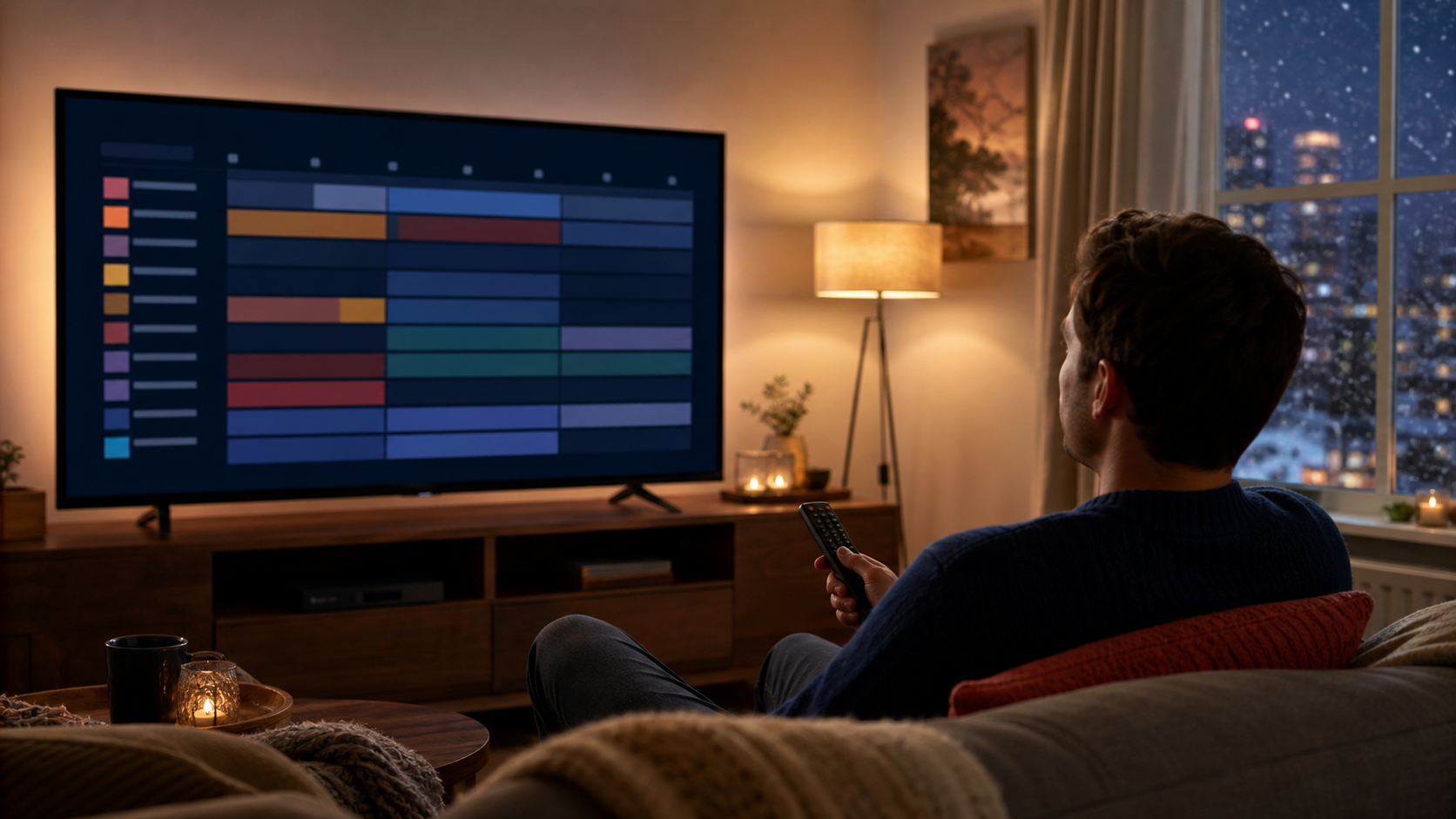
Start with a guide refresh, account reload, and device clock check. This pattern usually points to schedule data or matching rather than video delivery.
The EPG shows the wrong programmes or wrong channel names
This usually means the channel identifiers in the playlist and the guide feed no longer match. Do not manually map random channel IDs unless the provider’s official documentation specifically tells you to. Report the channel name, country feed, and the programme shown versus expected.
The guide is offset by an hour
Correct the device time zone, reboot the player, and refresh the EPG. If the offset persists after the device clock is correct, the guide feed may have an incorrect regional time setting and needs provider attention.
Only one category is blank
Record the category and a few affected channel names. Partial gaps are useful support evidence because they distinguish a guide-coverage or mapping issue from a whole-account failure.
The guide disappears after every restart
Check for an outdated player, storage pressure, an external EPG URL that was removed, or a login method that no longer includes guide information. Re-add only the current credentials or playlist supplied for your account.
Canada-specific checks: time zones, service terms, and authorized content
Canada spans several time zones, so a guide that appears consistently early or late may be a local clock setting rather than a failed feed. If you travel, check the device time zone again before refreshing. Channel availability and programme schedules can also vary by region and rights holder.
Use IPTV services and playlists only where you have permission to access the content. The CRTC provides information about TV services and broadcasting in Canada. If a legitimate provider cannot resolve a service issue after you have contacted it, the CRTC explains how complaints relating to cable, IPTV, or satellite providers may be handled or referred to the CCTS.
What to send support when the EPG still will not load
A useful support request avoids sharing passwords in chat and includes enough detail to reproduce the issue. For Start IPTV, use the published contact page and include:
Device type and operating-system version
Player app name and version
Whether live channels play normally
Whether the EPG is blank, offset, stuck loading, or wrong for specific channels
Two or three affected channel names and the approximate local time
Your country and time zone
What you already tried: refresh, restart, update, or a second device
Do not post account passwords, full subscription URLs, or other credentials in public comments or screenshots. A provider can usually identify the account from the contact email or order reference through its normal support process.
When the guide is back, check for a stable result
Open several live channels from different categories, scroll forward in the guide, and compare the displayed time with the device clock. If the guide works immediately after a refresh but fails again later, note when that happens and pass the timing to support. That is much more actionable than saying only that the guide is broken.

FAQ: IPTV EPG not working
Why is my IPTV EPG not working when channels still play?
Live video and programme data are separate. The stream can play while the guide feed fails to load, the app has stale data, or the guide cannot match a listing to a channel. Refresh the EPG, restart the player, and check the device time zone first.
How do I refresh an IPTV guide?
Look for a command such as Refresh EPG, Update Guide, Reload Playlist, or Refresh Data in the player settings. The wording depends on the app. Let the update finish, then close and reopen the player before judging the result.
Why is my EPG one hour off?
A one-hour shift commonly comes from an incorrect time zone or daylight-saving setting on the device or player. Set the clock to automatic, choose the correct local Canadian time zone, restart the player, and refresh the guide.
Why do only some IPTV channels have a guide?
Partial guide coverage may mean listings are unavailable for that channel, the provider has not mapped it to the guide feed, or the channel identifier changed. Note the affected channels and report them rather than changing unknown configuration values.
Will restarting my router fix a missing EPG?
It can help if the app could not reach the guide feed because of a temporary connection issue. But if live channels play normally and the EPG is blank on several devices, the cause is more likely account, guide-data, or provider-side configuration.
Should I clear cache or clear data in my IPTV app?
Try clearing the cache first. Clearing app data can remove sign-in details, favourites, and settings, so use it only when you have the current authorized setup details and understand what the device will remove.
Does an IPTV player include channels and EPG data?
No. A player is a tool for displaying content supplied by an authorized service or media source. Channel availability and guide data depend on the provider, the account, the region, and the player’s compatibility.
Why does the guide work on my phone but not my TV?
This normally points to the TV player rather than the subscription. Update and restart the TV app, check its time zone, refresh the guide, and consider clearing its cache. Different players may handle guide updates differently.
What should I tell IPTV support about an EPG issue?
Share the device, player version, local time zone, whether live TV plays, two or three affected channels, and the steps you tried. Do not send passwords or complete playlist URLs in public messages.
Can a VPN cause EPG problems?
It can change the network path or apparent region and may interfere with a service’s terms or normal connection. Do not use a VPN to bypass access controls. For authorized travel or privacy use, follow your provider’s published policy and test with the provider’s approved configuration.