iPhone & iPad Streaming Guide for Canada
Watching IPTV on an iPhone or iPad is usually a two-part setup: install a player from the App Store, then add the playlist or account details supplied by an authorized content provider. This guide explains the setup, AirPlay casting, common fixes, and the privacy and viewing-rights checks that matter in Canada.
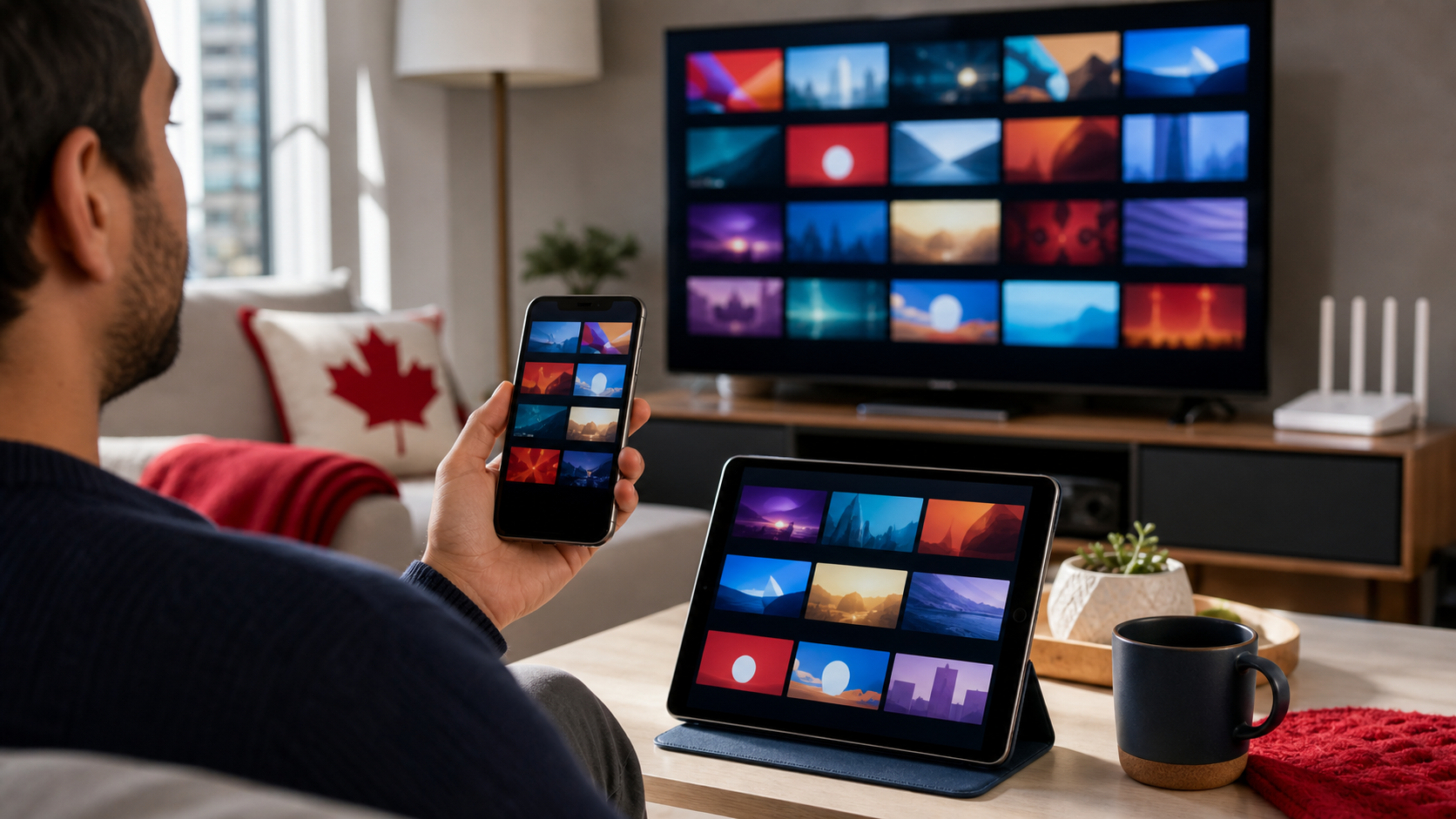
The Quick Way to Use IPTV on iPhone or iPad
You need an up-to-date iPhone or iPad, a stable internet connection, an IPTV player that supports your provider’s login format, and credentials such as an M3U playlist URL or a server address with a username and password. Install the player from the Canadian App Store, add the credentials exactly as issued, allow the playlist to load, and test a few authorized live and on-demand streams.
That distinction helps you troubleshoot the right part of the connection. Changing the player can fix a decoding or interface problem, but it cannot repair an expired account, an unavailable source, or a rights restriction. Use only services, personal media, and streams you are authorized to access.
Privacy warning: do not post, share, or screenshot a playlist URL. It may contain account information inside the link.
How to Choose an IPTV Player for iPhone or iPad
Confirm the format your provider supplies before downloading an app. Look for an M3U URL, a portal or API-style login, and a separate EPG link. Then compare current App Store listings for:
support for the exact login format;
AirPlay or Picture in Picture if those features matter;
EPG, favourites, search, subtitles, and parental controls;
a clear privacy label and understandable in-app purchase terms;
recent compatibility information for your version of iOS or iPadOS.
App availability, prices, and features change. Read the current Canadian App Store listing instead of relying on a tutorial written for an older version. The player should come from the App Store; an unfamiliar configuration profile or pirated app is not a reasonable substitute.
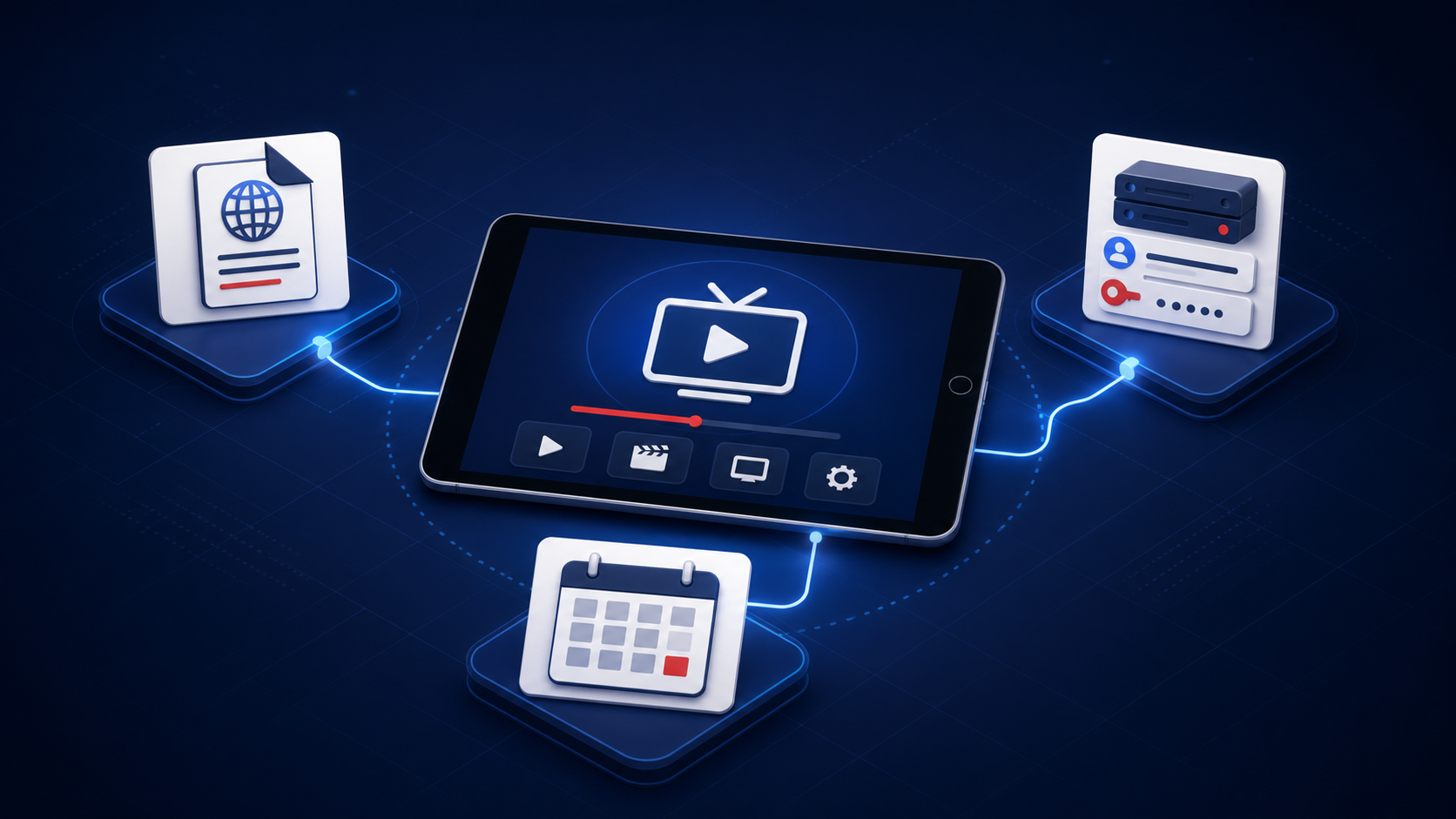
How to Set Up IPTV on iPhone or iPad
The menu labels vary by player, but the underlying process is consistent. You can also compare these steps with the Start IPTV device setup guide.
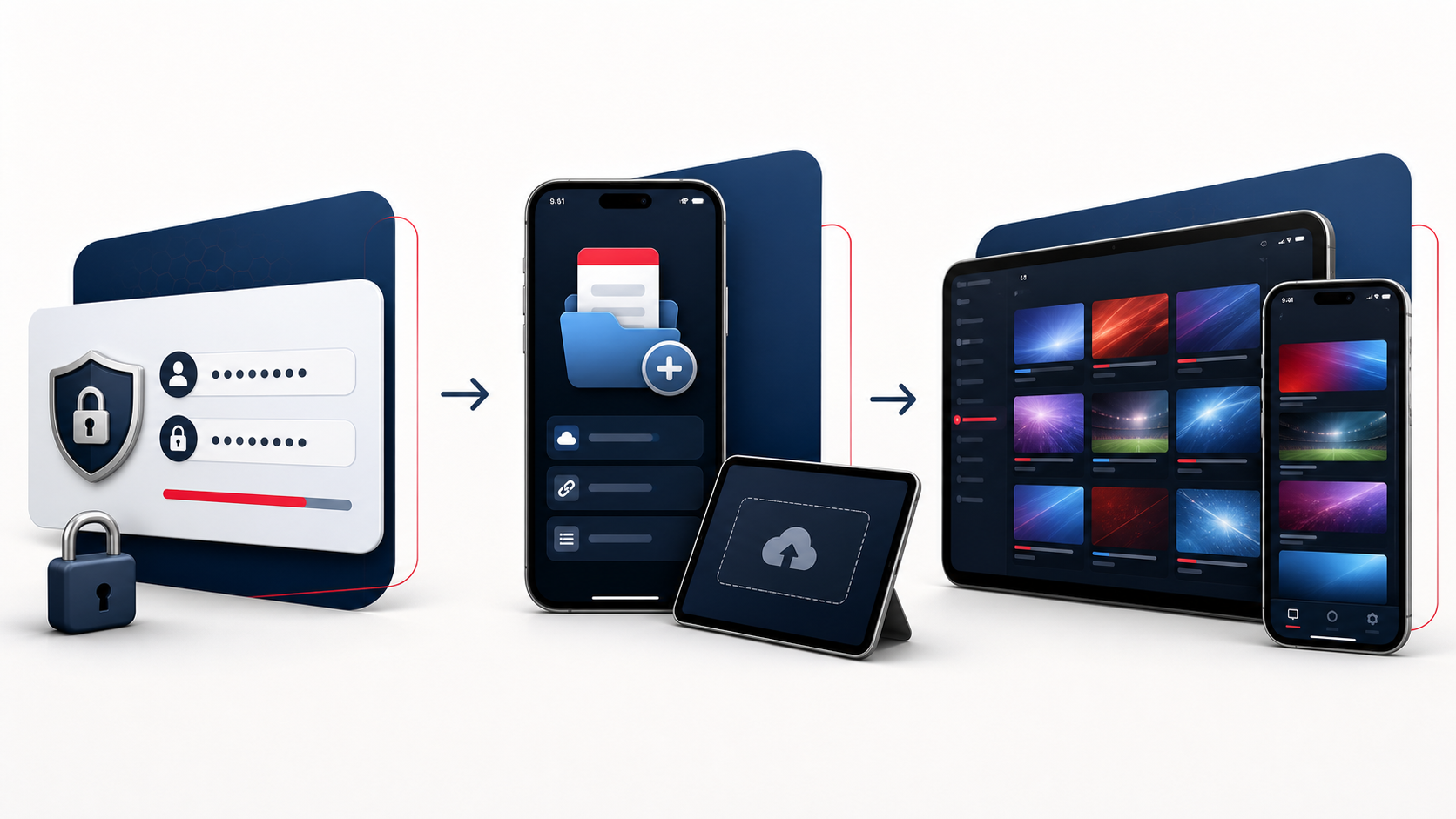
Collect the provider details. Keep the welcome message open on another trusted device or in a password manager. Identify the server address, username and password, or the complete M3U URL. Keep any EPG URL separate.
Install a compatible player. Use the App Store. Review the developer name, privacy information, ratings in context, and any recurring subscription charge.
Add a new playlist or account. Choose the option that matches the details you received: playlist URL for M3U, or account/API login for a server address plus username and password.
Enter the details without editing them. Avoid spaces before or after a URL. Preserve capital letters and punctuation in usernames and passwords.
Name the playlist. A neutral label such as “Home TV” makes multiple authorized sources easier to distinguish without exposing account details.
Let the first sync finish. Large programme guides and on-demand libraries may take time to index. Keep the app open until the first load completes.
Test methodically. Try one live stream, one on-demand item if included, the programme guide, audio, subtitles, and orientation. This separates a general login problem from a single-source problem.
If the credentials fail in more than one compatible player, stop repeatedly editing them and ask the provider to confirm that the account is active and the server address is current.
IPTV on iPhone vs. iPad
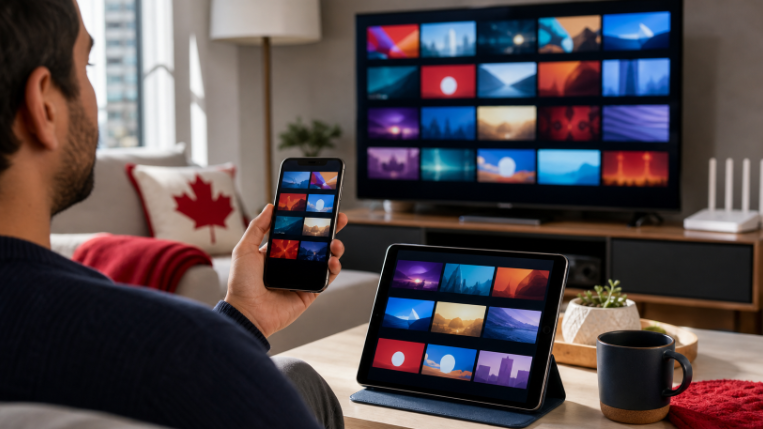
The setup steps are similar, but the better device depends on how and where you watch.
For a long match or film, connect power, reduce unnecessary background activity, and keep the device where Wi-Fi reception is strong. If it becomes hot, lower the screen brightness, move it away from direct sunlight, and consider removing a heavy case temporarily.
How to Cast IPTV from iPhone or iPad to a TV
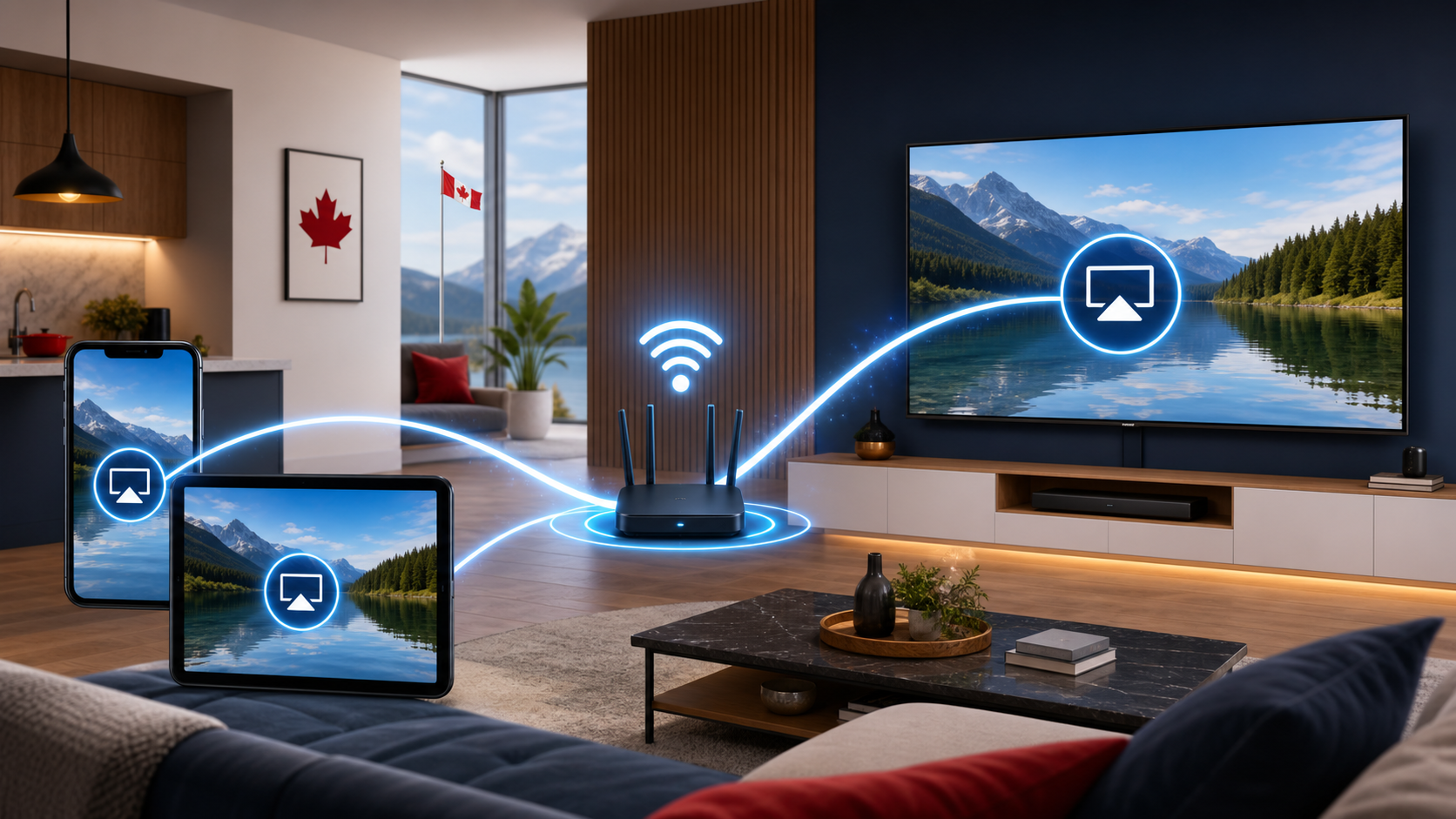
There are two common paths: direct AirPlay from the player or whole-screen mirroring. Direct AirPlay is usually cleaner because the TV receives the playback session while the mobile device remains a controller. Screen Mirroring copies everything on the display, including notifications and orientation changes.
Method 1: Direct AirPlay
Connect the iPhone or iPad and the Apple TV, AirPlay-compatible smart TV, or supported Mac to the same Wi-Fi network.
Start an authorized stream in the player.
Open the playback controls and tap the AirPlay control if the player provides one.
Select the destination and enter the on-screen passcode if asked.
To stop, return playback to the iPhone or iPad from the same control.
Apple notes that some video apps do not support AirPlay. If the control never appears, the player may not expose direct AirPlay for that stream. See Apple’s current AirPlay and Screen Mirroring instructions.
Method 2: Screen Mirroring
Put both devices on the same Wi-Fi network.
Open Control Centre by swiping down from the upper-right corner on current iPhone and iPad models.
Tap Screen Mirroring.
Select the TV or Mac and enter the displayed passcode.
When finished, open Screen Mirroring again and choose Stop Mirroring.
Use Do Not Disturb or a suitable Focus mode before mirroring if private notifications could appear on the television.
Direct AirPlay, Screen Mirroring, or a Native TV App?
Troubleshooting IPTV on iPhone and iPad
Treat troubleshooting as isolation, not guesswork. Change one variable at a time and retest the same stream.
The Playlist Will Not Load
Confirm that the login method matches the credentials. An M3U link belongs in a playlist URL field, while a server address, username, and password belong in separate account fields. Remove accidental spaces, check punctuation, and verify that the subscription is active. If the same details fail in two compatible players, contact the provider instead of continuing to reinstall apps.
Channels Appear but Nothing Plays
Try several authorized streams from different categories. If only one fails, the source may be temporarily unavailable. If every stream fails, force-close and reopen the player, confirm that the account permits a current connection, and test on another network. A player update can also change decoder behaviour.
Buffering or Frequent Pauses
Start close to the router, pause large downloads, and test the same stream again. Then compare Wi-Fi with cellular data if your plan allows it. A speed test can show whether the device has enough headroom, but a high headline result does not rule out packet loss, congestion, or an unstable source.
Restarting the router can clear a temporary problem, but do not reset it to factory defaults. If one stream buffers while others are stable, report the specific channel, time, device, and player to the provider. For a wider checklist, see the Start IPTV guide to fixing IPTV buffering.
Picture Without Sound, or Sound Without Picture
Try another stream first. Then check mute, Bluetooth output, subtitle and audio-track menus, and any hardware-decoding option exposed by the player. If the problem began immediately after an app update, record the app version and contact the developer or provider. Do not install a random configuration profile as a “codec fix.”
The App Freezes or Closes
Update the player and iOS or iPadOS, restart the device, and check free storage. Very large playlists can consume memory while indexing artwork and EPG data. Remove unused playlists or reduce optional guide data when the player offers that control. Reinstall only after you have securely saved the credentials.
The AirPlay Destination Does Not Appear
Confirm that both devices are on the same local network rather than separate guest and main networks. Turn Wi-Fi off and on, wake the TV, and verify that AirPlay is enabled on the receiver. If a VPN or security app is active, disconnect it briefly for a diagnostic test. Do not use a VPN to bypass rights or regional restrictions.
Casting Connects, Then Disconnects
Test direct AirPlay and Screen Mirroring separately. Move the mobile device and receiver closer to the router, reduce competing traffic, and prevent the iPhone or iPad from entering a low-power state during the test. If only one player disconnects, the problem is more likely app-specific.
The EPG Shows the Wrong Time
Set Date & Time to automatic, verify the device region and time zone, then refresh the guide. Some players also provide an EPG time offset. Use that only after the device clock is correct; otherwise the guide may shift again when daylight-saving rules change.
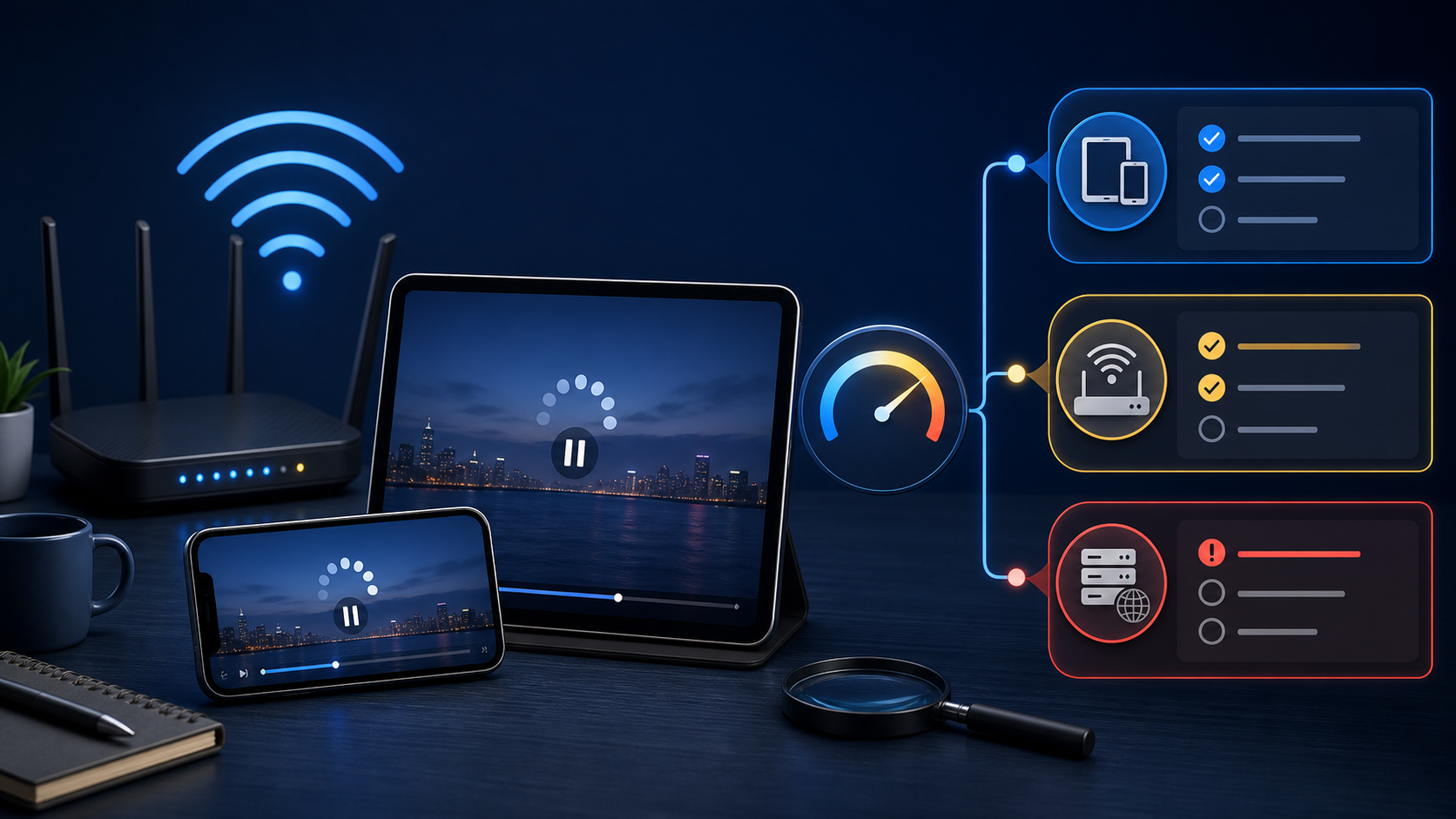
A Fast Diagnostic Order
Test a second stream.
Confirm the account is active and only the permitted number of streams is in use.
Recheck the login format and credentials.
Restart the player, then the iPhone or iPad.
Compare Wi-Fi with cellular or another trusted network.
Test a second compatible player.
For casting, verify the same Wi-Fi network and compare direct AirPlay with mirroring.
Contact support with the time, device model, iOS or iPadOS version, player name and version, and affected stream.
Never include the full password or playlist URL in a public post or support screenshot.
Security, Privacy, and Canadian Viewing Rights
Install players from the App Store, apply current operating-system releases, and refuse instructions that require unknown device-management profiles, pirated apps, or shared logins. Review subscription terms, renewal rules, payment methods, privacy information, support details, and the refund process before paying. Keep receipts and cancellation correspondence.
Canadian rules require a careful distinction. The CRTC explains online content and distribution rights, including that internet streaming services do not necessarily need a CRTC licence. That does not prove that any particular playlist is authorized. The Canadian Intellectual Property Office explains copyright infringement and notes that only a court can decide a specific case.
Use a provider only for content it is authorized to supply in your region. Avoid offers that promise every premium channel for an implausibly low price, hide their terms, pressure you to pay quickly, or require unusual installation workarounds. The Competition Bureau’s subscription-trap guidance advises consumers to understand trial and cancellation terms and keep transaction records. The site’s own guide to common IPTV scams in Canada offers more warning signs.
Where startiptv.ca Fits into the Setup
startiptv.ca presents itself as the content-service side of the setup, while the iPhone or iPad player remains a separate app. Its website provides current plan information, a service FAQ, a setup guide, a refund policy, and contact options. Review those pages before ordering because pricing, trial length, included connections, app recommendations, and support procedures can change.
If you receive account details from Start IPTV, match them to a compatible App Store player and keep them private. Use the service only for content available to you under the applicable rights and subscription terms. For a problem that follows the account across multiple players and networks, use the site’s support channel rather than repeatedly changing device settings.
Before checkout, also read the current terms and conditions and privacy policy.
Final IPTV on iPhone Setup Checklist
I installed the player from the App Store.
The player supports my provider’s exact login format.
I used authorized credentials and kept them private.
At least two streams and the EPG were tested.
The device and TV are on the same Wi-Fi network for AirPlay.
I compared direct AirPlay with Screen Mirroring.
I changed only one troubleshooting variable at a time.
I reviewed pricing, renewal, privacy, refund, and support terms.
Frequently Asked Questions
Bottom Line
A reliable IPTV on iPhone setup comes from matching the player to the provider’s credential format, testing the stream before changing network settings, and using direct AirPlay or Screen Mirroring according to what the app supports. Keep credentials private, review the current terms, and use only content you are authorized to access.